• ×
    Information
    Need Windows 11 help?
    Check documents on compatibility, FAQs, upgrade information and available fixes.
    Windows 11 Support Center.
  • post a message
  • ×
    Information
    Need Windows 11 help?
    Check documents on compatibility, FAQs, upgrade information and available fixes.
    Windows 11 Support Center.
  • post a message
Guidelines
Join the HP Community Solve‑a‑thon | Help Others & Share Your Solutions | Live on Zoom | 2:30 PM to 2:30 AM IST | Every Wednesday Click here to know more
Archived This topic has been archived. Information and links in this thread may no longer be available or relevant. If you have a question create a new topic by clicking here and select the appropriate board.

HP Recommended
hp5745
Mac OS X 10.9 Mavericks

Nothing is printing on a 4 x 6 paper.  I have used the photo tray and the main tray. 

1 REPLY 1
HP Recommended

Hi,

Thanks for using the HP Forums.


You can watch the video on how to do this or check out the self help document (steps reproduced below)


https://goo.gl/EjBk2v


Do check out this self help document:


https://support.hp.com/rs-en/document/c04390954


Step 1: Load photo paper in the photo tray

Follow these steps to load photo paper in the photo paper tray.
  1. Turn the printer on if it is not already on.
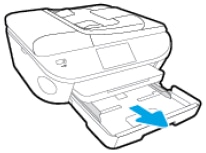
  2. Pull the photo tray inside the input tray toward you to open it as far as possible.
      NOTE:
    If you do not see the photo tray inside the input tray, remove the output tray, and then open the photo tray.
    Figure : Pull out the photo tray inside the input tray
    Image: Pull out the photo tray inside the input tray
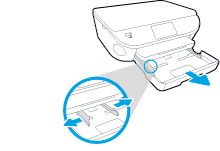
  3. Slide the paper width guides to their outermost positions.
    Figure : Slide the paper-width guides to their outermost positions
    Image: Slide the paper-width guides to their outermost positions
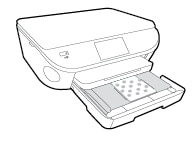
  4. Load the photo paper with the short edge forward and the print side down into the photo tray.
      NOTE:
    For photo paper with a perforated tab, load the paper in the tray print-side down with the perforated tab closest to you.
    Figure : Load photo paper in the paper tray with the print side down
    Image: Load photo paper in the paper tray with the print side down
  5. Slide the paper forward until it stops.
      NOTE:
    Make sure that the stack of photo paper is not higher than the top edges of the paper width guides.
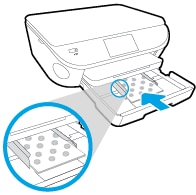
  6. Slide the paper width guides inward so that they lightly rest against the edges of the photo paper and make sure that the photo paper is centered in the tray.
    Figure : Adjust the paper-width guides
    Image: Adjust the paper-width guides
  7. Reinstall the output tray on the input tray, if you removed it, and then push the input tray into the printer until it locks into place.
Step 2: Adjust the print settings, and then print the photo
Follow these steps to set the print settings, such as paper size, borderless printing, paper type, color, and layout, for your print job.
  1. Open the photo that you want to print.
  2. Click File, and then click Print.
  3. Make sure that your printer is selected. If you do not see options on the Print dialog box, click Show Details.
  4. Select the desired options for the print job:
    • Presets: Select the appropriate presets from the drop-down menu.
    • Paper Size: Select the appropriate paper size in the pop-up menu. If you want to print borderless photos, highlight the Paper Size, and then select Borderless.
        NOTE:
      If you change the Paper Size, make sure that you have loaded the correct paper, and set the Paper Size on the printer control panel to match.
    • Orientation: Select the desired orientation (portrait or landscape).
    • Borderless: Select On to remove the border or Off to apply the border to your photo.
    • Media & Quality: The Media & Quality settings are selected automatically based on the selected presets. You can change the following settings to fit your print job:
      • Feed from: Select Main Tray or Photo Tray
      • Paper Type: Select the appropriate paper type from the options. Photo Fix option.
      • Quality: Select the appropriate quality level from the options.
  5. Once you have selected the desired print settings, click Print.
  6. After the printing is finished, remove unused photo paper from the paper tray. Store the photo paper so it does not start to curl. Curling paper could reduce the quality of your printout.


I am an HP Employee. Although I am speaking for myself and not for HP.
Click Helpful = Yes to say Thank You.
Question / Concern Answered, Click "Accept as Solution"
Archived This topic has been archived. Information and links in this thread may no longer be available or relevant. If you have a question create a new topic by clicking here and select the appropriate board.
† The opinions expressed above are the personal opinions of the authors, not of HP. By using this site, you accept the <a href="https://www8.hp.com/us/en/terms-of-use.html" class="udrlinesmall">Terms of Use</a> and <a href="/t5/custom/page/page-id/hp.rulespage" class="udrlinesmall"> Rules of Participation</a>.