• ×
    Information
    Need Windows 11 help?
    Check documents on compatibility, FAQs, upgrade information and available fixes.
    Windows 11 Support Center.
  • post a message
  • ×
    Information
    Need Windows 11 help?
    Check documents on compatibility, FAQs, upgrade information and available fixes.
    Windows 11 Support Center.
  • post a message
Guidelines
Join the HP Community Solve‑a‑thon | Help Others & Share Your Solutions | Live on Zoom | 2:30 PM to 2:30 AM IST | Every Wednesday Click here to know more
Archived This topic has been archived. Information and links in this thread may no longer be available or relevant. If you have a question create a new topic by clicking here and select the appropriate board.

HP Recommended
HP Officejet Pro 8610
Microsoft Windows 10 (64-bit)

I am trying to setup scan to network folder but it keeps giving the error that it's unable to connect to the printer even though it is connected and can print fine. We also have an 8710 and I am able to scan to network folder from that printer just fine. I recently upgraded from a Win7 machine to this Win10 v1903 machine and this is when the problems started. Is the 8610 just not compatible with Windows 10? 


Things I've tried so far: 

  • Enabled SMB 1.0
  • Ran HP Print and Scan Doctor
  • Reinstalled the drivers to the latest software
  • Tried multiple profile settings
  • Gave computer static IP address
  • Created computer profile just for a scanning profile
  • Shared the folder and gave full control permissions to Everyone, %username% and the Scans profile
  • Tried making it directly on 'C' and within Documents as well
  • Tried with security pin and without security pin
1 REPLY 1
HP Recommended

@bradshawk 


Not sure.

I can give you some places to double-check...


Try / Consider:


  • Assign a Static IP to the printer (related to EWS > Network setup / configuration)
  • If you have not done so, download-save-install the Full Feature Software > Afterwards, Restart the computer and log in
  • Use the Embedded Web Server (EWS) to set up / edit / test Scan to Network
  • Check the EWS > Network configurations for iPv4 for both Wired and Wireless
  • Consider creating a TCP/IP port
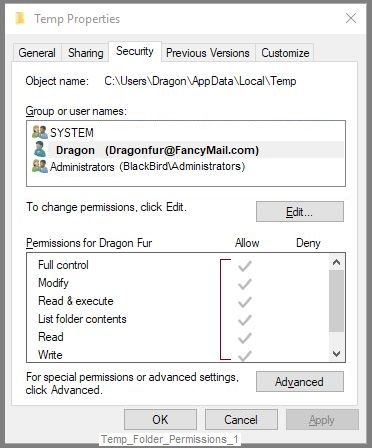
  • Check the Temp folder permissions on the computer
  • EWS > Settings > Security > Administrator Settings > Check / enable Webscan > Apply


Open your favorite browser > type / enter Printer IP address into URL / Address bar

Tab Scan > Scan to Network Folder > Network Folder Setup


If you already have a Profile, edit / test the setup, else create your path / profile

Consider using the IP address to the network folder


Example - Officejet Pro 9025 - Scan to Network Folder

9025_EWS_Scan-to-Network-Folder_1.JPG


____________________________________________________________________

EWS > Tab Network > Wired (802.3) and Wireless (802.11)

Check your IPv4 Settings

____________________________________________________________________

This next may not be related - it is easy to do (and to "undo")...

If you have installation, offline, or port issues, Create a TCP/IP port


Example:

  1. How-to “Create TCP Port” Contributed by greenturtle

Create TCP IP port

1. Print a Configuration Page to get the printer's IPv4 address (you can also tap on the wireless icon on the Front panel of your Printer to get the IP address)
2. On your PC, go to Control Panel, from Devices and Printers, right click the printer and left click Printer Properties, select the Ports tab.
3. Click Add Port, select Standard TCP/IP Port, then select New Port and follow the wizard.
4. Type in the proper IP address for the printer.

This video resource will show you how to do it:
Create & Use TCP IP port

Note that you can ALWAYS revert back to the original port that the HP software installed by selecting the HP port under the Ports tab (in Printer Properties)


____________________________________________________________________

All else being equal, that is, other solutions already checked / applied:

  • Temp folder requires full permissions, including Read / Write, for current user
  • Check / add / edit permissions for user (current login) on Temp folders


C:\Windows\Temp

C:\Users\AccountName\AppData\Local\Temp


Temp_Folder_Permissions_1.JPG


Reference and Resources – Places to find (more) help and learn about your Printer

Clarification of terms or "what the printer can do" (Specifications)

Additional "How-to" procedures

Search for additional solutions...

Printer Homepage – “Things that are your printer”

NOTE:  Content depends on device type and Operating System

HP Drivers / Software / Firmware Updates, How-to Videos, Bulletins/Notices, Lots of How-to Documents, Troubleshooting, Access to the Print and Scan Doctor (Windows), User Guides, Product Information, more

HP Officejet Pro 8610 e-All-in-One Printer series


Thank you for participating in the HP Community Forum.

We are a world community of HP enthusiasts dedicated to supporting HP technology.

Click Thumbs Up on a post to say Thank You!

Answered? Select the relevant post "Accept as Solution" to help others find it.


Dragon-Fur

Archived This topic has been archived. Information and links in this thread may no longer be available or relevant. If you have a question create a new topic by clicking here and select the appropriate board.
† The opinions expressed above are the personal opinions of the authors, not of HP. By using this site, you accept the <a href="https://www8.hp.com/us/en/terms-of-use.html" class="udrlinesmall">Terms of Use</a> and <a href="/t5/custom/page/page-id/hp.rulespage" class="udrlinesmall"> Rules of Participation</a>.