-
×InformationNeed Windows 11 help?Check documents on compatibility, FAQs, upgrade information and available fixes.
Windows 11 Support Center. -

-
×InformationNeed Windows 11 help?Check documents on compatibility, FAQs, upgrade information and available fixes.
Windows 11 Support Center. -
- HP Community
- Archived Topics
- Printers Archive
- Scanner not connecting to computer

Create an account on the HP Community to personalize your profile and ask a question
03-27-2017 04:19 PM
My scanner frequently loses connection to my computer. I have to power them off/on several times then sometimes they connect, sometimes they don't. I tried the HP Doctor program and that didn't work. It also frequently goes to sleep then doesn't wake again until being unplugged and plugged back it. Any suggestions? Thank you.
03-28-2017 03:17 PM
Thanks for reaching out to us on HP Support Forums. 🙂 I came across your post and would like to help.
I understand that you have an HP ENVY 7640 e-All-in-One Printer and it frequently loses connection to your computer. You have to restart the printer several times to make it connect to the network. Also, the printer does not wake up from the sleep mode. I read that you have tried running the HP Print and Scan Doctor program and the issue still persists. I appreciate the steps you have performed and have certainly done a good job.
I would like to know the following information to assist you better:
- Did any changes or updates happen after which the printer started to lose the network connection?
- Does the printing and scanning work fine once the printer is ready?
Meanwhile, I recommend you to perform the following steps to isolate the issue and arrive at a fix:
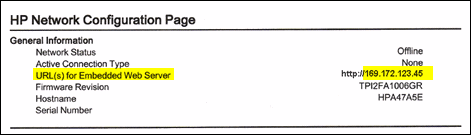
- Locate the printer's IP address when it is connected to the network. Know how to find the IP address, please print a network configuration page and the IP address will be printed on it.
- If the URL for the EWS is http://0.0.0.0, the printer is not connected to a wireless network. Reconnect your printer to the wireless network, and then print a new Network Configuration Page. Make sure the report shows the status as Connected. If the wireless connection drops, continue troubleshooting.
Figure : Locating the URL(s) for Embedded Web Server address

-
On your computer, open an Internet browser.
-
Type the URL address for the EWS in the browser address bar, and then press Enter.
NOTE: Make sure to type the IP address into the Internet browser's address box. If typed into a toolbar search box or search engine, the EWS does not open.
-
If a website security certificate displays in the Internet browser, click Continue.
The EWS webpage for the printer opens, which confirms that the printer is on the same network as the computer.
-
On the EWS webpage, click the Network tab.
-
Go to "Network" tab - General - Select "Network protocols" - Select "Enable IPv4 only" (or similar) - Apply the settings.
-
In the Wireless section, click Wireless (802.11), and then click Manual IP.
-
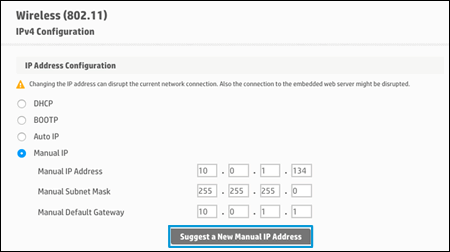
If a Suggest a Manual IP Address option is available, click it, click Apply, and then reconnect your printer. If the wireless connection drops, continue to the next step.
-
If a Suggest a Manual IP Address option is not available, continue troubleshooting.
-
Figure : Clicking Suggest a Manual IP Address

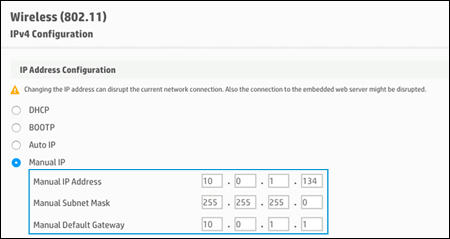
- On the Network Configuration Page, locate the IP Address, Subnet Mask, and Default Gateway.
Figure : Example of the IP Address, Subnet Mask, and Default Gateway

- On the EWS webpage, type the IP Address, Subnet Mask, and Default Gateway numbers from the Network Configuration Page in the matching fields, and then click Apply. If the wireless connection drops, continue to the next step.
Figure : Typing the IP Address, Subnet Mask, and Default Gateway numbers

I sincerely hope this fixes the issue. Keep me posted. Cheers! 🙂