• ×
    Information
    Need Windows 11 help?
    Check documents on compatibility, FAQs, upgrade information and available fixes.
    Windows 11 Support Center.
  • post a message
  • ×
    Information
    Need Windows 11 help?
    Check documents on compatibility, FAQs, upgrade information and available fixes.
    Windows 11 Support Center.
  • post a message
Guidelines
Join the HP Community Solve‑a‑thon | Help Others & Share Your Solutions | Live on Zoom | 2:30 PM to 2:30 AM IST | Every Wednesday Click here to know more
Archived This topic has been archived. Information and links in this thread may no longer be available or relevant. If you have a question create a new topic by clicking here and select the appropriate board.

HP Recommended
Envy 7640
Mac OS X 10.11 El Capitan

My scanner frequently loses connection to my computer. I have to power them off/on several times then sometimes they connect, sometimes they don't. I tried the HP Doctor program and that didn't work. It also frequently goes to sleep then doesn't wake again until being unplugged and plugged back it.  Any suggestions?  Thank you. 

1 REPLY 1
HP Recommended

@nyc003

Thanks for reaching out to us on HP Support Forums. 🙂 I came across your post and would like to help.

I understand that you have an HP ENVY 7640 e-All-in-One Printer and it frequently loses connection to your computer. You have to restart the printer several times to make it connect to the network. Also, the printer does not wake up from the sleep mode. I read that you have tried running the HP Print and Scan Doctor program and the issue still persists. I appreciate the steps you have performed and have certainly done a good job.

I would like to know the following information to assist you better:

  • Did any changes or updates happen after which the printer started to lose the network connection?
  • Does the printing and scanning work fine once the printer is ready?

Meanwhile, I recommend you to perform the following steps to isolate the issue and arrive at a fix: 

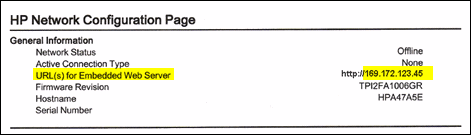
  • Locate the printer's IP address when it is connected to the network. Know how to find the IP address, please print a network configuration page and the IP address will be printed on it.

  • If the URL for the EWS is http://0.0.0.0, the printer is not connected to a wireless network. Reconnect your printer to the wireless network, and then print a new Network Configuration Page. Make sure the report shows the status as Connected. If the wireless connection drops, continue troubleshooting.

Figure : Locating the URL(s) for Embedded Web Server address

Locating the URL(s) for Embedded Web Server address

  • On your computer, open an Internet browser.

  • Type the URL address for the EWS in the browser address bar, and then press Enter.

NOTE: Make sure to type the IP address into the Internet browser's address box. If typed into a toolbar search box or search engine, the EWS does not open.

  • If a website security certificate displays in the Internet browser, click Continue.

    The EWS webpage for the printer opens, which confirms that the printer is on the same network as the computer.

  • On the EWS webpage, click the Network tab. 

  • Go to "Network" tab - General - Select "Network protocols" - Select "Enable IPv4 only" (or similar) - Apply the settings.

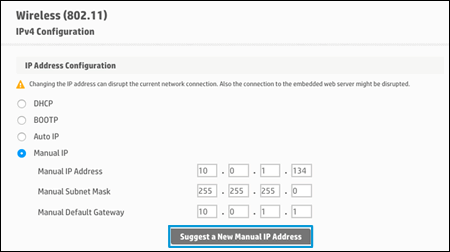
  • In the Wireless section, click Wireless (802.11), and then click Manual IP.

    • If a Suggest a Manual IP Address option is available, click it, click Apply, and then reconnect your printer. If the wireless connection drops, continue to the next step.

    • If a Suggest a Manual IP Address option is not available, continue troubleshooting.

Figure : Clicking Suggest a Manual IP Address

Clicking Suggest a Manual IP Address

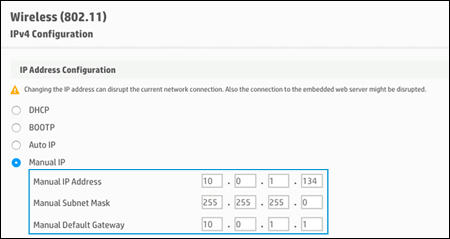
  • On the Network Configuration Page, locate the IP AddressSubnet Mask, and Default Gateway.

Figure : Example of the IP Address, Subnet Mask, and Default Gateway

Example of the IP Address, Subnet Mask, and Default Gateway

  • On the EWS webpage, type the IP Address, Subnet Mask, and Default Gateway numbers from the Network Configuration Page in the matching fields, and then click Apply. If the wireless connection drops, continue to the next step.

Figure : Typing the IP Address, Subnet Mask, and Default Gateway numbers

Typing the IP Address, Subnet Mask, and Default Gateway numbers

I sincerely hope this fixes the issue. Keep me posted. Cheers! 🙂

Archived This topic has been archived. Information and links in this thread may no longer be available or relevant. If you have a question create a new topic by clicking here and select the appropriate board.
† The opinions expressed above are the personal opinions of the authors, not of HP. By using this site, you accept the <a href="https://www8.hp.com/us/en/terms-of-use.html" class="udrlinesmall">Terms of Use</a> and <a href="/t5/custom/page/page-id/hp.rulespage" class="udrlinesmall"> Rules of Participation</a>.