
-
×InformationNeed Windows 11 help?Check documents on compatibility, FAQs, upgrade information and available fixes.
Windows 11 Support Center. -
-
×InformationNeed Windows 11 help?Check documents on compatibility, FAQs, upgrade information and available fixes.
Windows 11 Support Center. -
- HP Community
- Archived Topics
- Printers Archive
- Re: Sprocket stopped working

Create an account on the HP Community to personalize your profile and ask a question
Your account also allows you to connect with HP support faster, access a personal dashboard to manage all of your devices in one place, view warranty information, case status and more.
 This topic has been archived. Information and links in this thread may no longer be available or relevant. If you have a question create a new topic by clicking here and select the appropriate board.

03-22-2017 04:28 PM
 HP Recommended
Product: HP Sprocket
Operating System: iOS
I recently bought a sprocket. It took me a good half an hour to connect it to my iPhone 7, eventually it managed it and I got my photo.
I've tried again tonight and the Bluetooth connects and pairs with the sprocket, the white light flashes but then the red light flashes about 10 times and no photo. I have reset the sprocket, I have put the calibration paper back underneath. Nothing on your troubleshooting page works.
Help!!
Kind regards
I've tried again tonight and the Bluetooth connects and pairs with the sprocket, the white light flashes but then the red light flashes about 10 times and no photo. I have reset the sprocket, I have put the calibration paper back underneath. Nothing on your troubleshooting page works.
Help!!
Kind regards
5 REPLIES 5


03-22-2017 06:09 PM
HP Recommended
Hi,
Thanks for using the HP Forums.
Have you charged the Sprocket?
You check out this link for Sprocket related setup, charging and reset:
Hope that helps!
I am an HP Employee. Although I am speaking for myself and not for HP.
Click Helpful = Yes to say Thank You.
Question / Concern Answered, Click "Accept as Solution"

Click Helpful = Yes to say Thank You.
Question / Concern Answered, Click "Accept as Solution"

03-23-2017 12:56 AM
HP Recommended
Hi,
Please reset device by following instruction to solve connection problem:
HP Sprocket Photo Printers - Cannot Connect and Printer Does Not Power Off
This document is for HP Sprocket Photo Printers, and the HP Sprocket app for Android and Apple mobile devices.
If you cannot connect your printer to your mobile device and it does not turn off when you press the power button, reset the printer with a straight pin to clear any errors.
- Locate the reset button near the charging port.Figure : Locating the reset button
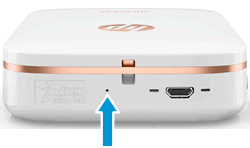
- Gently insert a straight pin into the reset button access point, and then press the reset button for 3 seconds.The printer resets and turns off.
- Press and hold the power button until the Status Indicator light is solid and white.The printer is now ready to print.
You can also refer following support document.
Thanks,
ExpertOne
Although I am an HP employee, I am speaking for myself and not for HP.
*Say thanks by clicking the "Kudos!" which is on the left. Make it easier for other people to find solutions, by marking my answer with "Accept as Solution" if it solves your issue
Although I am an HP employee, I am speaking for myself and not for HP.
*Say thanks by clicking the "Kudos!" which is on the left. Make it easier for other people to find solutions, by marking my answer with "Accept as Solution" if it solves your issue
03-30-2017 06:17 PM
HP Recommended
Hello @Geekchick -
Are you using HP brand ZINK paper? If not, when you scan a 3rd party smartsheet (e.g: Polaroid) you'll get an error on the printer and your photo won't come out. You'll have to resend it without that smartsheet installed.
Additionally, you may want to make sure you have the very latest/greatest firmware installed. I know you mentioned updating, but it's possible you only received the 1st part of a 2-part update. Here are the instructions:
- First, make sure the Sprocket is charged to at least 75% battery and powered on.
- Ensure the Sprocket is paired to your mobile device.
- On your mobile device, open the HP Sprocket app and go to menu -> sprocket -> Printers; A ‘blue’ firmware update link will be present or a pop-up message will appear if an update is available.
- After clicking the link or upgrade prompt, follow onscreen process/instructions.
Thanks!
***I am an HP employee***
The comments above represent myself and do not reflect the opinions of HP.
If my post solved your issue, please click "Accepted Solution" on the post . To show appreciation for my help, please click the "Thumbs Up Icon" below! Thank you 🙂
The comments above represent myself and do not reflect the opinions of HP.
If my post solved your issue, please click "Accepted Solution" on the post . To show appreciation for my help, please click the "Thumbs Up Icon" below! Thank you 🙂
This topic has been archived. Information and links in this thread may no longer be available or relevant. If you have a question create a new topic by clicking here and select the appropriate board.
† The opinions expressed above are the personal opinions of the authors, not of HP. By using this site, you accept the Terms of Use and Rules of Participation.


Didn't find what you were looking for?
Ask the community
† The opinions expressed above are the personal opinions of the authors, not of HP. By using this site, you accept the <a href="https://www8.hp.com/us/en/terms-of-use.html" class="udrlinesmall">Terms of Use</a> and <a href="/t5/custom/page/page-id/hp.rulespage" class="udrlinesmall"> Rules of Participation</a>.