
-
×InformationNeed Windows 11 help?Check documents on compatibility, FAQs, upgrade information and available fixes.
Windows 11 Support Center. -
-
×InformationNeed Windows 11 help?Check documents on compatibility, FAQs, upgrade information and available fixes.
Windows 11 Support Center. -
- HP Community
- Archived Topics
- Printers Archive
- Re: irregular printing

Create an account on the HP Community to personalize your profile and ask a question
Your account also allows you to connect with HP support faster, access a personal dashboard to manage all of your devices in one place, view warranty information, case status and more.
 This topic has been archived. Information and links in this thread may no longer be available or relevant. If you have a question create a new topic by clicking here and select the appropriate board.

03-27-2017 12:40 PM
 HP Recommended
Product: Photosmart 5520
Operating System: Microsoft Windows 10 (64-bit)
I want a B&W printout of a specific doc but printout shows several clear lines, then remaining page of blurred lines. Innk cartridges are full, and I cleaned & realigned printerheads multiple times. I also phoned HP Support, and downloaded/followed HP Printer Dr. without successful result. With same setup I successfully printed two other docs. I tried changing font and font size of the problem doc but continue to get blurred lines.
7 REPLIES 7


03-27-2017 08:21 PM
HP Recommended
The troubleshooting steps in the document here may help resolve the issues with printing black on your Photosmart 5520. For the document that is a problem do the defects show up consistently if you reprint the page?
Does the test pattern in Step 7 print properly?
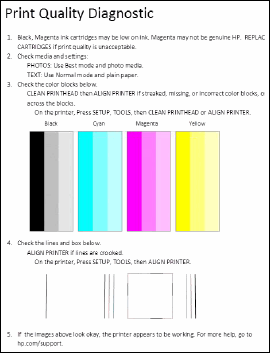
Print a Print Quality Diagnostic report, and then evaluate the results.
- Load plain, white paper in the tray.
- From the control panel home screen, touch the Settings icon
 .
. - Touch Tools, and then touch Print Quality Report.The printer prints the Print Quality Diagnostic report.Figure : Example of a Print Quality Diagnostic report with no defects
Bob Headrick, HP Expert
I am not an employee of HP, I am a volunteer posting here on my own time.
If your problem is solved please click the "Accept as Solution" button
If my answer was helpful please click "Yes" to the "Was this post helpful" question.
03-28-2017 09:26 AM
HP Recommended
I did the Troubleshooting steps of cleaning and realigning the printerheads several times. The print diagnostic page comes out clear except for the black ink. On the black ink sample there are two narrow horizontal "fingers" of white that go from right to left about 1/2 way across the graphic. The "fingers" are a bit less than 1 printed line wide. With repeated printouts of the diagnostic page the size of the fingers may change slightly but are still there. I have reprinted my problem document 10-15 times with no improvement.
03-28-2017 09:59 AM
HP Recommended
Could you scan the part of the diagnostic page that shows the defect and then post it here?
Save the scan to your computer, then attach it to your post here using the Insert/Edit Picture icon int he toolbar above, two spaces to the right of the gray smiley face.
Bob Headrick, HP Expert
I am not an employee of HP, I am a volunteer posting here on my own time.
If your problem is solved please click the "Accept as Solution" button
If my answer was helpful please click "Yes" to the "Was this post helpful" question.
03-28-2017 11:35 AM
HP Recommended
There are a few alternatives to try:
- Open the pdf file on your computer screen. Zoom in to the part of the page with the defect showing, then press and hold the Alt key and then press the prt-sc button. This will take a screen capture. Noew open Paint and press control-V to past the screen image. Now use the "select" tool to select the part of the image you want, then Crop the image. Use Save As to save the image in jpg or png format, then upload the image here.
- Alternately, use the Attachments, Choose File dialog just below the reply box and upload the pdf file, or if the pdf format is not allowed there compress the file to a zip file and upload the zip file.
Bob Headrick, HP Expert
I am not an employee of HP, I am a volunteer posting here on my own time.
If your problem is solved please click the "Accept as Solution" button
If my answer was helpful please click "Yes" to the "Was this post helpful" question.
03-28-2017 01:00 PM
HP Recommended
Thanks for your patient attempts to help! I tried zipping and uploading but got a file error, and I don't see any Attachments option. I also cannot copy/paste or otherwise edit PDF with my low-level software. I have successfully done some other printouts, so possibly it's just the one doc and I should give it up with that one.
03-28-2017 01:35 PM
HP Recommended
The normal PDF reader programs do not allow editing or copying, but the alt-prt screen sequence will take a copy of the screen which can then be pasted into Paint. From Paint you can save the file in a jpg or png file type that could be uploaded here with the insert/edit picture icon.
Bob Headrick, HP Expert
I am not an employee of HP, I am a volunteer posting here on my own time.
If your problem is solved please click the "Accept as Solution" button
If my answer was helpful please click "Yes" to the "Was this post helpful" question.
This topic has been archived. Information and links in this thread may no longer be available or relevant. If you have a question create a new topic by clicking here and select the appropriate board.
† The opinions expressed above are the personal opinions of the authors, not of HP. By using this site, you accept the Terms of Use and Rules of Participation.


Didn't find what you were looking for?
Ask the community
† The opinions expressed above are the personal opinions of the authors, not of HP. By using this site, you accept the <a href="https://www8.hp.com/us/en/terms-of-use.html" class="udrlinesmall">Terms of Use</a> and <a href="/t5/custom/page/page-id/hp.rulespage" class="udrlinesmall"> Rules of Participation</a>.