• ×
    Information
    Need Windows 11 help?
    Check documents on compatibility, FAQs, upgrade information and available fixes.
    Windows 11 Support Center.
  • post a message
  • ×
    Information
    Need Windows 11 help?
    Check documents on compatibility, FAQs, upgrade information and available fixes.
    Windows 11 Support Center.
  • post a message
Guidelines
Join the HP Community Solve‑a‑thon | Help Others & Share Your Solutions | Live on Zoom | 2:30 PM to 2:30 AM IST | Every Wednesday Click here to know more
Common problems HP Solution Center not working : Adobe Flash Player Error and Unable to scan
We would like to share some of the most frequently asked questions about HP Solution Center not working : Adobe Flash Player Error and Unable to Scan.
HP Recommended
Dell
Microsoft Windows 10 (64-bit)

Main problem is that I am unable to scan documents into PDF.  Tried reinstalling SW but am unable to connect to my network.  “Unsuccessful network installation”. 


Help

1 REPLY 1
HP Recommended

@Carloada

Thank you for joining HP Forums.

It's a pleasure assisting you in finding answers to your technical queries.


To provide you with an accurate solution, I'll need a few more details:

Are the printer and the computer is connected to the same network?


Restore the printer to the original network settings


1. From the printer control panel, touch and slide your finger across the screen, touch Setup, and then touch Network Setup.

2. Touch Restore Network Defaults, and then touch Yes. A message appears stating that the network defaults have been restored.

3. Touch OK.

4. Print the network configuration page and verify that the network settings have been reset.


Use the Wireless Setup Wizard from the printer control panel display to set up wireless communication.


1. From the printer control panel display, touch and slide your finger across the screen and then touch Setup.

2. Touch Network Setup.

3. Touch Wireless Settings.

4. Touch Wireless Setup Wizard.

5. Follow the display instructions to complete the setup.


If the issue persists, Download and run HP Print and Scan Doctor


Install HP Print and Scan Doctor on the computer connected to your printer.

  1. Make sure your printer is turned on and connected to the computer.

  2. Download HP Print and Scan Doctor, and then follow the on-screen prompts to install and open the tool.

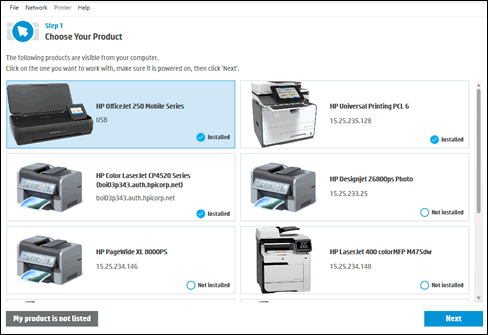
  3. On the Welcome screen, click Start to view a list of available printers.

  4. Select your printer in the list, and then click Next.

    If your printer is not listed or a connection problem is detected, click My product is not listed or select your connection type, follow the on-screen instructions, and then click Retry.

    Example of a list of available printers

  5. Click either Fix Printing or Fix Scanning.

    If you are prompted to install the printer software, follow the on-screen instructions. The software can resolve many printer issues.

    Example of a list of available printers

  6. Review the list of test results, and then resolve any issues found.

    • If you see a checkmark, the printer passed the test.

    • If you see a wrench, HP Print and Scan Doctor found an issue and repaired it.

    • If you see an exclamation point, the test failed and required user action, but the step was skipped.

    • If you see an X, follow the on-screen instructions to resolve the issue.

    Example of the results screen with a problem detected


Keep me posted, how it goes!

If the information I've provided was helpful, give us some reinforcement by clicking the Accepted Solution and Kudos buttons, that'll help us and others see that we've got the answers!

Have a great day!

Cheers:)

Raj1788
I am an HP Employee 

† The opinions expressed above are the personal opinions of the authors, not of HP. By using this site, you accept the <a href="https://www8.hp.com/us/en/terms-of-use.html" class="udrlinesmall">Terms of Use</a> and <a href="/t5/custom/page/page-id/hp.rulespage" class="udrlinesmall"> Rules of Participation</a>.