
-
×InformationNeed Windows 11 help?Check documents on compatibility, FAQs, upgrade information and available fixes.
Windows 11 Support Center. -
-
×InformationNeed Windows 11 help?Check documents on compatibility, FAQs, upgrade information and available fixes.
Windows 11 Support Center. -
- HP Community
- Printers
- Scanning, Faxing, and Copying
- ADF Scanner not sending file to PC

Create an account on the HP Community to personalize your profile and ask a question
Your account also allows you to connect with HP support faster, access a personal dashboard to manage all of your devices in one place, view warranty information, case status and more.
Common problems HP Solution Center not working : Adobe Flash Player Error and Unable to scan
We would like to share some of the most frequently asked questions about HP Solution Center not working : Adobe Flash Player Error and Unable to Scan.

It has been a while since anyone has replied. Simply ask a new question if you would like to start the discussion again.

06-02-2023
03:51 AM
- last edited on
06-02-2023
07:43 AM
by
 Ric_ob
 HP Recommended
Product: HP OfficeJet Pro 9010 All-in-One Printer
I have always used the control panel on the printer to scan to computer, the option is still there, the scanner goes through the motion as it always did, it tells me it's sent the file to the computer, but now nothing happens. It used to pop up the folder that it was being saved to, and now nothing and it's not in that folder, it's just not being saved anywhere.
I have uninstalled, reinstalled, several times, same thing happens.
I have used advice to fully uninstall all trace of the printer that I found in another post, I am now at the stage of installing the full software again.
My question is what is the correct download to install? I previously tried using the HP Smart - well it's not very smart really, so got rid of that.
I have tried
HP OfficeJet Pro 9010 EasyStart Printer Setup Software – Offline Use Only, 49.10.4644 - but the same issue was happening (perhaps due to not fully unistalling?)
When I had it installed, I used the diagnostic program to check it, it always got stuck with the driver check.
I can't work out if I am meant to download a driver just for the scanner as there is another option on the downloads page -
HP Universal Scan - Full Feature Software and Driver, 51.8.5837
That sounds like it would work as it says full feature, but is this scanner only?
I really could do with advice on the correct download to get this printer set up and working how it did before.
Please help, it's driving me nuts!! 🙂
2 REPLIES 2


06-02-2023 08:57 AM
HP Recommended
Welcome to the HP Community -- We are a Peer-to-Peer Forum for people who use HP Technology.
Product: HP OfficeJet Pro 9010 All-in-One Printer series
Operating System: Unknown
Software / Application: Unknown
Connection Type: Unknown
@magz76 wrote:
- I have always used the control panel on the printer to scan to computer, the option is still there, the scanner goes through the motion as it always did, it tells me it's sent the file to the computer, but now nothing happens.
- It used to pop up the folder that it was being saved to, and now nothing and it's not in that folder, it's just not being saved anywhere.
- I have uninstalled, reinstalled, several times, same thing happens.
- I have used advice to fully uninstall all trace of the printer that I found in another post, I am now at the stage of installing the full software again.
- My question is what is the correct download to install? I previously tried using the HP Smart - well it's not very smart really, so got rid of that.
I have tried
- HP OfficeJet Pro 9010 EasyStart Printer Setup Software – Offline Use Only, 49.10.4644 - but the same issue was happening (perhaps due to not fully unistalling?)
- When I had it installed, I used the diagnostic program to check it, it always got stuck with the driver check.
- I can't work out if I am meant to download a driver just for the scanner as there is another option on the downloads page - HP Universal Scan - Full Feature Software and Driver, 51.8.5837
- That sounds like it would work as it says full feature, but is this scanner only?
- I really could do with advice on the correct download to get this printer set up and working how it did before.
- Please help, it's driving me nuts!! 🙂
- I don't know if it's relevant, but I am connected by USB.
I cannot find where you tell us what Operating System version you are running.
The following is relevant to Windows 10 / Windows 11.
Yes, it is possible (that) pieces of the previous / existing printer software were not fully uninstalled.
Yes, it is relevant that you are using USB
Yes, it is true that HP Smart can be brilliant -- the application is not ideally suited to a wired USB connection
Yes, the Universal Scan Software -- supported for your printer -- is Scan software
Try / Consider:
If you want to try it,
Restart everything, including the router that controls your network
Yeah, but...
If you cannot stand it, consider at least Restarting the Printer and the computer.
Next,
Run Windows Updates - Check for Updates - if any updates are "Pending Restart", Restart the computer and log in
Next,
=========================
Printer - Full Feature Software - Install
If you have not done so, consider
- HP Full Feature Software / Full Driver printer software - supports printing and scanning from the web, printing in in other software and programs (for example, Word), and provides access to the full range of Printing Preferences / Shortcuts. The full driver adds at least two shortcuts to the Desktop: Printer Assistant and HP Scan. If the printer model includes built-in Fax hardware, the software supports the setup and use of the Fax driver. No Sign-in required.
If the full driver printer software is (already) installed but not working,
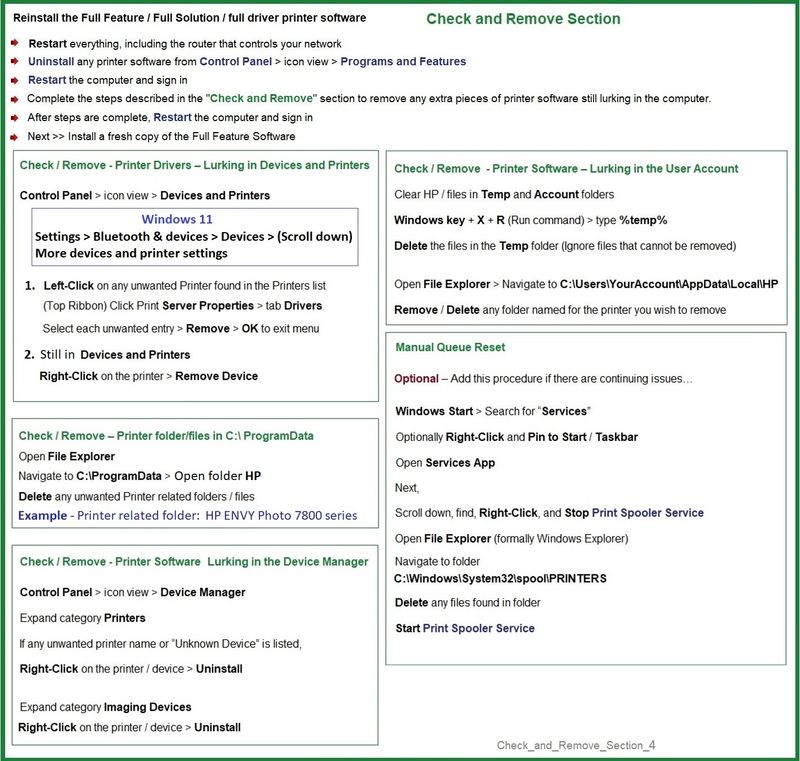
- Uninstall any printer software from Control Panel > icon view > Programs and Features
- Restart the computer and sign in.
Next,
- Check (for the Printer) in Devices and Printers > If found, Right-Click Printer and Remove -- If any changes are made, that is, you remove anything, Restart the computer and sign in.
What if?
If you are having trouble (re)installing the software, for example, everything goes along and suddenly you see "Driver Unavailable" or similar,
(then)
>>> Add the steps in the Check and Remove Section when uninstalling the printer software.
Next,
- If using a printer USB cable between the printer and the computer, disconnect the cable before installing the printer software.
- Download and Save the Full Feature Software installation package or the Easy Start Software
Details Page - Driver - For your Printer
>>> Full Feature Software - Web Pack Installation Package - Information - Download <<<
HP OfficeJet Pro 9010 EasyStart Printer Setup Software – Offline Use Only
Installation
- Open File Explorer
- Navigate to the folder in which you saved the installation file (likely Downloads)
- Right-Click on the installation package and “Run as Administrator”
- If using a printer USB cable between the printer and the computer, connect the cable when instructed (near the end of the installation).
- After the software is installed, Restart the computer and log in
Next,
Supported on your printer - Optional - Install after the full driver printer software
- HP Universal Scan Software - Model Dependent >> HP Universal Scan Full Feature Software adds OCR libraries to installed HP Scan software. HPUS installs a new, full featured, (and separate) HP Scan software shortcut to the Desktop. Note: Where supported, HPUS can be installed as standalone or installed after the full feature printer software.
=+=+=+=+=+=+=+=+=+=+=+=+=+=+=+=+=+=+=+=+=+=
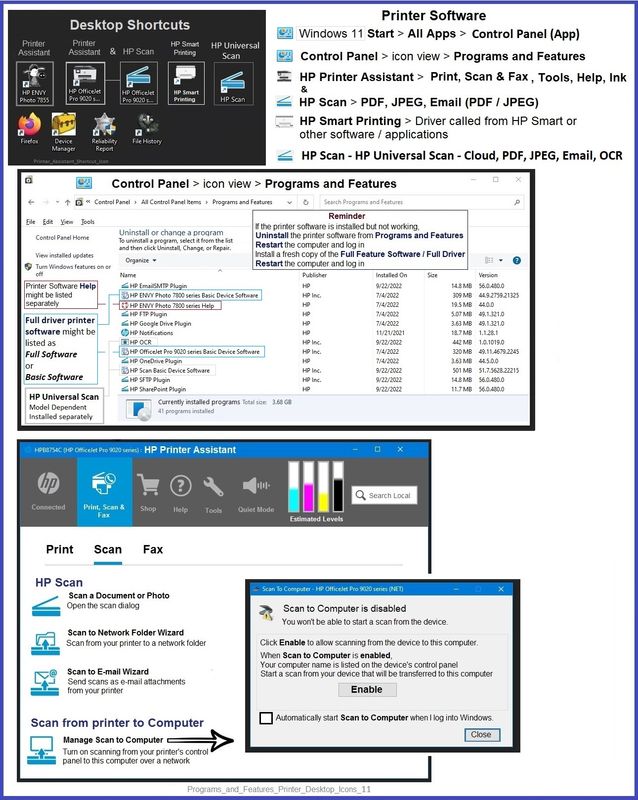
The installation of the full driver adds at least two shortcuts to the Desktop:
Printer Assistant
HP Scan
Example - Windows - Full Feature Software - Installed
=+=+=+=+=+=+=+=+=+=+=+=+=+=+=+=+=+=+=+=+=+=
References / Resources
Parts to the Printer Software
Examples
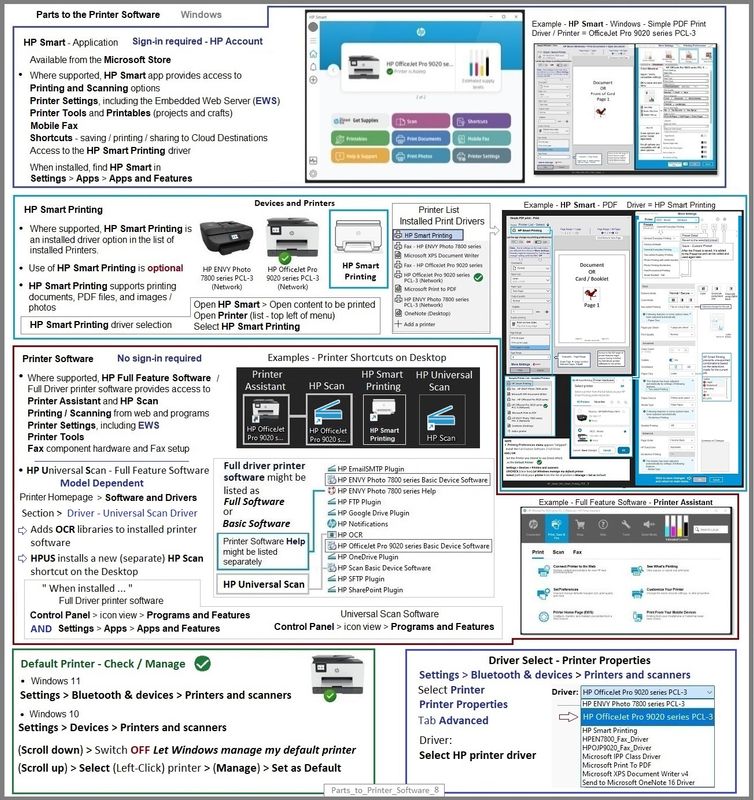
HP Smart application - supports printing and scanning PDF and Photos / Images. HP Smart is supported in many regions and on many newer networked printers - The app is available from the Microsoft Store . HP Smart requires that you sign in using your HP Account credentials. HP Smart benefits when the full driver printer software is also installed.
HP Smart Printing – Where supported, “Smart Printing” is an installed HP Smart driver option in the printer list. Access HP Smart Printing when choosing the Printer to be used in the current job setup. Example: Open HP Smart > Open the content to be printed > Printer (list – top left of menu) > Select HP Smart Printing -- Note – HP Smart Printing supports Custom Presets (Shortcuts) and printing in Word.
HP Full Feature Software / Full Driver printer software - supports printing and scanning from the web, printing in in other software and programs (for example, Word), and provides access to the full range of Printing Preferences / Shortcuts. The full driver adds at least two shortcuts to the Desktop: Printer Assistant and HP Scan. If the printer model includes built-in Fax hardware, the software supports the setup and use of the Fax driver. No Sign-in required.
HP Universal Scan Software - Model Dependent >> HP Universal Scan Full Feature Software adds OCR libraries to installed HP Scan software. HPUS installs a new, full featured, (and separate) HP Scan software shortcut to the Desktop. Note: Where supported, HPUS can be installed as standalone or installed after the full feature printer software.
Example - Windows - Parts to the Printer Software
=+=+=+=+=+=+=+=+=+=+=+=+=+=+=+=+=+=+=+=+=+=
HP Printer Home Page - References and Resources
Learn about your Printer - Solve Problems
“Things that are your printer”
When the website support page opens, Select (as available) a Category > Topic > Subtopic
NOTE: Content depends on device type and Operating System
Categories: Alerts, Access to the Print and Scan Doctor (Windows), Warranty Check, HP Drivers / Software / Firmware Updates, How-to Videos, Bulletins/Notices, Lots of How-to Documents, Troubleshooting, Manuals > User Guides, Product Information (Specifications), Supplies, and more
Open
HP OfficeJet Pro 9010 All-in-One Printer series
Thank you for participating in the HP Community --
People who own, use, and support HP devices.
Click Yes to say Thank You
Question / Concern Answered, Click my Post "Accept as Solution"
Dragon-Fur


Be alert for scammers posting fake support phone numbers and/or email addresses on the community.
If you think you have received a fake HP Support message, please report it to us by clicking on "Flag Post".
† The opinions expressed above are the personal opinions of the authors, not of HP. By using this site, you accept the Terms of Use and Rules of Participation.


Didn't find what you were looking for?
Ask the community
† The opinions expressed above are the personal opinions of the authors, not of HP. By using this site, you accept the <a href="https://www8.hp.com/us/en/terms-of-use.html" class="udrlinesmall">Terms of Use</a> and <a href="/t5/custom/page/page-id/hp.rulespage" class="udrlinesmall"> Rules of Participation</a>.