-
×InformationNeed Windows 11 help?Check documents on compatibility, FAQs, upgrade information and available fixes.
Windows 11 Support Center. -

-
×InformationNeed Windows 11 help?Check documents on compatibility, FAQs, upgrade information and available fixes.
Windows 11 Support Center. -
- HP Community
- Printers
- Scanning, Faxing, and Copying
- Re: ADF difficllt to load - will not accept paper

Create an account on the HP Community to personalize your profile and ask a question
07-12-2020 10:23 AM
Very difficult to near impossible to load even one sheet into the ADF. Then it treats each scan as a separate file and I want all the pages in one PDF
Solved! Go to Solution.
Accepted Solutions
07-14-2020 05:23 PM
@bridgeross I suggest you clean the ADF rollers and the separator pad:
Dust inside the automatic document feeder (ADF) can result in paper feed issues.
-
Get a lint-free cloth and distilled water.
-
Remove the original document from the ADF.
-
Turn off the printer.
-
Disconnect the power cord from the rear of the printer.
-
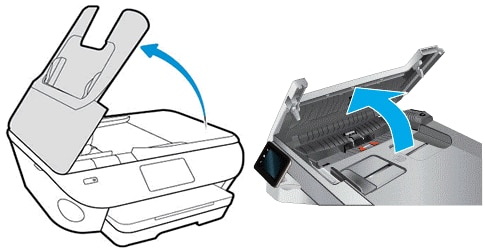
Open the ADF cover.

-
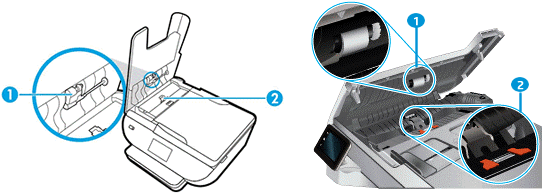
Find the paper pick rollers and the separator pad inside the ADF.
Callout
Description
1.
Paper pick roller
2.
Separator pad
-
Lightly dampen a clean, lint-free cloth with filtered or distilled water, and then squeeze any excess liquid from the cloth.
-
Use the damp cloth to clean the paper pick rollers and the separator pad.
-
Leave the ADF cover open for two minutes to allow the rollers and pad to dry.
-
Close the ADF cover.
-
Reconnect the power cord to the printer, and then turn on the printer.
-
Slide in the paper width guides until they rest against the sides of the paper.
-
Try to scan or copy with the ADF.
If the issue persists, Reset the printer to recover from printer errors or failures.
-
With the printer turned on, disconnect the power cord from the printer.
-
Unplug the power cord from the power source.
-
Wait 60 seconds.
-
Reconnect the power cord to a wall outlet and to the printer.
NOTE:
HP recommends plugging the printer directly into a wall outlet.
-
Turn on the printer to complete the reset.
P.S: Welcome to HP Community 😉
Keep us posted,
If you would like to thank us for our efforts to help you,
Give us a virtual high-five by clicking the 'Thumbs Up' icon below, followed by clicking on the "Accept as solution" on this post,
Have a great day!
Riddle_Decipher
I am an HP Employee
Learning is a journey, not a destination.
Let's keep asking questions and growing together.
07-14-2020 05:23 PM
@bridgeross I suggest you clean the ADF rollers and the separator pad:
Dust inside the automatic document feeder (ADF) can result in paper feed issues.
-
Get a lint-free cloth and distilled water.
-
Remove the original document from the ADF.
-
Turn off the printer.
-
Disconnect the power cord from the rear of the printer.
-
Open the ADF cover.

-
Find the paper pick rollers and the separator pad inside the ADF.
Callout
Description
1.
Paper pick roller
2.
Separator pad
-
Lightly dampen a clean, lint-free cloth with filtered or distilled water, and then squeeze any excess liquid from the cloth.
-
Use the damp cloth to clean the paper pick rollers and the separator pad.
-
Leave the ADF cover open for two minutes to allow the rollers and pad to dry.
-
Close the ADF cover.
-
Reconnect the power cord to the printer, and then turn on the printer.
-
Slide in the paper width guides until they rest against the sides of the paper.
-
Try to scan or copy with the ADF.
If the issue persists, Reset the printer to recover from printer errors or failures.
-
With the printer turned on, disconnect the power cord from the printer.
-
Unplug the power cord from the power source.
-
Wait 60 seconds.
-
Reconnect the power cord to a wall outlet and to the printer.
NOTE:
HP recommends plugging the printer directly into a wall outlet.
-
Turn on the printer to complete the reset.
P.S: Welcome to HP Community 😉
Keep us posted,
If you would like to thank us for our efforts to help you,
Give us a virtual high-five by clicking the 'Thumbs Up' icon below, followed by clicking on the "Accept as solution" on this post,
Have a great day!
Riddle_Decipher
I am an HP Employee
Learning is a journey, not a destination.
Let's keep asking questions and growing together.