• ×
    Information
    Need Windows 11 help?
    Check documents on compatibility, FAQs, upgrade information and available fixes.
    Windows 11 Support Center.
  • post a message
  • ×
    Information
    Need Windows 11 help?
    Check documents on compatibility, FAQs, upgrade information and available fixes.
    Windows 11 Support Center.
  • post a message
Guidelines
Seize the moment! nominate yourself or a tech enthusiast you admire & join the HP Community Experts!
Common problems HP Solution Center not working : Adobe Flash Player Error and Unable to scan
We would like to share some of the most frequently asked questions about HP Solution Center not working : Adobe Flash Player Error and Unable to Scan.
HP Recommended
Microsoft Windows 10 (64-bit)

The printer stoped working suddenly. 

False jammed caridge message all the time.

read all tips and suggestions to no avail.

copying will not work as stand alone. 

Carridge stuck at right all the time, would not be free to move to the left manually.

more problems

cartriges can’t be removed when door is opened, as the the freeing latch will not move down.

no response to setup button or any other button.

printer worked flawlessly for years.

thanks for helping.


1 REPLY 1
HP Recommended

@Wardimon If the carriage is stuck to the right, this could be a hardware malfunction, however, to be on a safer side I have a few steps that should help:


Turning the product off and then on again might resolve the issue.

Step one: Turn the All-in-One off and on again

  1. Press the Power button () to turn off the product.

  2. Wait 60 seconds.

  3. Press the Power button () to turn on the product.

    NOTE: 

    The product might go through a warm-up period. The product lights might flash and the carriage might move. Wait until the warm-up period finishes before proceeding.

    Step one: Make sure that the carriage moves freely

  4. Press the Power button () to turn on the product.

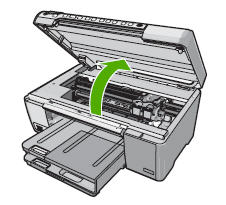
  5. Open the cartridge door.

    Figure : Open the cartridge door

    Illustration: Open the cartridge door
  6. Without turning off the product, disconnect the power cord from the rear of the product.

       CAUTION: 

    You must disconnect the power cord to move parts by hand without the risk of an electrical shock.

  7. Step two: Print a self-test report

    A self-test report determines if the product hardware functions correctly.

  8. Disconnect the power cord from the wall outlet.

  9. Look inside the product to see where the carriage is stuck, and then check for any torn paper or other objects that might restrict movement of the carriage.

    NOTE: 

    You might need a flashlight to illuminate areas for proper viewing.

  10. Reach inside the product through the cartridge door, and then manually move the carriage.

    • If the carriage is stuck on the right side of the product, move the carriage to the left side of the product.

    • If the carriage is stuck on the left side of the product, move the carriage to the right side of the product.

    • If the carriage is stuck in the middle of the product, move the carriage to the right side of the product.

  11. Remove any loose paper or obstructions found.

  12. Gently push the carriage to the left, and then to the right, to make sure the carriage moves freely across the width of the product.

  13. Close the cartridge door.

    Figure : Close the cartridge door

    Illustration: Close the cartridge door
  14. Reconnect the power cord to the rear of the product.

  15. Reconnect the power cord to the wall outlet.

  16. Press the Power button () to turn on the product.


Step two: Print a self-test report

A self-test report determines if the product hardware functions correctly.

  1. Load plain white paper into the input tray.

  2. Press the Setup button (). The Setup menu opens.

  3. Press the arrow button to select Tools, and then press OK.

  4. Press the arrow button to select Self-Test Report, and then press OK. The self-test report prints.

  • If these steps resolved the issue and the self-test report prints, there is no need to continue troubleshooting.

  • If the issue persists, continue with the next solution.

  • If the self-test report does not print, continue with the next solution.

FOR DETAILS & FURTHER INSTRUCTIONS, USE THIS LINK: CLICK HERE & SKIP TO STEP 4 ONWARD

(By the end of this article all the issues should be resolved)


Let me know how that pans out,

If you feel I was helpful, simply click on Accept as Solution to help the community grow,

That said, I will have someone follow-up on this to ensure you've been helped,

Just in case you don't get back to us within 24 - 48hrs, and have a good day, ahead.

Riddle_Decipher
I am an HP Employee


Learning is a journey, not a destination.
Let's keep asking questions and growing together.
† The opinions expressed above are the personal opinions of the authors, not of HP. By using this site, you accept the <a href="https://www8.hp.com/us/en/terms-of-use.html" class="udrlinesmall">Terms of Use</a> and <a href="/t5/custom/page/page-id/hp.rulespage" class="udrlinesmall"> Rules of Participation</a>.