• ×
    Information
    Need Windows 11 help?
    Check documents on compatibility, FAQs, upgrade information and available fixes.
    Windows 11 Support Center.
  • post a message
  • ×
    Information
    Need Windows 11 help?
    Check documents on compatibility, FAQs, upgrade information and available fixes.
    Windows 11 Support Center.
  • post a message
Guidelines
Join the HP Community Solve‑a‑thon | Help Others & Share Your Solutions | Live on Zoom | 2:30 PM to 2:30 AM IST | Every Wednesday Click here to know more
Common problems HP Solution Center not working : Adobe Flash Player Error and Unable to scan
We would like to share some of the most frequently asked questions about HP Solution Center not working : Adobe Flash Player Error and Unable to Scan.
HP Recommended
Pavilion g7 notebook
Microsoft Windows 7 (64-bit)

I wrote once before, it has been half fixed, What I need or world like to know now is, When I scan and using the controls on the printer 7510. Printer said there is no computer and have to use a memory card. How do I adjust the printer to be able to see the computer? Rmember I have a 7510. The answers last time was for every type of printer except the 7510. I can by the way use the computer for controls just not the printer itself. Thank you for any help you may be able to give.

1 REPLY 1
HP Recommended

@Davids52

Welcome to HP Forums, 
This is a great place to get support, find answers and tips. Thank you for posting your query. I'll be more than glad to help you out 🙂 

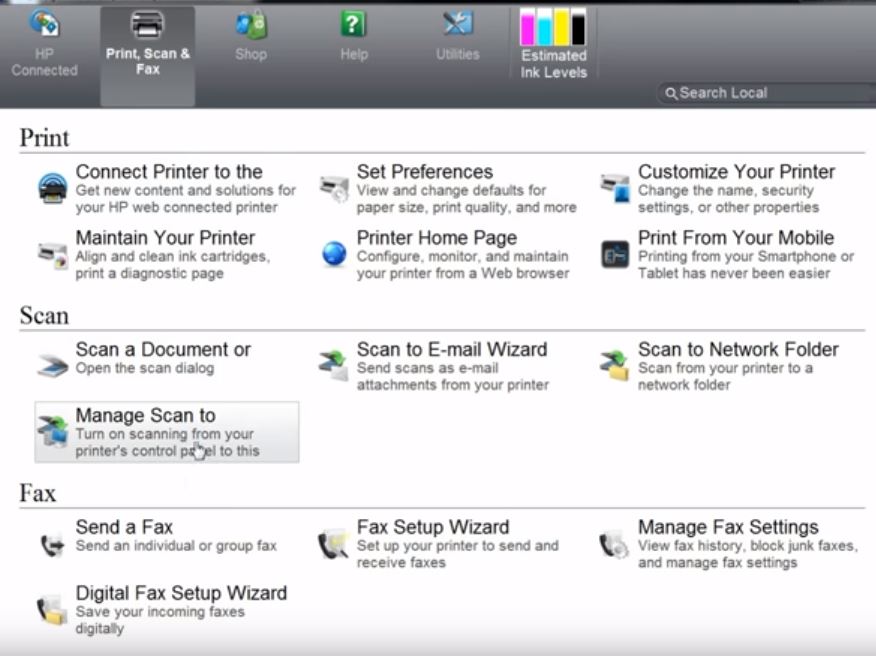
To scan from the printer front panel, enable scan to computer on the printer assistant. Follow the steps below:

  • Search Windows for your printer model name, and click the printer name in the list of results. HP Printer Assistant opens.
  • Click Scanner Actions, and then click Manage Scan to Computer.


  • Click Enable to activate the scan to computer option.


If issue persists, try the steps below:

Step 1: Run the Print and Scan Doctor

Step 2: Uninstall and reinstall the printer software

Step 3: Check Windows Image Acquisition settings

For instruction: Click here


Please click “Accept as Solution” if you feel my post solved your issue, it will help others find the solution.

Click the “Kudos, Thumbs Up" on the bottom right to say “Thanks” for helping!

Roopa-S
I am an HP Employee

† The opinions expressed above are the personal opinions of the authors, not of HP. By using this site, you accept the <a href="https://www8.hp.com/us/en/terms-of-use.html" class="udrlinesmall">Terms of Use</a> and <a href="/t5/custom/page/page-id/hp.rulespage" class="udrlinesmall"> Rules of Participation</a>.