• ×
    Information
    Need Windows 11 help?
    Check documents on compatibility, FAQs, upgrade information and available fixes.
    Windows 11 Support Center.
  • post a message
  • ×
    Information
    Need Windows 11 help?
    Check documents on compatibility, FAQs, upgrade information and available fixes.
    Windows 11 Support Center.
  • post a message
Guidelines
Is your HP DeskJet 3830 series scanner not working? Here is the solution Click here to view the instructions!
Common problems HP Solution Center not working : Adobe Flash Player Error and Unable to scan
We would like to share some of the most frequently asked questions about HP Solution Center not working : Adobe Flash Player Error and Unable to Scan.
HP Recommended
HP Officejet Pro 8600
macOS 10.15 Catalina

Ugh!  It seems like everything goes right for several months, and then I'm back on here asking for everybody's help!


I am able to print from my computer to my printer with no problem, but when I try to scan from my printer's control panel it says that it can't because there is no computer found.  I had this problem a while back, and I went through the steps to fix it and it worked; however, this time it's not working with those instructions.


Please help!  Thank you!

2 REPLIES 2
HP Recommended

Hello, I'm having the same problem. Was your issue resolved? If so, How? Please help.

HP Recommended

@WDC2, Welcome to the HP Support Community!


Have you tried scanning from the MAC and check if that works?

You may use HP Easy Scan or Apple Image Capture to scan from your MAC. Refer to this document for more info - How to Scan


Update the printer firmware

Refer to page 25 of the user guide.

Click here to know different methods of updating printer firmware.


Also, check for any software updates on MAC

Click the Apple icon > About This Mac > Software Update and install any available update.


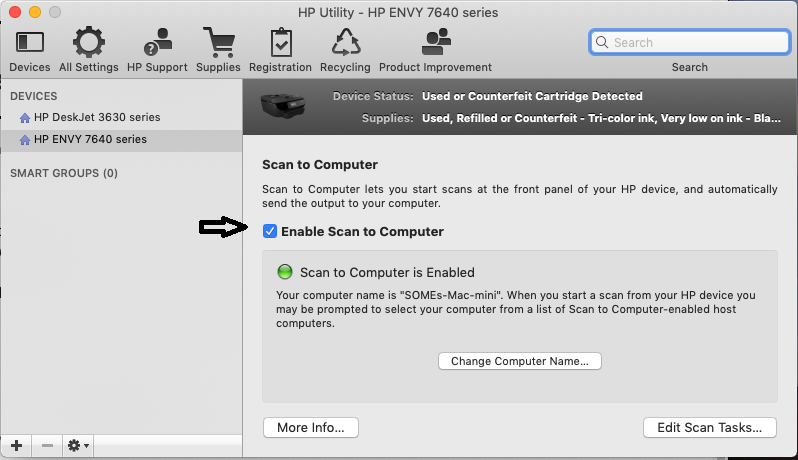
It sounds like Scan to Computer is disabled on your Mac. Enabling Scan to computer using HP Utility may resolve the issue. Let's try these steps:

1.) On your Mac, click Finder, click Applications, click the Hewlett-Packard or HP folder, then double-click HP Utility. (If HP Utility is not available, download and install the install the printer essential software from here

2.) Under Scan Settings, click Scan to Computer, then make sure the Enable Scan to Computer check box is selected.

https://lithium-response-prod.s3.us-west-2.amazonaws.com/hpcsc.response.lithium.com/RESPONSEIMAGE/946f6e5f-68db-4b93-a3ad-831e2c463488.default.png

 3.) Try to scan.


Hope this helps! Keep me posted. 


Please click “Accept as Solution” if you feel my post solved your issue, it will help others find the solution.

Click the “Kudos, Thumbs Up" on the bottom right to say “Thanks” for helping!

Have a great day! 

KUMAR0307
I am an HP Employee

† The opinions expressed above are the personal opinions of the authors, not of HP. By using this site, you accept the <a href="https://www8.hp.com/us/en/terms-of-use.html" class="udrlinesmall">Terms of Use</a> and <a href="/t5/custom/page/page-id/hp.rulespage" class="udrlinesmall"> Rules of Participation</a>.