-
×InformationNeed Windows 11 help?Check documents on compatibility, FAQs, upgrade information and available fixes.
Windows 11 Support Center. -
-
×InformationNeed Windows 11 help?Check documents on compatibility, FAQs, upgrade information and available fixes.
Windows 11 Support Center. -
- HP Community
- Printers
- Scanning, Faxing, and Copying
- Cannot Scan on LaserJet Pro MFP M127fw

Create an account on the HP Community to personalize your profile and ask a question
12-11-2019 08:27 PM - edited 12-11-2019 08:27 PM
I am able to print, but not scan. I have run Scan Doctor, but it doesn't get to Window (WIA) Scan and then stops. Please help. Thanks.
12-14-2019 11:25 AM
Welcome to HP support community.
Check Windows Image Acquisition settings
-
n Windows, search for and open View local services.
-
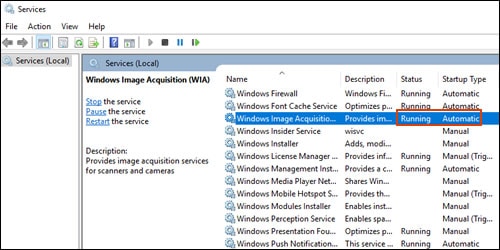
In the Services window, scroll down the list and find Windows Image Acquisition (WIA).
-
Look at the Status and Startup Type values.
-
If the status is Started or Running and the Startup Type is Automatic, WIA is running correctly. Skip to the next step.

-
If the status is Disabled or no status displays, right-click Windows Image Acquisition (WIA), click Properties, click the General tab, select Automatic from the Startup type dropdown menu, and then click Start.
If the Start button is grayed out, go back to the Services menu, make sure Remote Procedure Call, Shell Hardware Detection, RPC Endpoint Mapper, and DCOM Server Process Launcher are running and set as Automatic, and then start WIA.
-
You can refer this HP document for more assistance:- Click here
I hope that helps.
To thank me for my efforts to help you, please mark my post as an accepted solution so that it benefits several others.
Cheers.
Sandytechy20
I am an HP Employee
12-14-2019 01:36 PM
Thanks for your reply but the solution did not work. Windows Image acquisition showed as both Running and Automatic. Perhaps (and i hope) you or someone else may have another suggestion before I just pitch the printer. Please note, the printer is printing fine through a wireless connection.
12-14-2019 04:52 PM
Perform root level uninstallation to remove all the printer related software's.
- In Windows, search for and open Programs and Features.
- Select your HP printer.
- Select Uninstall.
- In Windows, search for and open Devices and Printers.
- In the Devices and Printers window look for your HP Printer. If you see it listed, right-click on it and choose "Delete" or "Remove Device.”
- Open up the run command with the "Windows Key + R" key combo.
- Type printui.exe /s and click OK.
- Click on Drivers tab.
- Look for HP Printer driver. If you see it click on it and click Remove at the bottom.
- Select OK.
- Remove all instances of the same.
- Select Apply and OK on the Print Server Properties windows.
- Close Devices and Printers.
- Restart the PC again.
Download and install printer full feature driver
Click here to download the driver.
I hope that helps.
To thank me for my efforts to help you, please mark my post as an accepted solution so that it benefits several others.
Cheers.
Sandytechy20
I am an HP Employee
12-19-2019 06:13 PM
This might require a remote access of the computer to fix this issue.
I request you to talk to HP support.
They might have multiple options to help you with this.
- Click on this link - https://support.hp.com/us-en/contact-hp?openCLC=true
- Select the country.
- Enter the serial of your device.
- Select the country from the drop-down.
- Click on "Show Options".
- Fill the web-form. A case number and phone number will now populate for you.
I hope that helps.
To thank me for my efforts to help you, please mark my post as an accepted solution so that it benefits several others.
Cheers.
Sandytechy20
I am an HP Employee