• ×
    Information
    Need Windows 11 help?
    Check documents on compatibility, FAQs, upgrade information and available fixes.
    Windows 11 Support Center.
  • post a message
  • ×
    Information
    Need Windows 11 help?
    Check documents on compatibility, FAQs, upgrade information and available fixes.
    Windows 11 Support Center.
  • post a message
Guidelines
Is your HP DeskJet 3830 series scanner not working? Here is the solution Click here to view the instructions!
Common problems HP Solution Center not working : Adobe Flash Player Error and Unable to scan
We would like to share some of the most frequently asked questions about HP Solution Center not working : Adobe Flash Player Error and Unable to Scan.
HP Recommended
Hp Officejet Pro 7740
macOS 10.13 High Sierra

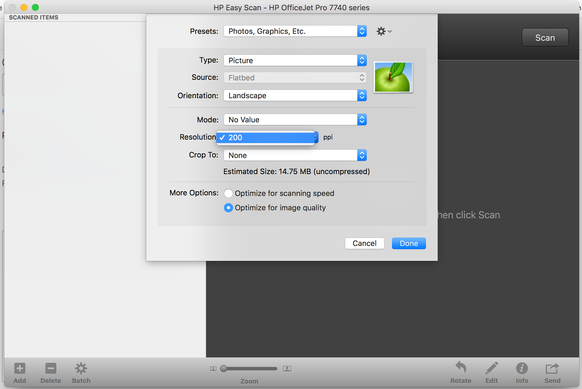
In Presets, Edit Settings, as of late, the drop-down for resolution doesn't display anything other than 200.

How do I solve this issue to regain the full ability to adjust the scan settings of my choice?

Screen Shot 2019-12-21 at 11.11.36 PM.png


1 ACCEPTED SOLUTION

Accepted Solutions
HP Recommended

@jxtan, Welcome to HP Support Community!


This could be an issue with the printer drivers installed, let us try some steps to resolve the issue-


Update the printer firmware

Download available firmware updates from the HP website

With the printer on and connected to the computer, go to HP Customer Support - Software and Driver Downloads, and then identify your printer. Look for and install any available firmware updates. For more information, go to Updating or Upgrading Printer Firmware.


Uninstall with the HP Uninstaller

The HP Uninstaller is a software application that is installed during the initial printer software installation.

  1. Click Finder in the Dock.

  2. In the menu bar, click Go, click Applications, and then open the HP or Hewlett Packard folder.

    • If HP Uninstaller is in the folder, double click it, and then follow the on-screen instructions to uninstall the software.

    • If HP Uninstaller is not in the folder, continue to the next step.

  3. Click and drag the HP or Hewlett Packard folder to the Trash icon in the Dock.

  4. In the menu bar, click Go, click Go to Folder, type /Library/Printers, then click Go.

    The Printers folder opens.

  5. Click and drag the HP or Hewlett Packard folder to the Trash icon in the Dock.

  6. Restart the Mac.

  7. Right-click or Ctrl + click the Trash icon, and then select Empty Trash.

Install the latest drivers from here. Once the printer is configured, try scanning.


Hope this helps! Keep me posted. 


Please click “Accept as Solution” if you feel my post solved your issue, it will help others find the solution. Click the “Kudos/Thumbs Up" on the bottom right to say “Thanks” for helping!

TEJ1602
I am an HP Employee

View solution in original post

2 REPLIES 2
HP Recommended

Anyone from HP bothers to reply with a fix, or updates on this? 

HP Recommended

@jxtan, Welcome to HP Support Community!


This could be an issue with the printer drivers installed, let us try some steps to resolve the issue-


Update the printer firmware

Download available firmware updates from the HP website

With the printer on and connected to the computer, go to HP Customer Support - Software and Driver Downloads, and then identify your printer. Look for and install any available firmware updates. For more information, go to Updating or Upgrading Printer Firmware.


Uninstall with the HP Uninstaller

The HP Uninstaller is a software application that is installed during the initial printer software installation.

  1. Click Finder in the Dock.

  2. In the menu bar, click Go, click Applications, and then open the HP or Hewlett Packard folder.

    • If HP Uninstaller is in the folder, double click it, and then follow the on-screen instructions to uninstall the software.

    • If HP Uninstaller is not in the folder, continue to the next step.

  3. Click and drag the HP or Hewlett Packard folder to the Trash icon in the Dock.

  4. In the menu bar, click Go, click Go to Folder, type /Library/Printers, then click Go.

    The Printers folder opens.

  5. Click and drag the HP or Hewlett Packard folder to the Trash icon in the Dock.

  6. Restart the Mac.

  7. Right-click or Ctrl + click the Trash icon, and then select Empty Trash.

Install the latest drivers from here. Once the printer is configured, try scanning.


Hope this helps! Keep me posted. 


Please click “Accept as Solution” if you feel my post solved your issue, it will help others find the solution. Click the “Kudos/Thumbs Up" on the bottom right to say “Thanks” for helping!

TEJ1602
I am an HP Employee

† The opinions expressed above are the personal opinions of the authors, not of HP. By using this site, you accept the <a href="https://www8.hp.com/us/en/terms-of-use.html" class="udrlinesmall">Terms of Use</a> and <a href="/t5/custom/page/page-id/hp.rulespage" class="udrlinesmall"> Rules of Participation</a>.