• ×
    Information
    Need Windows 11 help?
    Check documents on compatibility, FAQs, upgrade information and available fixes.
    Windows 11 Support Center.
  • post a message
  • ×
    Information
    Need Windows 11 help?
    Check documents on compatibility, FAQs, upgrade information and available fixes.
    Windows 11 Support Center.
  • post a message
Guidelines
Join the HP Community Solve‑a‑thon | Help Others & Share Your Solutions | Live on Zoom | 2:30 PM to 2:30 AM IST | Every Wednesday Click here to know more
Common problems HP Solution Center not working : Adobe Flash Player Error and Unable to scan
We would like to share some of the most frequently asked questions about HP Solution Center not working : Adobe Flash Player Error and Unable to Scan.
HP Recommended

I have a HP Envy 6032e printer with the scanner bed on it.


I want to scan a document to PDF.


HP Smart requires me to log in to use the scanner... why?


HP Smart cannot log in because I have an error: "Error Code: OW_500_OWSID00001"


I do not use VPN.


My printer is connected to my network just fine.


I am able to print to it AND I can also scan to image files using the windows Fax and Scan application so I know the scanner works and can be seen by my PC.


The problem is that HP app cannot log in... this is annoying as I like to be able to scan to PDF but having to log into the app just to use my printer seems ridiculous. Clearly I don't have to do anything special to use the scanner since the windows app can do it just fine. Too bad that app can't save to PDF.


Any ideas on how I can fix this so I can log in and use my scanner?


1 REPLY 1
HP Recommended

@TxAG98 


Welcome to the HP Community --

We are a Peer-to-Peer Forum for people who use HP Technology.


Clean slate:

Make sure Windows Updates are current and installed.  If there are any "Pending" updates, install the update(s).


Next,

Restart Everything, including the router that controls your network

Next,


We have the following reference for this error:

HP Printers - 'We're sorry, something went wrong' error

During setup of your HP printer, a We’re sorry, something went wrong error with error code UU_400_EB000U0004 or OW_500_OWSID00001 displays in the HP Smart app.


---------------------------------------------------------

If you cannot get HP Smart to register and sign in,

Install the Full Feature Software for the printer.

The full driver printer software includes HP Scan.


Video Help to install the Full Feature Software

 HP Envy 6055 | HP Envy Pro 6455: Download & Install HP Full solution software on Win 10 Computer


and / or

=========================

Printer - Full Feature Software - Install


If you have not done so, consider


  • HP Full Feature Software / Full Driver printer software - supports printing and scanning from the web, printing in in other software and programs (for example, Word), and provides access to the full range of Printing Preferences / Shortcuts.  The full driver adds at least two shortcuts to the Desktop:  Printer Assistant and HP Scan.  If the printer model includes built-in Fax hardware, the software supports the setup and use of the Fax driver.  No Sign-in required.


If the full driver printer software is (already) installed but not working,

  • Uninstall any printer software from Control Panel > icon view > Programs and Features
  • Restart the computer and sign in.

Next,

  • Check (for the Printer) in Devices and Printers  > If found, Right-Click Printer and Remove -- If any changes are made, that is, you remove anything, Restart the computer and sign in.

Next,

  • If using a printer USB cable between the printer and the computer, disconnect the cable before installing the printer software.
  • Download and Save the Full Feature Software installation package or the Easy Start Software


Details Page - Driver - For your Printer

>>> Full Feature Software - Web Pack Installation Package - Information - Download  <<<

HP Easy Start Printer Setup Software – Offline Use Only 


Installation

  • Open File Explorer
  • Navigate to the folder in which you saved the installation file  (likely Downloads)
  • Right-Click on the installation package and “Run as Administrator
  • If using a printer USB cable between the printer and the computer, connect the cable when instructed (near the end of the installation).
  • After the software is installed, Restart the computer and log in

Next,

Optional -- Supported for your printer

Next  HP Universal Scan Software - Model Dependent 


  •  HP Universal Scan Full Feature Software adds OCR libraries to installed HP Scan software.  HPUS installs a new, full featured, (and separate) HP Scan software shortcut to the Desktop.
  • Note:  HPUS can be installed as standalone or installed after the full feature printer software.
  • After the software is installed, Restart the computer and sign in
  • HP Universal Scan Software provides a larger GUI to make using the software easier on high-resolution screens.   New features have been added to the main menu to help with navigating the settings.


 HP printers - Scan as Editable Text (OCR) with HP Scan (Windows)


====================================


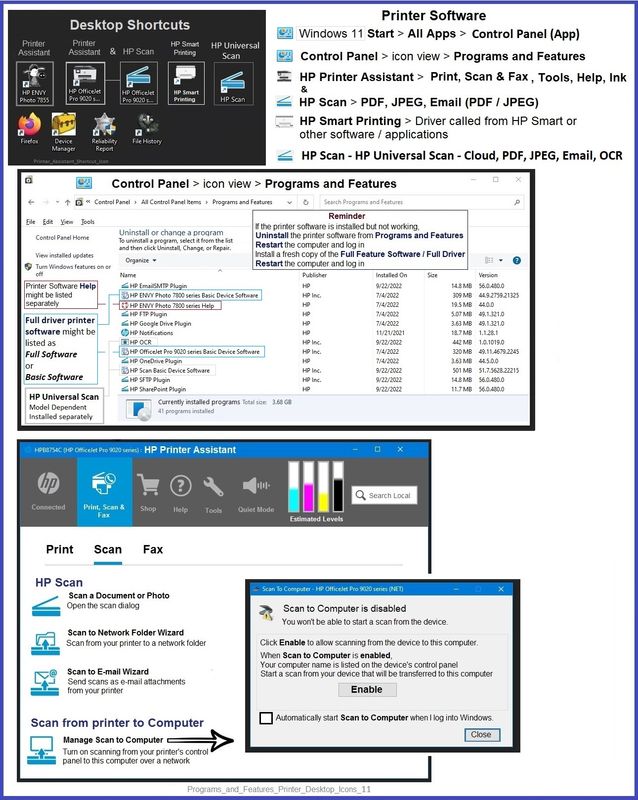
The installation of the full driver adds at least two shortcuts to the Desktop:  

Printer Assistant 

HP Scan


Example - Windows - Full Feature Software - Installed

Programs_and_Features_Printer_Desktop_Icons_11Programs_and_Features_Printer_Desktop_Icons_11


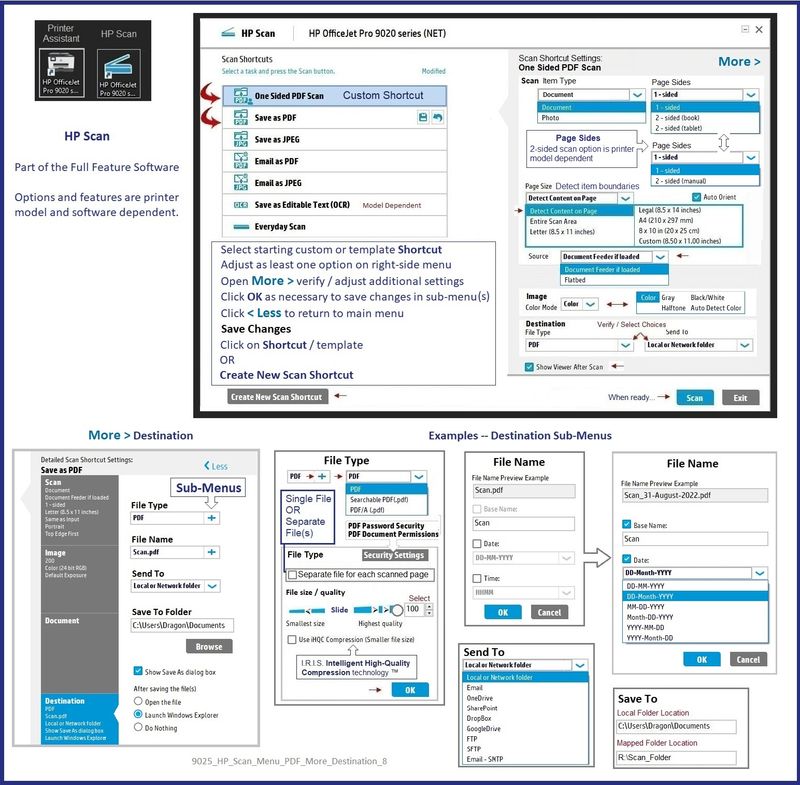
Example - HP Scan - Main Menu > More > Destination

9025_HP_Scan_Menu_PDF_More_Destination_89025_HP_Scan_Menu_PDF_More_Destination_8


=+=+=+=+=+=+=+=+=+=+=+=+=+=+=+=+=+=+=+=+=+=


References / Resources


Technology Tips Gallery from our HP Expert greenturtle

 Technology Tips YouTube Video Help for Printers


HP Envy Pro 6455 : How to Scan 2 sided Documents with HP Full solution software on Windows 7/10 PC


-------------------------------

HP Document - How to Scan

HP Printers - How to Scan (Windows, Mac, Mobile) | HP® Customer Support


=+=+=+=+=+=+=+=+=+=+=+=+=+=+=+=

Scan Apps and Scan Software


Installing the Full Feature Software provides the foundation for installing other applications and software you can use to Scan with your printer.


A couple of Examples


HP Scan and Capture

Available from the Microsoft Store (formally Windows Store) - Requires Windows 8 or higher

Download-Save-Install   HP Scan and Capture

 Description

HP Scan and Capture is a simple and fun application that captures photos or documents from any* HP scanning device or your computer's built-in camera.  These images can be previewed, edited, saved, and shared to other applications.


* NOTE:  The correct HP drivers for your scanner must be installed from HP's Support Website.


HP Scan and Capture features an adjustable screen size.


Application controls / options


Windows 10 -

Settings > Apps > Apps and Features


Windows 11 - 

Settings > Apps > Installed Apps


Scroll / Search for HP Scan and Capture

Left-click on the App for options associated with this app.

If available, Click Advanced for additional controls.


Examples - HP Scan and Capture


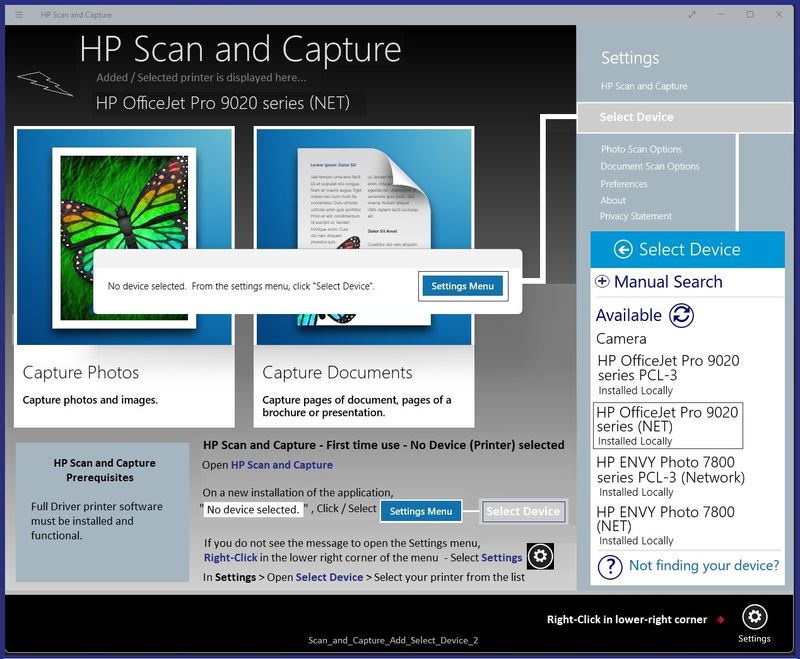
HP Scan and Capture - "First time use" - Add Device (Add your printer to the application)

Scan_and_Capture_Add_Select_Device_2Scan_and_Capture_Add_Select_Device_2


Example - HP Scan and Capture - Menus

Scan_and_Capture_Document-Photo_Settings_2Scan_and_Capture_Document-Photo_Settings_2


------------------------------------------------------------------


NAPS2 – “Not Another PDF Scanner” (Free – Donations gladly accepted by the NAPS2 organization)

  • Download-Save-Install >  NAPS2 
  • Not another PDF Scanner – free program scans PDF files and image(s) as .jpeg or PDF file(s).
  • Not always simple “Plug and Play”, nonetheless, this free software is powerful and configurable.
  • NAPS2 might require that the full driver printer software is installed.

Notes


=+=+=+=+=+=+=+=+=+=+=+=+=+=+=+=


HP Printer Home Page - References and Resources

Learn about your Printer  - Solve Problems

“Things that are your printer”

When the website support page opens, Select (as available) a Category > Topic Subtopic

NOTE:  Content depends on device type and Operating System

Categories Alerts, Access to the Print and Scan Doctor (Windows), Warranty Check, HP Drivers / Software / Firmware Updates, How-to Videos, Bulletins/Notices, Lots of How-to Documents, Troubleshooting, Manuals > User Guides, Product Information (Specifications), Supplies, and more

Open

HP ENVY 6032e All-in-One Printer 


Thank you for participating in the HP Community --

People who own, use, and support HP devices.

Click Yes to say Thank You

Question / Concern Answered, Click my Post "Accept as Solution"


Dragon-Fur

† The opinions expressed above are the personal opinions of the authors, not of HP. By using this site, you accept the <a href="https://www8.hp.com/us/en/terms-of-use.html" class="udrlinesmall">Terms of Use</a> and <a href="/t5/custom/page/page-id/hp.rulespage" class="udrlinesmall"> Rules of Participation</a>.