• ×
    Information
    Need Windows 11 help?
    Check documents on compatibility, FAQs, upgrade information and available fixes.
    Windows 11 Support Center.
  • post a message
  • ×
    Information
    Need Windows 11 help?
    Check documents on compatibility, FAQs, upgrade information and available fixes.
    Windows 11 Support Center.
  • post a message
Guidelines
Join the HP Community Solve‑a‑thon | Help Others & Share Your Solutions | Live on Zoom | 2:30 PM to 2:30 AM IST | Every Wednesday Click here to know more
Common problems HP Solution Center not working : Adobe Flash Player Error and Unable to scan
We would like to share some of the most frequently asked questions about HP Solution Center not working : Adobe Flash Player Error and Unable to Scan.
HP Recommended
HP 8600 All in One
macOS 10.15 Catalina

When I try to open the scanner, I get this message:  Failed to open a connection to the device (-21345).  Then a pop up window says :  The HP scanned will damage your computer.  Report malware to Apple.  I went through Apple support, because you can actually talk to a person, but they weren't able to help me.  HP won't let me contact support because my device is out of warranty--even though it is not a warranty issue.  Please help.  


2 REPLIES 2
HP Recommended

I'm having the same exact problem today and it's driving me crazy. I even went through HP to download the updated driver, firmware, HP Smart...and nothing. So frustrating.

HP Recommended

@LJ0512, Welcome to the HP Support Community!


Which app do you use to scan?


The message you received was due to an update pushed to your MAC that has been reversed and fixed. 


macOS includes a technology called Gatekeeper, that's designed to ensure that only trusted software runs on your Mac. For more info, refer to this document - Safely open apps on your Mac


Perform these steps to resolve this issue:


Check for any software updates on MAC

Click the Apple icon > About This Mac > Software Update and install any available update.


This printer is AirPrint compatible. Reinstall the printer using AirPrint driver:


1.) Click the Apple menu, click System Preferences, and then click Print & Scan or Printers & Scanners.

2.) Check if your printer name displays in the Printers list, If your printer is listed, click the printer name, click the minus sign to delete the printer.

3.) If you see multiple printer queues for the same printer, remove all extra printers by selecting them one at a time, and then clicking the minus button at the bottom of the list.

4.) Click the plus sign, click Add Printer or Scanner, click the printer name.

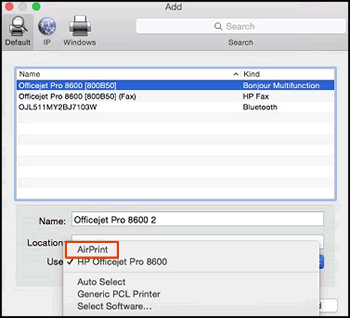
5.) Click the Use or Print Using menu, select AirPrint in the pop-up menu. Then click Add.

Select AirPrint from the Use menu

Note: Use Bonjour multifucntion.

6.) Try to print.


Also try scanning. If the issue persists, make sure the printer is not in sleep mode. Wake the printer by pressing any button on the printer and then try scanning.


You may use one of the 3 methods shown in this document to scan from your MAC - How to scan


Hope this helps! Keep me posted. 


Please click “Accept as Solution” if you feel my post solved your issue, it will help others find the solution.

Click the “Kudos, Thumbs Up" on the bottom right to say “Thanks” for helping!

Have a great day! 

KUMAR0307
I am an HP Employee

† The opinions expressed above are the personal opinions of the authors, not of HP. By using this site, you accept the <a href="https://www8.hp.com/us/en/terms-of-use.html" class="udrlinesmall">Terms of Use</a> and <a href="/t5/custom/page/page-id/hp.rulespage" class="udrlinesmall"> Rules of Participation</a>.