• ×
    Information
    Need Windows 11 help?
    Check documents on compatibility, FAQs, upgrade information and available fixes.
    Windows 11 Support Center.
  • post a message
  • ×
    Information
    Need Windows 11 help?
    Check documents on compatibility, FAQs, upgrade information and available fixes.
    Windows 11 Support Center.
  • post a message
Guidelines
Join the HP Community Solve‑a‑thon | Help Others & Share Your Solutions | Live on Zoom | 2:30 PM to 2:30 AM IST | Every Wednesday Click here to know more
Common problems HP Solution Center not working : Adobe Flash Player Error and Unable to scan
We would like to share some of the most frequently asked questions about HP Solution Center not working : Adobe Flash Player Error and Unable to Scan.
HP Recommended
HP Deskjet 2600 series
Microsoft Windows 10 (64-bit)

My printer refused to print except to file. I am not sure but I think it was because I did an update to the latest version of Windows. I uninstalled the printer, downloaded the latest drivers and software and installed it and it seems to be working now.


The problem I have is that on this version of the software (called HP Smart) there seems to be no option to change the default save location for scans.  A minor issue but annoying nevertheless.


Any suggestions most welcome.

1 REPLY 1
HP Recommended

@boutells, Welcome to HP Support Community!


Alternatively, try using HP Scan. Here is how you do it-


Install or update HP Scan

Make sure you have the latest version of the printer software, and then make sure your printer is connected to your computer with a USB cable or on a local network.

  1. Go to HP Customer Support - Software and Driver Downloads.

  2. Type your printer model, and then click Download next to the full feature driver under Driver-Product Installation Software.

    Click Download next to the full feature driver

  3. Follow the guided setup instructions to connect the printer.

  4. After the software installs, search Windows for HP, and then select your printer to open HP Printer Assistant.

    NOTE: 

    If HP Printer Assistant does not download with your printer software, go to What other scanning methods or apps are available in Frequently asked questions (FAQs).

  5. On the Scan tab, click Scan a Document or Photo to open HP Scan, and then continue to the next step.

Step 3: Set scan preferences

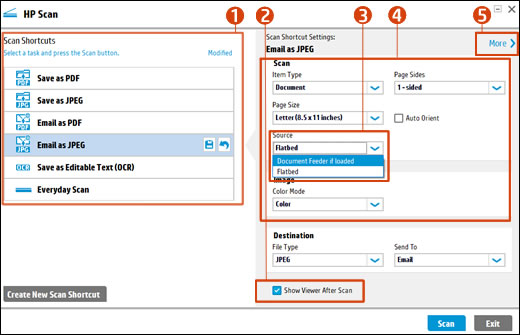
Change settings in HP Scan before you complete a scan job.

  1. Scan Shortcuts

  2. Show Viewer After Scan check box

  3. Source options

  4. Scan settings

  5. More

  1. Select a Scan Shortcut, such as Save as PDF or Email as JPEG.

    NOTE: 

    To save or email a multi-page scan as a single file, select a PDF option. Multi-page JPEG scans save as separate files.

  2. Select the Show Viewer After Scan check box.

  3. If your printer has both a document feeder and scanner glass, select Flatbed under Source.

  4. Make sure the other settings such as Page Size and Color Mode are correct for your scan job.

  5. Click More to change advanced settings, such as Resolution (ppi), Orientation, Destination, and File Name.

Hope this helps!


Please click “Accept as Solution” if you feel my post solved your issue, it will help others find the solution. Click the “Kudos/Thumbs Up" on the bottom right to say “Thanks” for helping!

TEJ1602
I am an HP Employee

† The opinions expressed above are the personal opinions of the authors, not of HP. By using this site, you accept the <a href="https://www8.hp.com/us/en/terms-of-use.html" class="udrlinesmall">Terms of Use</a> and <a href="/t5/custom/page/page-id/hp.rulespage" class="udrlinesmall"> Rules of Participation</a>.