• ×
    Information
    Need Windows 11 help?
    Check documents on compatibility, FAQs, upgrade information and available fixes.
    Windows 11 Support Center.
  • post a message
  • ×
    Information
    Need Windows 11 help?
    Check documents on compatibility, FAQs, upgrade information and available fixes.
    Windows 11 Support Center.
  • post a message
Guidelines
Is your HP DeskJet 3830 series scanner not working? Here is the solution Click here to view the instructions!
Common problems HP Solution Center not working : Adobe Flash Player Error and Unable to scan
We would like to share some of the most frequently asked questions about HP Solution Center not working : Adobe Flash Player Error and Unable to Scan.
HP Recommended
m277dw
macOS 10.13 High Sierra

I get "an error occurred after communicating with the scanner" after scanning 2 pages and then it stops.

1 REPLY 1
HP Recommended

@jstaso1


Welcome to the HP Forums, this is a great location to get assistance! I read your post and see that you are getting communication issue on HP Color LaserJet Pro MFP M277dw. I would like to help you resolve this issue. 


However, I will need a few details to provide an accurate solution,

  • When did this issue start?
  • Did you do any hardware or software changes?

Meanwhile

Update to the latest iOS or macOS software version

  1. From your mobile device, touch the Settings app, and then touch General.

  2. Touch Software Update.

    Your device automatically searches for the latest iOS update.

  3. If an update is available, touch Download and Install, and then follow the on-screen instructions to install the update.

Disable IPv6 on the printer

  1. Print a Network Configuration Page, and then locate the URL(s) for Embedded Web Server.

    Figure : Example of the EWS URL on the Network Configuration Page

    EWS URL on the Network Configuration Page
  2. From a computer connected to your network, type the entire URL into an Internet browser, and then press Enter. If the webpage remains blank, try a different Internet browser.

    Figure : Example IP address in the browser

    Example IP address for the printer typed in the browser

    The EWS displays.

  3. Click Network, and then click Network Protocols.

    The General Network Protocols screen displays.

  4. Select Enable IPv4 only, and then click Apply.

    Figure : Network Protocols screen

    Network Protocols screen
  5. Try printing from AirPrint.

Turn off Internet Printing Protocol over HTPPS (IPPS)

  1. Print a Network Configuration Page, and then locate the URL(s) for Embedded Web Server.

    Figure : Example of the EWS URL on the Network Configuration Page

    EWS URL on the Network Configuration Page
  2. From a computer connected to your network, type the entire URL into an Internet browser, and then press Enter. If the webpage remains blank, try a different Internet browser.

    Figure : Example IP address in the browser

    Example IP address for the printer typed in the browser

    The EWS displays.

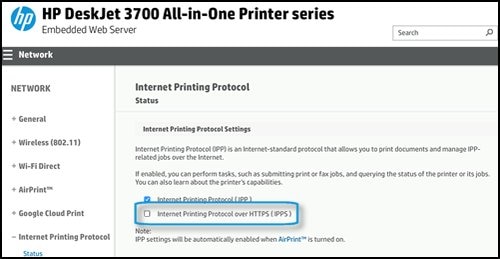
  3. Click Network, and then click Internet Printing Protocol.

    The Internet Printing Protocol screen displays.

  4. Clear the Internet Printing Protocol over HTPPS (IPPS) box, and then click Save.

    Figure : Internet Printing Protocol screen

    Internet Printing Protocol screen
  5. Try printing from AirPrint.

Click here and refer the document to perform the above steps.


Let me know how it goes.

Cheers.

Sandytechy20
I am an HP Employee

† The opinions expressed above are the personal opinions of the authors, not of HP. By using this site, you accept the <a href="https://www8.hp.com/us/en/terms-of-use.html" class="udrlinesmall">Terms of Use</a> and <a href="/t5/custom/page/page-id/hp.rulespage" class="udrlinesmall"> Rules of Participation</a>.