-
×InformationNeed Windows 11 help?Check documents on compatibility, FAQs, upgrade information and available fixes.
Windows 11 Support Center. -

-
×InformationNeed Windows 11 help?Check documents on compatibility, FAQs, upgrade information and available fixes.
Windows 11 Support Center. -
- HP Community
- Printers
- Scanning, Faxing, and Copying
- Re: Communication error after scanning 2 pages

Create an account on the HP Community to personalize your profile and ask a question
01-26-2018 05:54 PM
Welcome to the HP Forums, this is a great location to get assistance! I read your post and see that you are getting communication issue on HP Color LaserJet Pro MFP M277dw. I would like to help you resolve this issue.
However, I will need a few details to provide an accurate solution,
- When did this issue start?
- Did you do any hardware or software changes?
Meanwhile
Update to the latest iOS or macOS software version
-
From your mobile device, touch the Settings app, and then touch General.
-
Touch Software Update.
Your device automatically searches for the latest iOS update.
-
If an update is available, touch Download and Install, and then follow the on-screen instructions to install the update.
Disable IPv6 on the printer
-
Print a Network Configuration Page, and then locate the URL(s) for Embedded Web Server.
Figure : Example of the EWS URL on the Network Configuration Page

-
From a computer connected to your network, type the entire URL into an Internet browser, and then press Enter. If the webpage remains blank, try a different Internet browser.
Figure : Example IP address in the browser
The EWS displays.
-
Click Network, and then click Network Protocols.
The General Network Protocols screen displays.
-
Select Enable IPv4 only, and then click Apply.
Figure : Network Protocols screen

-
Try printing from AirPrint.
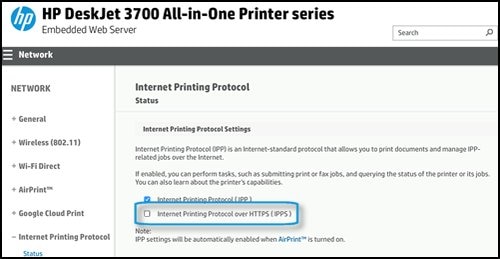
Turn off Internet Printing Protocol over HTPPS (IPPS)
-
Print a Network Configuration Page, and then locate the URL(s) for Embedded Web Server.
Figure : Example of the EWS URL on the Network Configuration Page

-
From a computer connected to your network, type the entire URL into an Internet browser, and then press Enter. If the webpage remains blank, try a different Internet browser.
Figure : Example IP address in the browser
The EWS displays.
-
Click Network, and then click Internet Printing Protocol.
The Internet Printing Protocol screen displays.
-
Clear the Internet Printing Protocol over HTPPS (IPPS) box, and then click Save.
Figure : Internet Printing Protocol screen

-
Try printing from AirPrint.
Click here and refer the document to perform the above steps.
Let me know how it goes.
Cheers.
Sandytechy20
I am an HP Employee