
-
×InformationNeed Windows 11 help?Check documents on compatibility, FAQs, upgrade information and available fixes.
Windows 11 Support Center. -
-
×InformationNeed Windows 11 help?Check documents on compatibility, FAQs, upgrade information and available fixes.
Windows 11 Support Center. -
- HP Community
- Printers
- Scanning, Faxing, and Copying
- Re: Connectivity, Scanning and Update Issues with HP5255

Create an account on the HP Community to personalize your profile and ask a question
Your account also allows you to connect with HP support faster, access a personal dashboard to manage all of your devices in one place, view warranty information, case status and more.
Common problems HP Solution Center not working : Adobe Flash Player Error and Unable to scan
We would like to share some of the most frequently asked questions about HP Solution Center not working : Adobe Flash Player Error and Unable to Scan.

It has been a while since anyone has replied. Simply ask a new question if you would like to start the discussion again.

07-21-2020 11:43 AM
 HP Recommended
Product: HP5255
Operating System: Microsoft Windows 10 (64-bit)
I have multiple problems with my 5255.
1. The device occasionally shows a status of not connected or off-line. I've already given it a static port and that has not corrected the problem.
2. I can't scan (I used to be able to). Again, it seems like the printer can't be found (even though it shows okay in the Windows status).
3. Cycling power will sometimes correct these problems, but not always.
4. HP desktop tools suggest updating drivers. I've tried to install a firmware update dated this month and I get a status back that the printer is up to date.
This is a replacement unit that I got last month. It replaced a unit I received in April of this year that died.
Suggestions welcome.
Solved! Go to Solution.
1 ACCEPTED SOLUTION
Accepted Solutions


07-23-2020 06:29 PM
HP Recommended
Welcome to the HP support community.
Use HP Print and Scan Doctor to check connectivity
Download HP Print and Scan Doctor.
-
Run HPPSdr.exe from the download location on your computer.
-
Once HP Print and Scan Doctor opens, click Start, and then select your printer.
-
If your printer is not in the list, turn it off and on, and then click Retry.
-
If there is a connection problem, follow the instructions in HP Print and Scan Doctor.
-
-
If a screen prompts you to turn on printer updates, click Yes.
-
If a screen prompts you to make your printer the default printer, click Yes.
-
Try to print.
Assign a manual IP address and that should fix the issue.
-
Make sure there is U.S. letter or A4 size, unused, plain paper in the input tray.
-
On the printer control panel, touch the Setup icon
 .
. -
Touch Tools.
-
Swipe down the display, and then touch Network Configuration Page.
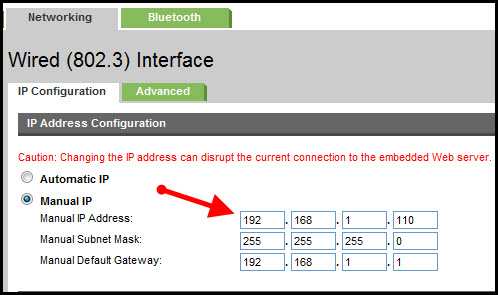
Setting a Static IP Address
Once you know your printer’s IP address, entering it is pretty easy. Here’s what you do:
- Run your Web browser.
- In the Web browser’s address bar, type the IP address of your printer and press Enter. Assuming you entered the right address, the HP printer control panel should appear.
- Click the Networking tab.
- Under Connections, click Wireless.
- Under IP Address Configuration, click Manual IP.
- Enter the IP address, subnet mask, and default gateway in the appropriate boxes.
- Click Apply.
You can refer this HP document for more assistance:- Click here
Let me know how it goes.
To thank me for my efforts to help you, please mark my post as an accepted solution so that it benefits several others.
Cheers.
Sandytechy20
I am an HP Employee
4 REPLIES 4
07-23-2020 06:29 PM
HP Recommended
Welcome to the HP support community.
Use HP Print and Scan Doctor to check connectivity
Download HP Print and Scan Doctor.
-
Run HPPSdr.exe from the download location on your computer.
-
Once HP Print and Scan Doctor opens, click Start, and then select your printer.
-
If your printer is not in the list, turn it off and on, and then click Retry.
-
If there is a connection problem, follow the instructions in HP Print and Scan Doctor.
-
-
If a screen prompts you to turn on printer updates, click Yes.
-
If a screen prompts you to make your printer the default printer, click Yes.
-
Try to print.
Assign a manual IP address and that should fix the issue.
-
Make sure there is U.S. letter or A4 size, unused, plain paper in the input tray.
-
On the printer control panel, touch the Setup icon
. -
Touch Tools.
-
Swipe down the display, and then touch Network Configuration Page.
Setting a Static IP Address
Once you know your printer’s IP address, entering it is pretty easy. Here’s what you do:
- Run your Web browser.
- In the Web browser’s address bar, type the IP address of your printer and press Enter. Assuming you entered the right address, the HP printer control panel should appear.
- Click the Networking tab.
- Under Connections, click Wireless.
- Under IP Address Configuration, click Manual IP.
- Enter the IP address, subnet mask, and default gateway in the appropriate boxes.
- Click Apply.
You can refer this HP document for more assistance:- Click here
Let me know how it goes.
To thank me for my efforts to help you, please mark my post as an accepted solution so that it benefits several others.
Cheers.
Sandytechy20
I am an HP Employee

Be alert for scammers posting fake support phone numbers and/or email addresses on the community.
If you think you have received a fake HP Support message, please report it to us by clicking on "Flag Post".
† The opinions expressed above are the personal opinions of the authors, not of HP. By using this site, you accept the Terms of Use and Rules of Participation.


Didn't find what you were looking for?
Ask the community
† The opinions expressed above are the personal opinions of the authors, not of HP. By using this site, you accept the <a href="https://www8.hp.com/us/en/terms-of-use.html" class="udrlinesmall">Terms of Use</a> and <a href="/t5/custom/page/page-id/hp.rulespage" class="udrlinesmall"> Rules of Participation</a>.