-
×InformationNeed Windows 11 help?Check documents on compatibility, FAQs, upgrade information and available fixes.
Windows 11 Support Center. -
-
×InformationNeed Windows 11 help?Check documents on compatibility, FAQs, upgrade information and available fixes.
Windows 11 Support Center. -
- HP Community
- Printers
- Scanning, Faxing, and Copying
- Document Feed Scanner

Create an account on the HP Community to personalize your profile and ask a question
09-08-2019 08:30 AM
@Shomera, Welcome to HP Support Community!
Step 1: Check the paper pick roller position
If the paper pick roller is not positioned correctly, the printer does not sense the original when it is loaded.
-
Remove any paper from the ADF.
-
Touch OK to clear the error message, and then look at the paper pick roller:
-
If the paper pick roller is up (not visible), the roller is in the correct position. Reload the originals, and then try to scan or copy again.
Figure: Correct position of ADF paper pick roller

-
If the paper pick roller is down (visible), the roller is in the incorrect position.
Figure: Incorrect position of ADF paper pick roller
-
Turn the printer off, and then on.
-
Check the paper pick roller. It should be reset, and in the "up" position.
-
Reload the original, pushing with moderate force until the paper stops. You should hear a sound, and an Original loaded message should display on the printer control panel.
-
Try to scan or copy again.
-
-
If the issue persists, continue to the next step.
Step 2: Check the paper, and then reload it
Make sure the paper you scan or copy is in good condition, is neatly stacked in the tray, and the paper path and tray are free from obstructions.
note:The edges of paper that has absorbed moisture might curl or lift the sheet so the paper does not feed into the ADF. Likewise, the ADF might not feed photo paper or other paper types with glossy surfaces. If you are unsure of the type of paper you should send through the ADF, use the flatbed scanner.
-
Remove the paper from the ADF.
-
Remove any severely bent, wrinkled, or torn paper from the stack.
Make sure there are no paper clips or staples in the paper.
-
For testing purposes, obtain 10 sheets of new, plain white paper with a weight of 60 to 90 g/m2 (16 to 24 lb bond).
-
Tap the stack of paper on a flat surface to align the edges.
-
Load the stack of paper into the ADF input tray. Make sure the stack is inserted fully into the input tray and that the printer recognizes that paper has been loaded. When paper is properly loaded into the ADF, the printer should make a sound and display Original loaded on the printer control panel.
-
Slide in the paper width guides until they rest against the edges of the paper.
-
Try to copy or scan using the ADF again.
-
If the ADF picked all the sheets in the stack of paper, reload your originals, and then try to copy or scan again.
-
If the ADF did not pick all sheets in the stack of paper, continue to the next step.
-
Step 3: Clean the ADF rollers and the separator pad
Clean the paper feed rollers and separator pad in the ADF.
Gather the following materials:
-
A lint-free cloth
-
Distilled, filtered, or bottled water (tap water might damage the printer)
-
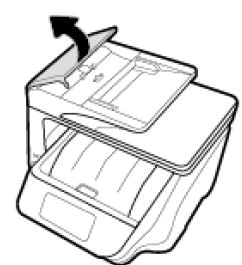
Lift the cover of the ADF.

-
Lightly dampen a clean, lint-free cloth with bottled or distilled water, and then squeeze any excess liquid from the cloth.
-
Press the cloth against the rollers, and then rotate them upward with your fingers. Apply a moderate amount of pressure to remove any dust or dirt buildup
-
Allow the rollers to dry completely (approximately 10 minutes).
-
Close the ADF cover tightly at both ends.
Try to print. If the error persists, continue to the next step.
Step 4: Reset the printer
Sometimes an error persists even though there is no paper feed issue. Reset the printer, and then try to print.
-
Turn the printer on, if it is not already on.
-
Wait until the printer is idle and silent before you continue.
-
With the printer turned on, disconnect the power cord from the rear of the printer.
-
Unplug the power cord from the wall outlet.
-
Wait at least 60 seconds.
-
Plug the power cord back into the wall outlet.
note:
HP recommends connecting the printer power cord directly to the wall outlet.
-
Reconnect the power cord to the rear of the printer.
-
Turn on the printer, if it does not automatically turn on.
-
Wait until the printer is idle and silent before you proceed.
Refer to the document HP OfficeJet Pro 8700 Printers - 'Out of Paper' Displays, Printer Does Not Pick Up Paper.
Keep me posted.
Please click “Accept as Solution” if you feel my post solved your issue, it will help others find the solution. Click the “Kudos/Thumbs Up" on the bottom right to say “Thanks” for helping!
TEJ1602
I am an HP Employee