
-
×InformationNeed Windows 11 help?Check documents on compatibility, FAQs, upgrade information and available fixes.
Windows 11 Support Center. -
-
×InformationNeed Windows 11 help?Check documents on compatibility, FAQs, upgrade information and available fixes.
Windows 11 Support Center. -
- HP Community
- Printers
- Scanning, Faxing, and Copying
- Document Feeder Not Working

Create an account on the HP Community to personalize your profile and ask a question
Your account also allows you to connect with HP support faster, access a personal dashboard to manage all of your devices in one place, view warranty information, case status and more.
Common problems HP Solution Center not working : Adobe Flash Player Error and Unable to scan
We would like to share some of the most frequently asked questions about HP Solution Center not working : Adobe Flash Player Error and Unable to Scan.

It has been a while since anyone has replied. Simply ask a new question if you would like to start the discussion again.

08-02-2018 12:44 PM
 HP Recommended
Product: HP OfficeJet Pro 7740
Operating System: macOS 10.13 High Sierra
The document feeder on my brand new - out of the box yesterday - doesn't seem to be picking up pages. I tried one page at a time. I tried copying to test the mechanics of picking up the document - nothing is working. I've triple checked to be sure there's no packing tape inside. It's just not working.
Any ideas?
7 REPLIES 7


08-03-2018 02:56 PM
HP Recommended
Thank you for joining HP Forums.
This is a great place to get support, find answers to your technical queries.
A Reload Original message displays and the ADF does not pick up paper.
Step 1: Clean the ADF rollers and the separator pad
Clean the paper feed rollers and the separator pad in the ADF.
Gather the following materials:
-
A lint-free cloth or swab
-
Distilled, filtered, or bottled water (tap water might damage the printer)
-
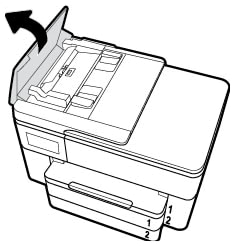
Lift the cover of the ADF.
Figure : Lifting the ADF cover
-
Lightly dampen a clean, lint-free cloth with bottled or distilled water, and then squeeze any excess liquid from the cloth.
-
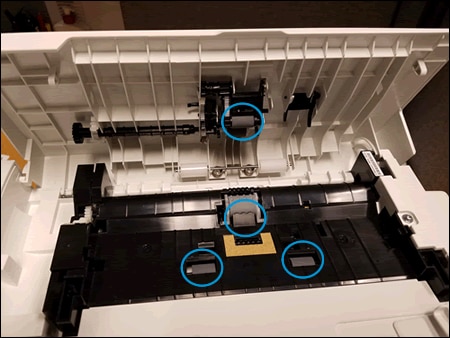
Press the cloth against the rollers, and then rotate them upward with your fingers. Apply a moderate amount of pressure to remove any dust or dirt buildup.
Figure : Cleaning the rollers and separator pad
-
Allow the rollers to dry completely (approximately 10 minutes).
-
Close the ADF cover tightly at both ends.
Try to print. If the error persists, continue to the next step.
Step 2: Reset the printer
Sometimes an error persists even though there is no paper feed issue. Reset the printer, and then try to print.
-
Turn the printer on, if it is not already on.
-
Wait until the printer is idle and silent before you continue.
-
With the printer turned on, disconnect the power cord from the rear of the printer.
-
Unplug the power cord from the wall outlet.
-
Wait at least 60 seconds.
-
Plug the power cord back into the wall outlet.
NOTE:
HP recommends connecting the printer power cord directly to the wall outlet.
-
Reconnect the power cord to the rear of the printer.
-
Turn on the printer, if it does not automatically turn on.
-
Wait until the printer is idle and silent before you proceed.
Try to print.
If the issue persists, I have sent you a private message, for more details that cannot be shared in a public post.
Can you please check your inbox on the forums page for the private message.
Have a great day!
Raj1788
I am an HP Employee


01-03-2020 08:37 AM
HP Recommended
Raj1788,
I am having this same issue and have done the troubleshooting noted online on this post. I was hoping you could contact me to let me know what needs to be done to get the document feeder working again. It all of a sudden stopped recognizing a paper present to feed and does not work at all.
I copied and pasted some of your instructions that was in a previous post to let you know I have already tried all of these trouble shooting steps.
Thank you
Step 2: Reset the printer
Sometimes an error persists even though there is no paper feed issue. Reset the printer, and then try to print.
Turn the printer on, if it is not already on.
Wait until the printer is idle and silent before you continue.
With the printer turned on, disconnect the power cord from the rear of the printer.
Unplug the power cord from the wall outlet.
Wait at least 60 seconds.
Plug the power cord back into the wall outlet.
NOTE:
HP recommends connecting the printer power cord directly to the wall outlet.
Reconnect the power cord to the rear of the printer.
Turn on the printer, if it does not automatically turn on.
Wait until the printer is idle and silent before you proceed.
Try to print.
If the issue persists, I have sent you a private message, for more details that cannot be shared in a public post.
Can you please check your inbox on the forums page for the private message.
Have a great day!
Raj1788
I am an HP Employee
01-06-2020 12:30 PM
HP Recommended
@Techmgr11, Welcome to HP Support Community!
If you have already performed the steps from the document 'Out of Paper' Displays, Printer Does Not Pick Up Paper and the issue persists, it could be a hardware failure.
Please reach out to the HP Support in your region regarding the service options for your printer.
Hope this helps!
Please click “Accept as Solution” if you feel my post solved your issue, it will help others find the solution. Click the “Kudos/Thumbs Up" on the bottom right to say “Thanks” for helping!
TEJ1602
I am an HP Employee
01-07-2020 07:30 AM
HP Recommended
Please reach out to the HP Support in your region regarding the service options for your printer.
Hope this helps!
Please click “Accept as Solution” if you feel my post solved your issue, it will help others find the solution. Click the “Kudos/Thumbs Up" on the bottom right to say “Thanks” for helping!
TEJ1602
I am an HP Employee
02-19-2020
11:39 AM
- last edited on
02-19-2020
11:50 AM
by
 kevin-t
HP Recommended
HP7740
serial # [edited]
product # G5J38A
Sudden failure of the document feeder. Will not acknowledge that there is a paper present in the feeder.
Have: 1. cleaned roller/pad as directed 2. tried the hard reset with power
does not acknowledge paper in feeder.
out of warranty though had purchased extended warranty that expired less than a week before product failure

Be alert for scammers posting fake support phone numbers and/or email addresses on the community.
If you think you have received a fake HP Support message, please report it to us by clicking on "Flag Post".
† The opinions expressed above are the personal opinions of the authors, not of HP. By using this site, you accept the Terms of Use and Rules of Participation.


Didn't find what you were looking for?
Ask the community
† The opinions expressed above are the personal opinions of the authors, not of HP. By using this site, you accept the <a href="https://www8.hp.com/us/en/terms-of-use.html" class="udrlinesmall">Terms of Use</a> and <a href="/t5/custom/page/page-id/hp.rulespage" class="udrlinesmall"> Rules of Participation</a>.