• ×
    Information
    Need Windows 11 help?
    Check documents on compatibility, FAQs, upgrade information and available fixes.
    Windows 11 Support Center.
  • post a message
  • ×
    Information
    Need Windows 11 help?
    Check documents on compatibility, FAQs, upgrade information and available fixes.
    Windows 11 Support Center.
  • post a message
Guidelines
Join the HP Community Solve‑a‑thon | Help Others & Share Your Solutions | Live on Zoom | 2:30 PM to 2:30 AM IST | Every Wednesday Click here to know more
Common problems HP Solution Center not working : Adobe Flash Player Error and Unable to scan
We would like to share some of the most frequently asked questions about HP Solution Center not working : Adobe Flash Player Error and Unable to Scan.
HP Recommended
HP Officejet pro 6970
Microsoft Windows 10 (64-bit)

The scanner keeps showing the message Document feeder jam but there does not seem to be any jam at all. I have followed all the troubleshooting steps but it has not helped... please help! 

3 REPLIES 3
HP Recommended

@justhelpmefixit

Welcome to HP Forums, 

This is a great place to get support, find answers and tips to your technical queries.


To provide you with an accurate solution, I'll need a few more details:

Are you facing this issue after an update?

Any hardware changes made in the printer?

Make sure all the rollers are moving freely.


Update the firmware for the printer using this link: https://support.hp.com/us-en/product/hp-officejet-pro-6970-all-in-one-printer-series/8289585/documen...


Restart the printer.


Clear a jam from the inside of the printer

Paper jams can occur inside the printer. Use a flashlight to check each area for torn paper or other debris.

  1. Turn off the printer.

  2. Disconnect the power cord and any other cable.

       WARNING: 

    You must disconnect the power cord before reaching inside the printer to avoid risk of injuries or electric shock.

  3. Remove jammed paper from the following areas.

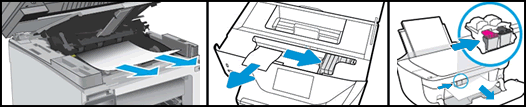
    • Ink or toner cartridge access area

      Open the access door, move the carriage if necessary, and then remove any jammed paper. On some Laserjet printers, you might need to remove the toner cartridge and/or imaging drum to access the paper jam.

      Examples of clearing a jam in the ink cartridge access area

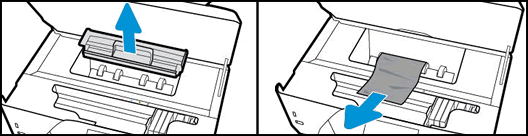
    • Under the paper path cover

      If your printer has a paper path cover behind the carriage, remove the cover, and then remove any jammed paper.

      Example of removing the paper path cover and clearing a jam

    • Input tray

      Pull out the input tray, and then remove any jammed paper.

      Example of removing a jam from the input tray area

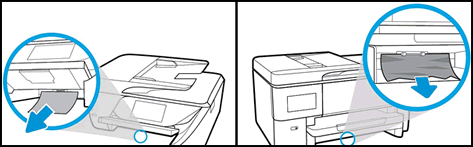
    • Bottom cleanout door

      If your printer has a bottom cleanout door, carefully lift the printer and look under it, and then remove any jammed paper from the bottom cleanout.

      Example of clearing jam from the bottom cleanout door

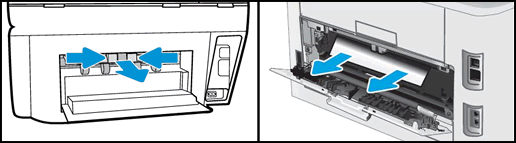
    • Rear access door

      Remove the paper path cover if necessary.

      Example of removing the paper path cover and clearing a rear door jam

  4. Replace any parts that were removed, and close any open doors.

  5. Reconnect the power cord, and other cables that were disconnected.

  6. Turn on the printer.

I suggest you do a Hard Reset


(1) Turn the printer on, if it is not already on.

(2) Wait until the printer is idle and silent before you continue.

(3) With the printer turned on, disconnect the power cord from the rear of the printer.

(4) Unplug the power cord from the wall outlet.

(5) Wait at least 60 seconds.

(6) Plug the power cord back into the wall outlet.

NOTE: HP recommends connecting the printer power cord directly to the wall outlet.

(7) Reconnect the power cord to the rear of the printer.

(8) Turn on the printer, if it does not automatically turn on.


The printer might go through a warm-up period. The printer lights might flash, and the carriage might move.

Wait until the warm-up period finishes and your printer is idle and silent before you proceed.


Try to print.


Keep me posted, how it goes!

If the information I've provided was helpful, give us some reinforcement by clicking the Accepted Solution and Kudos buttons, that'll help us and others see that we've got the answers!

Have a great day!

Cheers:)

Raj1788
I am an HP Employee 

HP Recommended

thank you for your reply!


Hi, No the problem is a supposed jam in the document feeder for the scanner. There is no apparent jam in the scanner and I have taken all the relevant steps regarding resets etc that you have recommended there. 

HP Recommended

@justhelpmefixit

Appreciate all your time and efforts.


Let's follow the below steps that could resolve the issue.


Step 1: Clean the ADF rollers and the separator pad

Clean the paper feed rollers and separator pad in the ADF.

  1. Remove the originals from the ADF.

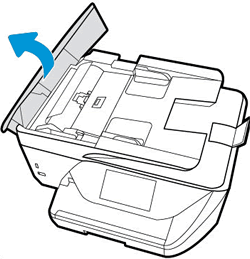
  2. Lift the cover of the ADF.

    Figure : Lifting the ADF cover

    Lifting the ADF cover
  3. Check for obstructions inside the ADF. Make sure nothing blocks the paper from engaging with the rollers. Even small pieces of paper can cause paper feed issues.

  4. Lightly dampen a clean, lint-free cloth with bottled or distilled water, and then squeeze any excess liquid from the cloth.

  5. Press the cloth against the rollers, and then rotate them upward with your fingers. Apply a moderate amount of pressure to remove any dust or dirt buildup.

    Figure : Cleaning the rollers and separator pad

    1. Rollers

    2. Separator pad

  6. Allow the rollers to dry completely (approximately 10 minutes).

  7. Close the ADF cover tightly at both ends.

Try to print. If the error persists, continue to the next step.

Step 2: Reset the printer

Sometimes an error persists even though there is no paper feed issue. Reset the printer, and then try to print.

  1. Turn the printer on, if it is not already on.

  2. Wait until the printer is idle and silent before you continue.

  3. With the printer turned on, disconnect the power cord from the rear of the printer.

  4. Unplug the power cord from the wall outlet.

  5. Wait at least 60 seconds.

  6. Plug the power cord back into the wall outlet.

    NOTE: 

    HP recommends connecting the printer power cord directly to the wall outlet.

  7. Reconnect the power cord to the rear of the printer.

  8. Turn on the printer, if it does not automatically turn on.

  9. Wait until the printer is idle and silent before you proceed.

Try to print. 


If the issue persists, I have sent you a private message, for more details that cannot be shared in a public post.

Can you please check your inbox on the forums page for the private message.


Have a great day!

Raj1788
I am an HP Employee 

† The opinions expressed above are the personal opinions of the authors, not of HP. By using this site, you accept the <a href="https://www8.hp.com/us/en/terms-of-use.html" class="udrlinesmall">Terms of Use</a> and <a href="/t5/custom/page/page-id/hp.rulespage" class="udrlinesmall"> Rules of Participation</a>.