• ×
    Information
    Need Windows 11 help?
    Check documents on compatibility, FAQs, upgrade information and available fixes.
    Windows 11 Support Center.
  • post a message
  • ×
    Information
    Need Windows 11 help?
    Check documents on compatibility, FAQs, upgrade information and available fixes.
    Windows 11 Support Center.
  • post a message
Guidelines
Join the HP Community Solve‑a‑thon | Help Others & Share Your Solutions | Live on Zoom | 2:30 PM to 2:30 AM IST | Every Wednesday Click here to know more
Common problems HP Solution Center not working : Adobe Flash Player Error and Unable to scan
We would like to share some of the most frequently asked questions about HP Solution Center not working : Adobe Flash Player Error and Unable to Scan.
HP Recommended

Just bought the Hp Officejet Pro 7720  for work.

It clearly states that auto two sided copy is available. Where?

Two sided copy  option is not available on the screen 1:1 and 1:2 only.

Is this a driver problem or false advertisement?

3 REPLIES 3
HP Recommended

Interesting - just been cut off by the hp helpdesk when I queried why the 7720 has a label on it saying that the printer will auto double side copy but there is no option on the settings to do so.

I asked if this was false advertising - phone went dead. 


HP Recommended

The 7720 doesn't have an automatic 2 sided copy. Where is it advertised differently?


My profile on LinkedIn

HP Recommended

Apologies for jumping in unannounced.


@Valsimot 


I can understand why it is confusing.

The printer Specifications:

Copy

Copier settings
Copies; Size; Quality; Lighter/Darker; Paper size; Resize; Paper Type; Two-sided; ID Copy, Collate; Binding Margin; Enhancement; Crop; Copy Preview


====================================


@Bryn693--


@Valsimot  is likely correct -- I do not have the breadth of hardware knowledge to dispute what might be true.


IF your printer supports the option in the Embedded Web Server (EWS), look for the Copy settings and ways to adjust...


Open your Browser > Type / enter the Printer IP address into URL / Address bar

Tab Copy > Settings > Default SettingsCopy Defaults


EWS_9025_Copy_Defaults_6EWS_9025_Copy_Defaults_6


What else?


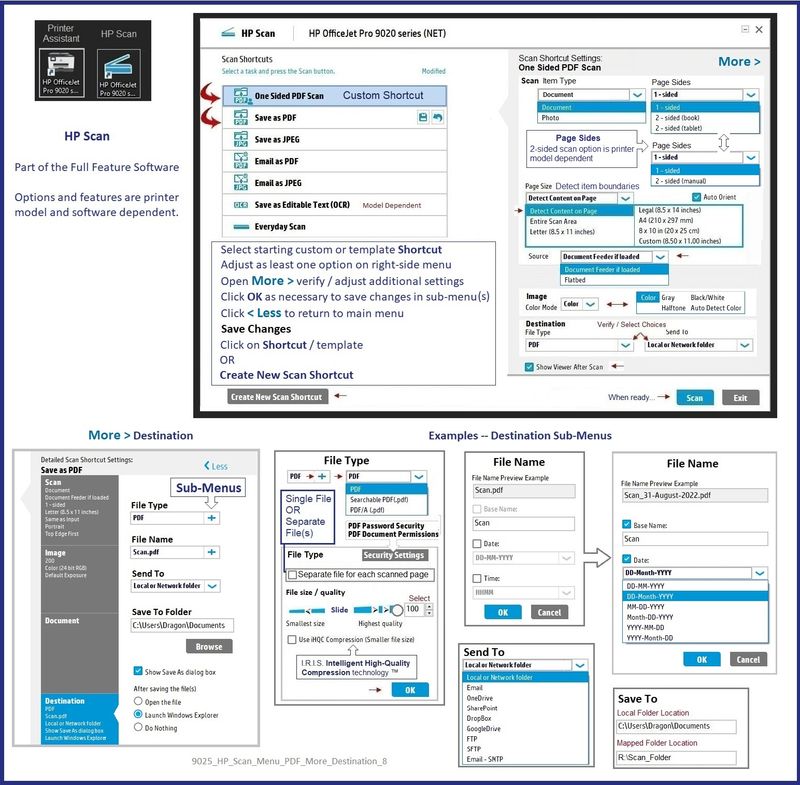
Unfortunately, the printer lacks the automatic 2-sided scan option.

That said, if you are using Windows and have installed the Full Feature Software,

HP Scan can scan one side at a time, direct to flip the document, and then auto-order the pages.

Example - Windows - HP Scan - Save as PDF - Menu / Options - More > Destination

9025_HP_Scan_Menu_PDF_More_Destination_89025_HP_Scan_Menu_PDF_More_Destination_8


=+=+=+=+=+=+=+=+=+=+=+=+=+=

References / Resources


HP Document - How to Scan

 HP Printers - How to Scan (Windows, Mac, Mobile) | HP® Customer Support


EWS > HP Document / How-to

Use the HP printer Embedded Web Server (EWS)


=========================================

Printer - Printer Software


Details Page - Driver - For your Printer

>>> Full Feature Software - Web Pack Installation Package - Information - Download / Save / Install <<<

HP OfficeJet Pro 7720 Wide Format All-in-One Print and Scan Driver and Accessories 

After the software is installed, Restart the computer and sign in.


Next,

Optional – Supported for your printer

Next – HP Universal Scan Software - NOTE:  Model and Operating System version Dependent


 HP Universal Scan Full Feature Software adds OCR libraries to installed HP Scan software. 

HPUS installs a new, full featured, (and separate) HP Scan software shortcut to the Desktop.

Note:  HPUS can be installed as standalone or installed after the full feature printer software.

After the software is installed, Restart the computer and sign in

HP Universal Scan Software provides a larger GUI to make using the software easier on high-resolution screens.   New features have been added to the main menu to help with navigating the settings.


====================================

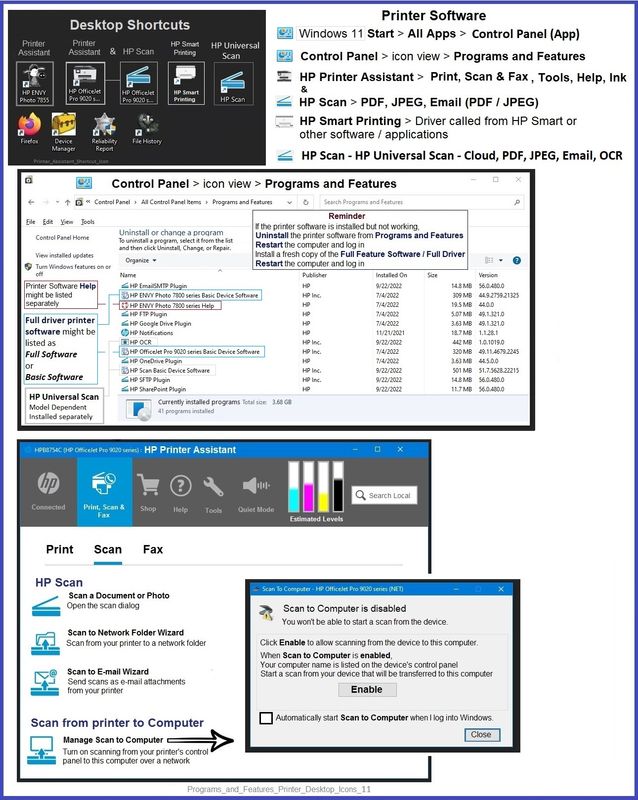
The installation of the full driver adds at least two shortcuts to the Desktop:  

Printer Assistant 

HP Scan


>>> Open the Printer Assistant > tab Scan Manage Scan to Computer Enable


Example - Windows - Full Feature Software - Installed in Programs and Features

Programs_and_Features_Printer_Desktop_Icons_11Programs_and_Features_Printer_Desktop_Icons_11


=+=+=+=+=+=+=+=+=+=+=+=+=+=+=+=+=+=+=+=+=+=

HP Printer Home Page - References and Resources

Learn about your Printer  - Solve Problems

“Things that are your printer”

When the website support page opens, Select (as available) a Category > Topic Subtopic

NOTE:  Content depends on device type and Operating System

Categories Alerts, Access to the Print and Scan Doctor (Windows), Warranty Check, HP Drivers / Software / Firmware Updates, How-to Videos, Bulletins/Notices, Lots of How-to Documents, Troubleshooting, Manuals > User Guides, Product Information (Specifications), Supplies, and more

Open

HP OfficeJet Pro 7720 Wide Format All-in-One Printer series  


Thank you for participating in the HP Community --

People who own, use, and support HP devices.

Click Yes to say Thank You

Question / Concern Answered, Click my Post "Accept as Solution"


Dragon-Fur

† The opinions expressed above are the personal opinions of the authors, not of HP. By using this site, you accept the <a href="https://www8.hp.com/us/en/terms-of-use.html" class="udrlinesmall">Terms of Use</a> and <a href="/t5/custom/page/page-id/hp.rulespage" class="udrlinesmall"> Rules of Participation</a>.