
-
×InformationNeed Windows 11 help?Check documents on compatibility, FAQs, upgrade information and available fixes.
Windows 11 Support Center. -
-
×InformationNeed Windows 11 help?Check documents on compatibility, FAQs, upgrade information and available fixes.
Windows 11 Support Center. -
- HP Community
- Printers
- Scanning, Faxing, and Copying
- Extraneous Black Lines

Create an account on the HP Community to personalize your profile and ask a question
Your account also allows you to connect with HP support faster, access a personal dashboard to manage all of your devices in one place, view warranty information, case status and more.
Common problems HP Solution Center not working : Adobe Flash Player Error and Unable to scan
We would like to share some of the most frequently asked questions about HP Solution Center not working : Adobe Flash Player Error and Unable to Scan.

It has been a while since anyone has replied. Simply ask a new question if you would like to start the discussion again.

03-18-2017 10:24 AM
 HP Recommended
Product: Officejet 5740
Operating System: Microsoft Windows 7 (64-bit)
After getting a paper jam using the automatic document feeder, I am getting extraneous black vertical lines every time I
use the automatic feeder. If I place the original on the glass, there are no lines. I have tried unplugging, it didn't help.
Solved! Go to Solution.
1 ACCEPTED SOLUTION
Accepted Solutions


03-19-2017 12:31 PM
HP Recommended
Thanks for reaching out to us on HP Support Forums. 🙂 I came across your post and would like to help.
I understand that you have an HP OfficeJet 5740 e-All-in-One Printer and there was a paper jam. Since then there are extraneous black vertical lines when you try to print using the ADF (Automated Document Feeder). Copying from the scanner glass bed is fine. I appreciate the steps you have performed and have certainly done a good job.
I would like to know the following information to assist you better:
- Do you hear loud noise from the ADF.
- How if the print quality from the printer?
Meanwhile, I recommend you to perform the following steps to isolate the issue and arrive at a fix:
- Disconnect the power cable from the printer while the printer is still ON.
- Disconnect any other cables if connected the printer.
- Press and hold the printer’s power button for 15 seconds.
- The printer should be directly connected to the wall outlet and not to a surge protector. Reconnect the power cable to print and the printer should power ON by itself. If the printer doesn’t power ON then please manually power it ON.
- Dust or paper residue on the rollers or separator pad inside the automatic document feeder (ADF) can result in copy quality issues. Open the ADF, and then clean the ADF rollers and separator pad.The location of the ADF rollers might be different depending on your printer, but the following steps still apply.
-
Gather the following materials:
-
A clean, lint-free cloth, or any cloth that does not come apart or leave fibers
-
Distilled, filtered, or bottled water (tap water might damage the printer)
-
-
Remove the original document from the ADF.
-
Turn off the printer.
-
Disconnect the power cord from the rear of the printer.
-
Open the ADF cover.
-
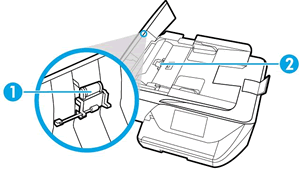
Find the paper pick rollers and the separator pad inside the ADF.
Figure : Example of the paper pick rollers and separator pad in a LaserJet printer
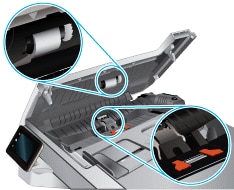
Figure : Example of the paper pick rollers and separator pad in a OfficeJet printer
-
Lightly dampen a clean, lint-free cloth with filtered or distilled water, and then squeeze any excess liquid from the cloth.
-
Use the damp cloth to wipe any residue off the paper pick rollers and the separator pad.
-
Leave the ADF cover open for two minutes to allow the paper pick rollers and separator pad to dry.
-
Close the ADF cover.
-
Reload the original document print side up in the document feeder tray. Gently slide the document into the printer as far as it can go.
-
Slide in the paper width guides until they are snug against the paper.
Do not push the paper width guides in so far that they bend the paper.
-
Reconnect the power cord to the rear of the printer.
-
Turn on the printer, and then try to copy.
-
If the issue persists, continue to the next step.
I sincerely hope this fixes the issue. Keep me posted. All the best! 🙂
3 REPLIES 3
03-19-2017 12:31 PM
HP Recommended
Thanks for reaching out to us on HP Support Forums. 🙂 I came across your post and would like to help.
I understand that you have an HP OfficeJet 5740 e-All-in-One Printer and there was a paper jam. Since then there are extraneous black vertical lines when you try to print using the ADF (Automated Document Feeder). Copying from the scanner glass bed is fine. I appreciate the steps you have performed and have certainly done a good job.
I would like to know the following information to assist you better:
- Do you hear loud noise from the ADF.
- How if the print quality from the printer?
Meanwhile, I recommend you to perform the following steps to isolate the issue and arrive at a fix:
- Disconnect the power cable from the printer while the printer is still ON.
- Disconnect any other cables if connected the printer.
- Press and hold the printer’s power button for 15 seconds.
- The printer should be directly connected to the wall outlet and not to a surge protector. Reconnect the power cable to print and the printer should power ON by itself. If the printer doesn’t power ON then please manually power it ON.
- Dust or paper residue on the rollers or separator pad inside the automatic document feeder (ADF) can result in copy quality issues. Open the ADF, and then clean the ADF rollers and separator pad.The location of the ADF rollers might be different depending on your printer, but the following steps still apply.
-
Gather the following materials:
-
A clean, lint-free cloth, or any cloth that does not come apart or leave fibers
-
Distilled, filtered, or bottled water (tap water might damage the printer)
-
-
Remove the original document from the ADF.
-
Turn off the printer.
-
Disconnect the power cord from the rear of the printer.
-
Open the ADF cover.
-
Find the paper pick rollers and the separator pad inside the ADF.
Figure : Example of the paper pick rollers and separator pad in a LaserJet printer
Figure : Example of the paper pick rollers and separator pad in a OfficeJet printer
-
Lightly dampen a clean, lint-free cloth with filtered or distilled water, and then squeeze any excess liquid from the cloth.
-
Use the damp cloth to wipe any residue off the paper pick rollers and the separator pad.
-
Leave the ADF cover open for two minutes to allow the paper pick rollers and separator pad to dry.
-
Close the ADF cover.
-
Reload the original document print side up in the document feeder tray. Gently slide the document into the printer as far as it can go.
-
Slide in the paper width guides until they are snug against the paper.
Do not push the paper width guides in so far that they bend the paper.
-
Reconnect the power cord to the rear of the printer.
-
Turn on the printer, and then try to copy.
-
If the issue persists, continue to the next step.
I sincerely hope this fixes the issue. Keep me posted. All the best! 🙂


Be alert for scammers posting fake support phone numbers and/or email addresses on the community.
If you think you have received a fake HP Support message, please report it to us by clicking on "Flag Post".
† The opinions expressed above are the personal opinions of the authors, not of HP. By using this site, you accept the Terms of Use and Rules of Participation.


Didn't find what you were looking for?
Ask the community
† The opinions expressed above are the personal opinions of the authors, not of HP. By using this site, you accept the <a href="https://www8.hp.com/us/en/terms-of-use.html" class="udrlinesmall">Terms of Use</a> and <a href="/t5/custom/page/page-id/hp.rulespage" class="udrlinesmall"> Rules of Participation</a>.