• ×
    Information
    Need Windows 11 help?
    Check documents on compatibility, FAQs, upgrade information and available fixes.
    Windows 11 Support Center.
  • post a message
  • ×
    Information
    Need Windows 11 help?
    Check documents on compatibility, FAQs, upgrade information and available fixes.
    Windows 11 Support Center.
  • post a message
Guidelines
Join the HP Community Solve‑a‑thon | Help Others & Share Your Solutions | Live on Zoom | 2:30 PM to 2:30 AM IST | Every Wednesday Click here to know more
Common problems HP Solution Center not working : Adobe Flash Player Error and Unable to scan
We would like to share some of the most frequently asked questions about HP Solution Center not working : Adobe Flash Player Error and Unable to Scan.
HP Recommended
HP Officejet Pro 8600 Plus
Microsoft Windows 8 (64-bit)

Hello I have had the printer for a cople years and love it.  Prints stuff fine but I have never faxed with it.  I recently have attempted to fax documents by using the touch pad on the printer and it dials the phone number but always says no answer and prints something out stating as such.  This has happened for multiple numbers and I have contacted the people I was sending items to and the line I sent to was a dedicated line so it should always pickup.  I attempted to use the HP printer assistant "Send a Fax" function and it states the following:


"There is a problem communicating with the printer. Check your network connection and verify that the printer is ready. If you installed this printer by IP address, then you might need to update the IP address.  Use the Update IP Address items in the start menu entry for this printer.  If the problem persists, it may be related to your current firewall settings."


This is super confusing me as I tried scanning something with the same computer with the wizard and it connected perfectly.  Does anyone have any suggestions?  Thanks

1 REPLY 1
HP Recommended

@Bruinsh

Welcome to the HP Support Community


To provide you with an accurate solution, I'll need a few more details:

Do you have the shared line or dedicated fax line?


Let's prepare the printer for faxing


Prepare your HP printer for faxing.

These steps use a traditional landline telephone service. If you use a different type of phone service (cellular, Internet phone, PBX, or DSL), see the FAQs in this document to set up the connection.

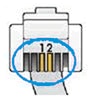
  1. Obtain a telephone cord. Use the cord that came with the printer. If you do not have the original cord, use a cord with connectors that have two wire leads, not four.

    Two-wire connector

  2. Connect the phone cord to the phone wall jack and to the 1-LINE jack on the back of the printer.

    Connect the 1-LINE phone connection

  3. If you have an answering machine, connect a phone cord to the machine and to the 2-EXT jack on the rear of the printer. Doing so allows your telephone answering machine to record voice calls normally without recording the noises from faxes.

    1. Wall jack

    2. Two-wire phone cord

    3. Answering machine

    4. Single-line telephone

  4. Set up fax settings and preferences. The HP software includes guided fax setup tools (the Fax Setup Wizard in Windows or the Basic Fax Settings tool for Mac), or navigate to the Fax or Setup menus on the printer control panel.

    • Fax header: Enter text you want recipients to see at the top of your faxes. A typical fax header contains your name, the name of your business, and the complete 10-digit fax telephone number.

    • Answer mode/Auto answer: Picks up your phone calls after a specified number of rings and accepts incoming faxes. If this feature is off, a person must manually accept incoming faxes from the printer control panel.

    • Rings to answer: When the phone rings, the printer waits and counts the number of telephone rings before it answers the call.

      • If the phone line is shared with your voice calls, choose a number rings that provides enough time for you to answer the phone before the printer picks up a call.

      • If the phone line is shared with an answering machine, choose a number to pick up that is two rings more than the answering machine. Doing so ensures the answering machine answers the phone before the printer.

    • Set the ring type: Use the All Rings setting for a dedicated fax line or select Distinctive Ring if you set up a special ring pattern for the fax line.

    • Dial type: Match the type of analog phone service you have; tone or pulse. If the dial type does not match, the printer cannot detect rings and answer incoming calls.

      The current industry standard is tone dial in most areas. You might have pulse dialing if you use a rotary telephone. If you are not sure of the dial type, contact your phone service provider.

    • Fax volume: Select a volume level to hear sounds made during the fax call, such as dial tones and busy signals. Set the volume to Offif you want silent faxing.

  5. Run a fax test to confirm the fax set up was successful. On the printer control panel, locate Run Fax Test or Fax Test Report in the Faxor Setup menus. A report prints with test results and any instructions to resolve issues.

    Additionally, you can test send and receive functionality with the HP Fax Test Service. Send a fax to 1-888-HPFaxme (1-888-473-2963 U.S.). The service receives faxes and returns faxes within 5 to 7 minutes to the fax number contained in the fax header.

To Send a fax


Send a fax from your printer by loading your document, and then dialing the receiving fax phone number from the printer control panel.

NOTE: 

For steps to send faxes from your computer, go to the How do I send and receive faxes with my computer? section in this document.

  1. If you know the recipient is in a home or home office and shares the phone line with their fax machine, call them to let them know you are sending a fax.

  2. Load the document you are faxing.

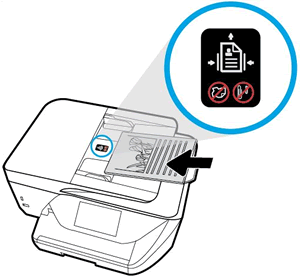
    • Use the Automatic Document Feeder (ADF): Load single or multi-page document into the ADF tray according to the engraved guide or sticker.

      Load the paper on the automatic document feeder tray.

    • Use the scanner glass: Load the document face down on the scanner glass according to the guide on the edges.

      Loading the original on the scanner glass.

  3. Make sure blank paper is loaded in the input tray for any fax reports that might print.

  4. Make sure the phone line is currently not in use. Pick up any phone connected to the same phone line as the fax and listen for a dial tone.

  5. From the printer, dial the receiving fax number as if you are making a phone call, including the area code, the outside line access code (such as '9'), and the long distance country code. If dialing with speed dial, confirm the saved number has required pauses between numbers (adding a dash between 9 and the area code, for instance).

  6. Press the Black, Color, or Send button to send the fax.

    • If you hear a busy signal, the receiving fax phone line is busy. Try faxing again later.

    • If you hear someone’s voice answer the phone, wait until they manually accept your fax, or cancel the fax from the front panel if you suspect the phone number is wrong.

    • If you hear high-pitched sounds, your fax is being sent.

  7. A fax report prints. Read the report to learn if the fax completed successfully, or if an error occurred.

To Receive a fax


When properly set up, the printer or fax machine can automatically receive incoming faxes and will either print them, route them to email, or save them to a folder on your computer. You can also manually receive faxes by pressing the fax buttons on the printer when a fax call comes in.

Select the following settings for how incoming faxes are answered and processed. Settings are either in the Fax or Setup menus on the printer control panel or in the HP software.

  • Answer mode/Auto answer: Select Auto Answer to receive fax calls after a specified number of rings. If this feature is off, you can manually receive faxes by pressing Fax or Black on the printer control panel when you hear a fax call on the phone line.

  • Rings to answer: When the phone rings, the printer waits and counts the number of telephone rings before it answers the call.

    • If the phone line is shared with your voice calls, choose a number of rings that provides enough time for you to answer the phone before the printer picks up a call.

    • If the phone line is shared with an answering machine, choose a number to pick up that is two rings more than the answering machine. Doing so ensures the answering machine answers the phone before the printer.

Try to fax.


Use this link: https://support.hp.com/us-en/product/hp-officejet-pro-8610-e-all-in-one-printer-series/5367603/model... for Resolving Fax Problems.


Keep me posted, how it goes!

If the information I've provided was helpful, give us some reinforcement by clicking the Accepted Solution and Kudos buttons, that'll help us and others see that we've got the answers!

Have a great day!

Cheers:)


Raj1788
I am an HP Employee 

† The opinions expressed above are the personal opinions of the authors, not of HP. By using this site, you accept the <a href="https://www8.hp.com/us/en/terms-of-use.html" class="udrlinesmall">Terms of Use</a> and <a href="/t5/custom/page/page-id/hp.rulespage" class="udrlinesmall"> Rules of Participation</a>.