
-
×InformationNeed Windows 11 help?Check documents on compatibility, FAQs, upgrade information and available fixes.
Windows 11 Support Center. -
-
×InformationNeed Windows 11 help?Check documents on compatibility, FAQs, upgrade information and available fixes.
Windows 11 Support Center. -
- HP Community
- Printers
- Scanning, Faxing, and Copying
- Re: HP 8620 Scanning Stopped Working

Create an account on the HP Community to personalize your profile and ask a question
Your account also allows you to connect with HP support faster, access a personal dashboard to manage all of your devices in one place, view warranty information, case status and more.
Common problems HP Solution Center not working : Adobe Flash Player Error and Unable to scan
We would like to share some of the most frequently asked questions about HP Solution Center not working : Adobe Flash Player Error and Unable to Scan.

It has been a while since anyone has replied. Simply ask a new question if you would like to start the discussion again.

02-16-2019 07:46 AM
 HP Recommended
Product: HP Pavilion Laptop
Operating System: Microsoft Windows 10 (64-bit)
When I double click on the printer icon on my desktop it asks me to install a new printer, I try to install the wireless printer and it requires me to put in the IP address, then it says it was successful but it goes through the same process everytime i double click on the printer icon. It used to work. Printing works OK. I have tried to uninstall and reinstall the printer software but it did not help. The 8620 Fax Device had been deleted prior to this problem starting. I do not think the printer software is getting fully uninstalled. How can I fix this problem?
Solved! Go to Solution.
1 ACCEPTED SOLUTION
Accepted Solutions


02-19-2019
06:02 PM
- last edited on
12-03-2025
07:03 AM
by
 Animatryx
HP Recommended
This seems to be an issue with the Windows and the latest updates
You can try the Scan and Capture App or HP App for Scanning
Please refer to the Links below
HP App: https://support.hp.com/in-en/document/c04675142
HP Scan And Capture: https://support.hp.com/in-en/document/c04675206
If the information I've provided was helpful, give us some reinforcement by clicking the "Solution Accepted" on this Post and it will also help other community members with similar issue.
KrazyToad
I Am An HP Employee
9 REPLIES 9
02-18-2019 10:32 AM
HP Recommended
Welcome to HP Support Community
Please uninstall the printer driver from Root Level and download the Full Feature Software
1.) In Windows, search for and open Programs and features
2.) Select your HP Printer
3.) Select Uninstall
4.) In Windows, search for and open Devices and printers
5.) In the Devices and Printers windows look for your HP printer. If you see it listed right-click on it and choose ‘Delete’ or ‘Remove Device’
6.) Open up the run command with the “Windows key + R” key combo.
7.) Type printui.exe /s and click Ok. (Note: there is a space in between “printui.exe” and “/s”)
8.) Click on the “Drivers” tab
9.) Look for HP Printer driver. If you see it Click on it and click Remove at the bottom
10.) Select Ok
11.) Select Apply and Ok on the Print Server Properties windows
12.) Close Devices and Printers
13.) Restart the computer and download the Full Feature Software from Here and follow the onscreen Instructions
Keep me posted and have a great day 😊
If the information I've provided was helpful, give us some reinforcement by clicking the "Solution Accepted" on this Post and it will also help other community members with similar issue.
KrazyToad
I Am An HP Employee
02-18-2019 12:36 PM
HP Recommended
No joy! I followed the steps and downloaded the "Full Feature Software" but the result was "Unsuccesful Network Installation". I then ran Scan and Print Doctor 5.1 which said that the Printer needed updated software, so I had it download that to no avail. At this point the printer is not installed on my computer. I know that I can add the printer succesfully via the Windows Settings>Devices>Printers & Scanners>Add a Printer or Scanner in Windows 10. FYI I can still print from my phone using ePrint. One last bit of information, When I removed the HP 8620 driver it asked if I wanted to remove the Driver only or the Driver & Driver Package. I choose the driver only. Also when I look at the program list it says HP 8620 Basic Software was installed, even though I downloaded the Fill Feature Software. Thanks for your assistance, I look forward to getting this problem fixed.
02-18-2019 06:14 PM
HP Recommended
Please uninstall the drivers from root level again and ensure you uninstall both the Driver & Driver Package, restart the computer and then download the Full Feature Software
KrazyToad
I Am An HP Employee
02-19-2019 11:30 AM
HP Recommended
Failed again. I also tried after disabling my firewal, still failed. I also reset the printer to Factory Defaults and unpluged the printer and reconnected it after 3 min. - no change. I also reset the Network and reconnected the printer to the network, no change. The file that I am using to install the Full Feature software is OJ8620_198.exe. It still says it is installing Basic software. I even uninstalled the HPepring software and related driver and driver package.
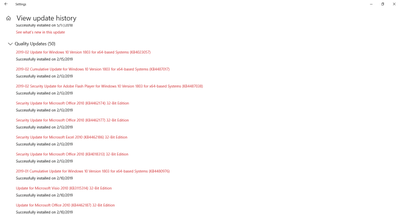
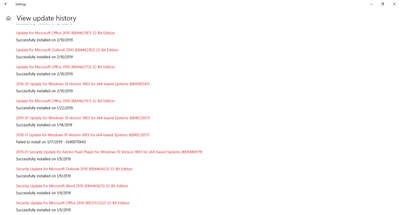
HOWEVER I then installed the printer on my HP Pavilion TS 14 Notebook using the CD that came with the printer and it installed with no problem. This was a 1st time installation on the TS 14. I had oriigionally tried to reinstall the 8620 on this Laptop - HP Pavilion Notebook, using the CD and it had failed in the same manner as the downloaded file. The only differance between the two Notebooks is that the problem Notebook does not have the most recent Windows Updates downloaded onto it. I believe that these updates are having some effect on this process. Here are printscreens of the updates that were downloaded just prior to the problem with the scanner started, I hope you can read them. By the way, this all started when Microsoft Edge started showing the 8620 Fax at the default printer and I could not get it to show the 8620 Printer, so I deleted the 8620 Fax in the Devices listing, since I never use it, to fix the problem. I think that was after the Updates but I am not sure.
02-19-2019
06:02 PM
- last edited on
12-03-2025
07:03 AM
by
Animatryx
HP Recommended
This seems to be an issue with the Windows and the latest updates
You can try the Scan and Capture App or HP App for Scanning
Please refer to the Links below
HP App: https://support.hp.com/in-en/document/c04675142
HP Scan And Capture: https://support.hp.com/in-en/document/c04675206
If the information I've provided was helpful, give us some reinforcement by clicking the "Solution Accepted" on this Post and it will also help other community members with similar issue.
KrazyToad
I Am An HP Employee
02-20-2019 10:42 AM
HP Recommended
OK, both the HP Smart App for Scanning and the HP Scan and Capture App work, but as you know they do not work as simply and easily as the Printer Assistant. So I am going to mark this as Problem Solved but I hope HP finds a true solution to whatever the Windows Update did to cause this problem and create a fix in a future update. If that happens I would appreciate you letting me know.
Tom
02-20-2019 06:01 PM
HP Recommended
I'm glad to know you are able to scan using those Apps
Once HP or Microsoft releases a patch to fix this issue, it will be through the HP update or a Windows update
Do visit our HP Support Community and drop us a message anytime you need help 😊
KrazyToad
I Am An HP Employee


Be alert for scammers posting fake support phone numbers and/or email addresses on the community.
If you think you have received a fake HP Support message, please report it to us by clicking on "Flag Post".
† The opinions expressed above are the personal opinions of the authors, not of HP. By using this site, you accept the Terms of Use and Rules of Participation.


Didn't find what you were looking for?
Ask the community
† The opinions expressed above are the personal opinions of the authors, not of HP. By using this site, you accept the <a href="https://www8.hp.com/us/en/terms-of-use.html" class="udrlinesmall">Terms of Use</a> and <a href="/t5/custom/page/page-id/hp.rulespage" class="udrlinesmall"> Rules of Participation</a>.