• ×
    Information
    Need Windows 11 help?
    Check documents on compatibility, FAQs, upgrade information and available fixes.
    Windows 11 Support Center.
  • post a message
  • ×
    Information
    Need Windows 11 help?
    Check documents on compatibility, FAQs, upgrade information and available fixes.
    Windows 11 Support Center.
  • post a message
Guidelines
Join the HP Community Solve‑a‑thon | Help Others & Share Your Solutions | Live on Zoom | 2:30 PM to 2:30 AM IST | Every Wednesday Click here to know more
Common problems HP Solution Center not working : Adobe Flash Player Error and Unable to scan
We would like to share some of the most frequently asked questions about HP Solution Center not working : Adobe Flash Player Error and Unable to Scan.
HP Recommended
HP ENVY 4512 (PRINT/SCAN/COPY/WEB/PHOTO)
Microsoft Windows 10 (32-bit)

I was able to use my scanner two weeks ago and havent needed until today. Now when I try to use the scanner it wont work! Are there any fixes or has anyone else had this issue? The printer/scanner is not that old. Please advise. Thank you!

1 REPLY 1
HP Recommended

@ChipPiano5 Did it stop working after the last update? If not, here's what you need to do:

Run the Print and Scan Doctor

Download and run HP Print and Scan Doctor  to automatically diagnose and resolve printer hardware and connection issues.

  1. Review the status of each test result.

    • : The printer passed the test.

    • : An issue was discovered and automatically repaired.

    • : The test failed and required user action, but the step was skipped.

    • : An issue was found. Follow the instructions to resolve the issue.
  2. Load an item on the scanner glass, and then click Test Scan to confirm the scanner is working.

Try to scan. If these steps did not resolve the issue, continue to the next step.

Restarting the computer and printer/scanner can resolve a missing scan settings error.

  1. Turn off the printer/scanner.

  2. Make sure the power cord connects directly to an electrical outlet and not through a surge protector or power strip.

  3. Close all running programs on your computer, then shut down the computer.

  4. Turn on the printer.

  5. Turn on the computer.

Try to scan. If these steps did not resolve the issue, continue to the next step.


Temporarily disable firewall software on the computer

Firewall software helps block threats from outside your network, but some settings or configurations can block communication with network printers. Use the Print and Scan Doctor to identify and temporarily disable firewall software on your computer.

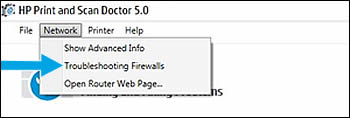
  1. Return to the Print and Scan Doctor, click Network, then click Troubleshoot Firewalls.

    Figure : Click Troubleshoot Firewalls in the drop-down menu

    Click Troubleshooting Firewalls in the drop-down menu.

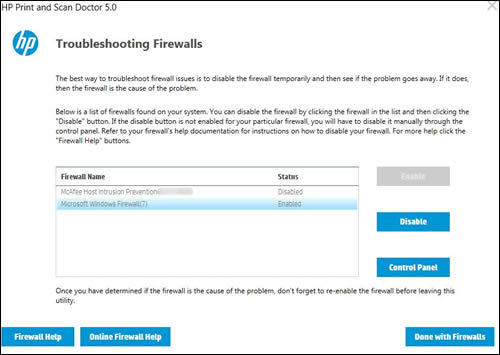
  2. Click the name of any firewall software on your system that has an Enabled status, then click Disable.

    Figure : Example of the Troubleshooting Firewalls window

    Image: Example of the Advanced Info window

  3. Try installing the HP driver and software again.

    • If the installation completed, consult the firewall software support to change settings such as security level, trusted zones, and open ports to allow communication with HP software and websites. After changing the settings, re-enable the firewall in the Print and Scan Doctor.

    • If the installation failed, the firewall software is not causing the issue. Re-enable the firewall in the Print and Scan Doctor,

P.S: Welcome to HP Community 😉


Keep us posted,

If you would like to thank us for our efforts to help you, 

Give us a virtual high-five by clicking the 'Thumbs Up' icon below, followed by clicking on the "Accept as solution" on this post, 

Have a great day!

Riddle_Decipher
I am an HP Employee


Learning is a journey, not a destination.
Let's keep asking questions and growing together.
† The opinions expressed above are the personal opinions of the authors, not of HP. By using this site, you accept the <a href="https://www8.hp.com/us/en/terms-of-use.html" class="udrlinesmall">Terms of Use</a> and <a href="/t5/custom/page/page-id/hp.rulespage" class="udrlinesmall"> Rules of Participation</a>.

