• ×
    Information
    Need Windows 11 help?
    Check documents on compatibility, FAQs, upgrade information and available fixes.
    Windows 11 Support Center.
  • post a message
  • ×
    Information
    Need Windows 11 help?
    Check documents on compatibility, FAQs, upgrade information and available fixes.
    Windows 11 Support Center.
  • post a message
Guidelines
Seize the moment! nominate yourself or a tech enthusiast you admire & join the HP Community Experts!
Common problems HP Solution Center not working : Adobe Flash Player Error and Unable to scan
We would like to share some of the most frequently asked questions about HP Solution Center not working : Adobe Flash Player Error and Unable to Scan.
HP Recommended
OfficeJet 8720
Microsoft Windows 10 (64-bit)

HP OfficeJet Pro 8720 Jams on Duplex printing from ADF.  This happens consistently with tri-fold documents (such as bills) and has happened since I first bought the printer.

1 REPLY 1
HP Recommended

@dmac35


Welcome to the HP Support Community.


Does this happen with normal documents from the ADF?


Clean the paper feed rollers in the ADF.​​​​​​:


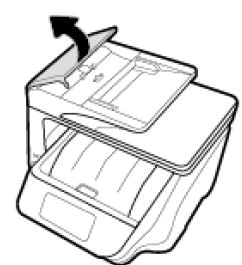
  1. Lift the cover of the ADF.

    Image: Lifting the ADF cover

  2. Lightly dampen a clean, lint-free cloth with bottled or distilled water, and then squeeze any excess liquid from the cloth.

  3. Press the cloth against the rollers, and then rotate them upward with your fingers. Apply a moderate amount of pressure to remove any dust or dirt buildup.

    1. Rollers

    2. Separator pad

  4. Allow the rollers to dry completely (approximately 10 minutes).

  5. Close the ADF cover tightly at both ends.

Let's try to reset the Printer here:

Turn the printer on, if it is not already on.

  1. Wait until the printer is idle and silent before you continue.
  2. With the printer turned on, disconnect the power cord from the rear of the printer.
  3. Unplug the power cord from the wall outlet.
  4. Wait at least 60 seconds.
  5. Plug the power cord back into the wall outlet.
  6. NOTE: HP recommends connecting the printer power cord directly to the wall outlet.
  7. Reconnect the power cord to the rear of the printer.
  8. Turn on the printer, if it does not automatically turn on.
  9. Wait until the printer is idle and silent before you proceed.

Also, try connecting the Printer to a different wall outlet directly.


Let me know if this helps.


If the information I've provided was helpful, give us some reinforcement by clicking the Accepted Solution and Kudos buttons, that'll help us and others see that we've got the answers!


Thanks!

Have a great day!


I am an HP Employee

† The opinions expressed above are the personal opinions of the authors, not of HP. By using this site, you accept the <a href="https://www8.hp.com/us/en/terms-of-use.html" class="udrlinesmall">Terms of Use</a> and <a href="/t5/custom/page/page-id/hp.rulespage" class="udrlinesmall"> Rules of Participation</a>.