
-
×InformationNeed Windows 11 help?Check documents on compatibility, FAQs, upgrade information and available fixes.
Windows 11 Support Center. -
-
×InformationNeed Windows 11 help?Check documents on compatibility, FAQs, upgrade information and available fixes.
Windows 11 Support Center. -
- HP Community
- Printers
- Scanning, Faxing, and Copying
- HP Officejet 5255 Scan Issue

Create an account on the HP Community to personalize your profile and ask a question
Your account also allows you to connect with HP support faster, access a personal dashboard to manage all of your devices in one place, view warranty information, case status and more.
Common problems HP Solution Center not working : Adobe Flash Player Error and Unable to scan
We would like to share some of the most frequently asked questions about HP Solution Center not working : Adobe Flash Player Error and Unable to Scan.

It has been a while since anyone has replied. Simply ask a new question if you would like to start the discussion again.

01-17-2025 02:06 PM
 HP Recommended
Operating System: Microsoft Windows 10 (64-bit)
Running HP Smart on my Windows 10 PC. When scanning documents at 150dpi I am not able to scan more than about 20 pages into a .pdf file. After 15 pages or so the scan results slow down and if I push it much past 20 pages it will freeze up and I'll have to back out and redo the project. In the past I remember being able to scan considerably more pages before having this problem. Anyone have any thoughts on this...thanks Bob
Solved! Go to Solution.
1 ACCEPTED SOLUTION
Accepted Solutions

01-21-2025
09:42 AM
- last edited on
08-09-2026
10:22 AM
by
 FriendlyMod
HP Recommended
Hi @westonicf,
Thanks for sharing your experience! I understand how frustrating it must have been to deal with the limitations of the HP app when trying to scan larger projects.
To address your concerns, here are a few insights into why HP App might have trouble scanning more than 20 pages into a PDF, and how you can optimize it:
The reasons could be as mentioned below.
Built-in Page Limit:
- The HP app has a known limitation when scanning large documents, typically capping at around 20 pages per PDF to optimize performance and prevent app crashes.
Memory and Processing Constraints:
- If your system or mobile device has limited memory, the app may struggle with large scans and enforce page limits to avoid errors or freezing.
App Optimization for Simplicity:
- HP is designed for general users with a focus on quick and easy scans rather than high-volume scanning tasks, unlike HP Scan which is more feature-rich and flexible.
You may find the workaround here.
Continue Using HP Scan:
- Since you’ve had success with HP Scan, it’s a great alternative for large projects. Consider making it your default scanning tool for big tasks.
Update HP App:
- Ensure you’re using the latest version of the HP app as updates may include improvements to scanning capabilities.
Adjust Scan Settings:
- Try lowering the scan resolution (DPI) in the HP app, as higher settings might contribute to the page limit issue.
If the information I've provided was helpful, give us some reinforcement by clicking the Accepted Solution button, that'll help us and others see that we've got the answers!
Nal_NR-
HP Community Moderator
5 REPLIES 5
01-19-2025 04:12 AM
HP Recommended
Hi @westonicf,
Welcome to the HP Support Community.
I'd be glad to help you!
I understand that you are getting a scanner connection error, I am glad to assist you.
Run the Print and Scan Doctor
- Download and run HP Print and Scan Doctor
 to automatically diagnose and resolve printer hardware and connection issues.
 - After the Print and Scan Doctor opens, click Fix Scanning to test your scanner, and then follow any instructions to resolve the issue.
Check Windows Image Acquisition settings
- Windows Image Acquisition (WIA) is a Windows service that helps communication between the computer and scanners. If WIA is not activated, scan jobs can fail.
- In Windows, search for and open View local services.
- In the Services window, scroll down the list and find Windows Image Acquisition (WIA).
- Look at the Status and Startup Type values.
- If the status is Started or Running and the Startup Type is Automatic, WIA is running correctly. Skip to the next step.
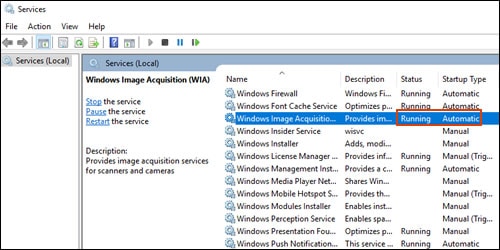
- If the status is Disabled or no status displays, right-click Windows Image Acquisition (WIA), click Properties, click the General tab, select Automatic from the Startup type dropdown menu, and then click Start.
- If the Start button is grayed out, go back to the Services menu, make sure Remote Procedure Call, Shell Hardware Detection, RPC Endpoint Mapper, and DCOM Server Process Launcher are running and set as Automatic, and then start WIA.
- Try to scan
You may also refer to this document
Hope this helps! Keep me posted for further assistance
Please mark this post as “Accepted Solution” if the issue is resolved and if you feel this reply was helpful click “Yes”.
Nal_NR-
HP Community Moderator
01-20-2025
04:33 PM
- last edited on
08-13-2026
01:34 PM
by
Raj_05
HP Recommended
Elohi_NR,
Thanks for replying but I do not have a connection issue but rather a problem with the HP app not being able to scan more than 20 pages into a .pdf. I tried a different approach and the fired up the HP scan program. Using HP Scan I was able to scan 53 pages without an issue. If I had known that HP Scan existed it would have saved me some time not having to split a project into multiple files because of the limitations of HP App. Anyone know what the issues are with the app?
01-21-2025
09:42 AM
- last edited on
08-09-2026
10:22 AM
by
FriendlyMod
HP Recommended
Hi @westonicf,
Thanks for sharing your experience! I understand how frustrating it must have been to deal with the limitations of the HP app when trying to scan larger projects.
To address your concerns, here are a few insights into why HP App might have trouble scanning more than 20 pages into a PDF, and how you can optimize it:
The reasons could be as mentioned below.
Built-in Page Limit:
- The HP app has a known limitation when scanning large documents, typically capping at around 20 pages per PDF to optimize performance and prevent app crashes.
Memory and Processing Constraints:
- If your system or mobile device has limited memory, the app may struggle with large scans and enforce page limits to avoid errors or freezing.
App Optimization for Simplicity:
- HP is designed for general users with a focus on quick and easy scans rather than high-volume scanning tasks, unlike HP Scan which is more feature-rich and flexible.
You may find the workaround here.
Continue Using HP Scan:
- Since you’ve had success with HP Scan, it’s a great alternative for large projects. Consider making it your default scanning tool for big tasks.
Update HP App:
- Ensure you’re using the latest version of the HP app as updates may include improvements to scanning capabilities.
Adjust Scan Settings:
- Try lowering the scan resolution (DPI) in the HP app, as higher settings might contribute to the page limit issue.
If the information I've provided was helpful, give us some reinforcement by clicking the Accepted Solution button, that'll help us and others see that we've got the answers!
Nal_NR-
HP Community Moderator

Be alert for scammers posting fake support phone numbers and/or email addresses on the community.
If you think you have received a fake HP Support message, please report it to us by clicking on "Flag Post".
† The opinions expressed above are the personal opinions of the authors, not of HP. By using this site, you accept the Terms of Use and Rules of Participation.


Didn't find what you were looking for?
Ask the community
† The opinions expressed above are the personal opinions of the authors, not of HP. By using this site, you accept the <a href="https://www8.hp.com/us/en/terms-of-use.html" class="udrlinesmall">Terms of Use</a> and <a href="/t5/custom/page/page-id/hp.rulespage" class="udrlinesmall"> Rules of Participation</a>.