• ×
    Information
    Need Windows 11 help?
    Check documents on compatibility, FAQs, upgrade information and available fixes.
    Windows 11 Support Center.
  • post a message
  • ×
    Information
    Need Windows 11 help?
    Check documents on compatibility, FAQs, upgrade information and available fixes.
    Windows 11 Support Center.
  • post a message
Guidelines
Join the HP Community Solve‑a‑thon | Help Others & Share Your Solutions | Live on Zoom | 2:30 PM to 2:30 AM IST | Every Wednesday Click here to know more
Common problems HP Solution Center not working : Adobe Flash Player Error and Unable to scan
We would like to share some of the most frequently asked questions about HP Solution Center not working : Adobe Flash Player Error and Unable to Scan.
HP Recommended
HP OfficeJet Pro 8020 series

Hi,

Model Name: HP OfficeJet Pro 8020 Series.

Model Njumber: 8028


Product Number: 3UC64A


I am unable to Copy / Scan two sides (back to back).

Settings available under 2-Sided Copying are:
1--> 1 Sided

1--> 2 Sided.

I donot see below settings:

2--> 1 Sided

2--> 2 sided
 

Need your help with the fix.

1 REPLY 1
HP Recommended

@KumarBL


I reviewed your post and I understand that you are not getting the two sided copy option on the printer.


Don’t worry, I assure you I will try my best to get this sorted.


I recommend you follow the below steps and check if it helps.


Use the scanner glass (printers with a touchscreen)

Make two-sided copies from the flatbed scanner glass. The printer prompts you to flip the pages during the process.

  1. Touch Copy or Copy Document on the printer control panel.

  2. Touch Settings or the gear icon  to view more copy settings.

  3. Open the 2-Sided Copying menu, and then do the following to enable the feature depending on your printer model.

    • Touch On or select the box next to the setting name.

    • Touch the menu to display a list of two-sided copying options. You might need to scroll down the display screen to see all options. Use the 2 - 2 Sided option to copy a two-sided original or use 1 - 2 Sided to copy two one-sided originals to make one two-sided copy.

  4. Depending on the printer, touch Start, or return to the main Copy screen by touching Back, and then touch Start Black, Start Color, or OK to start the copy job.
  5. Load the second side of the page onto the scanner glass when prompted.

Use the automatic document feeder (ADF)

The ADF on many HP printers automatically scans and copies two-sided originals. If your printer does not support this feature, use the flatbed scanner glass to scan two-sided originals. The ADF can still be used for multiple one-sided copies.

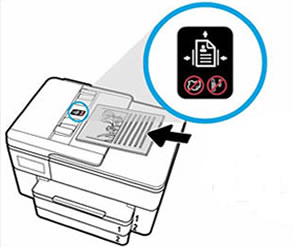
  1. Load a single or multi-page document according to the printed or engraved guide on the tray. For most models, the document goes in print side up and the top edge first. Adjust the paper-width guides until they rest gently against the edges of the paper.

       CAUTION:  The ADF feeder mechanism can damage photos. Use the scanner glass to copy photos.

    Loading a document in the ADF

  2. Touch Copy or Copy Document.

  3. Touch Settings or the gear icon  to view more copy settings.

  4. Open the 2-Sided Copying menu, and then do the following to enable the feature depending on your printer model.

    • Touch On or select the box next to the setting name.

    • Touch the menu to display a list of two-sided copying options. You might need to scroll down the display screen to see all options. Use the 2 - 2 Sided option to copy a two-sided original or use 1 - 2 Sided to copy two one-sided originals to make one two-sided copy.

  5. Depending on the printer, touch Start, or return to the main Copy screen by touching Back, and then touch Start Black, Start Color, or OK to start the copy job.


Let me know how it goes and you have a great day!


P.S: Welcome to the HP Support Community 😊


If you wish to show appreciation for my efforts, mark my post as Accept as Solution. Your feedback counts!


Cheers!

Stay Home – Stay Safe

The_Fossette
I am an HP Employee

† The opinions expressed above are the personal opinions of the authors, not of HP. By using this site, you accept the <a href="https://www8.hp.com/us/en/terms-of-use.html" class="udrlinesmall">Terms of Use</a> and <a href="/t5/custom/page/page-id/hp.rulespage" class="udrlinesmall"> Rules of Participation</a>.

