
-
×InformationNeed Windows 11 help?Check documents on compatibility, FAQs, upgrade information and available fixes.
Windows 11 Support Center. -
-
×InformationNeed Windows 11 help?Check documents on compatibility, FAQs, upgrade information and available fixes.
Windows 11 Support Center. -
- HP Community
- Printers
- Scanning, Faxing, and Copying
- Re: HP Scan Extended - No Scan Image or Option to Save

Create an account on the HP Community to personalize your profile and ask a question
Your account also allows you to connect with HP support faster, access a personal dashboard to manage all of your devices in one place, view warranty information, case status and more.
Common problems HP Solution Center not working : Adobe Flash Player Error and Unable to scan
We would like to share some of the most frequently asked questions about HP Solution Center not working : Adobe Flash Player Error and Unable to Scan.

It has been a while since anyone has replied. Simply ask a new question if you would like to start the discussion again.

02-11-2021 07:50 AM - edited 02-11-2021 08:03 AM
 HP Recommended
Product: HP Photosmart C3100
Operating System: Microsoft Windows 10 (64-bit)
I am using an HP Elitebook 830 G6 connected to my HP Photosmart C3100 for scanning.
The HP Solution Centre no longer works due to flash being disabled so I downloaded HP Scan Extended to allow scanning.
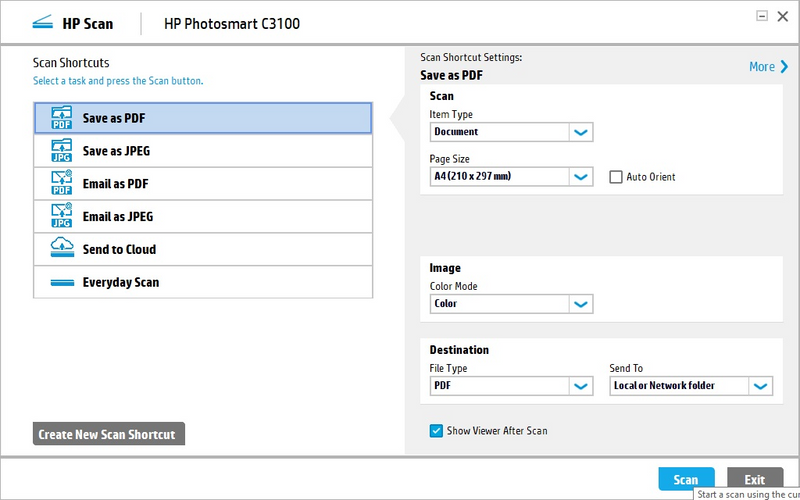
When I open it, I see: (have tried adding jpgs and pngs and the images do not show)
This is the standard screen no issues...
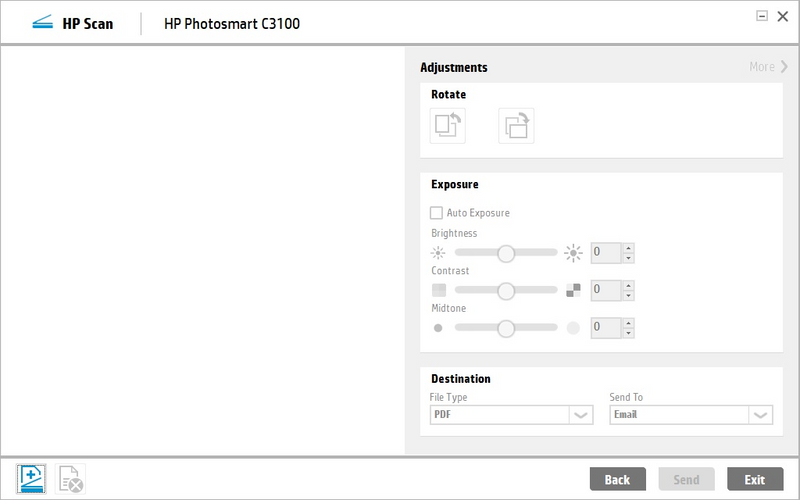
After the document has 'scanned' I see: (have tried adding jpgs and pngs and the images do not show)
The scan image is blank and the send button is greyed out.
If I click the add scan page (bottom left corner of the screen above) I see: (have tried adding jpgs and pngs and the images do not show)
This shows a 'new scan' image icon, scan button in bottom right is blue and if pressed goes back to the screen above.
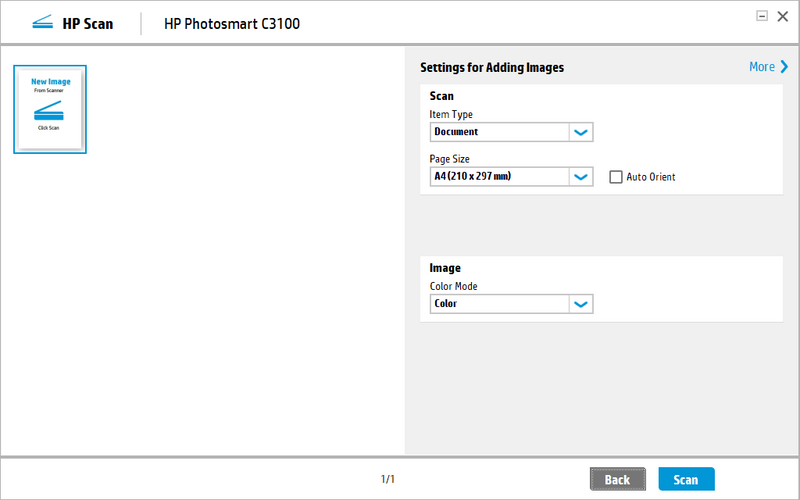
There is no option to save/send so I do not know how to proceed.
Please help!
Solved! Go to Solution.
1 ACCEPTED SOLUTION
Accepted Solutions


02-17-2021 08:18 AM
HP Recommended
I wish I had something to offer.
I do not have any way to test what's wrong / different / happening in your situation.
HPSE is not the same set as the original HP Scan in Solution Center.
Perhaps you can still use HP Scan.
Start Scan using HP Scan executable
You might be able to simply start HP Scan / Scan using the program executable.
For example:
The old Solution Center Scan software is located in "Digital Imaging"
The name of the scan executable varies.
C:\Program Files (x86)\HP\Digital Imaging\bin\
OR
C:\Program Files\HP\Digital Imaging\bin\
Find and Double-Click on scan File name / executable.
For example:
hpiscnapp.exe
OR
hpqkygrp.exe
If I have any other ideas, I'll post back.
Thank you for participating in the HP Community.
The Community is a separate wing of the HP website - We are not an HP business group.
Our Community is comprised of volunteers - people who own and use HP devices.
Click Thumbs Up to say Thank You.
Question Resolved / Answered, Click "Accept as Solution"
Dragon-Fur
6 REPLIES 6
02-11-2021 11:02 AM
HP Recommended
==============================================================
Welcome to the HP Community.
Reminder to those reading:
Do NOT respond to individuals who post phone numbers or email addresses.
These might be scammers trying to steal your information / money.
HP does not post phone numbers or email in Community messages.
==============================================================
It looks like the Solution Center software is not installed.
Although HP Scan Extended can be installed and called (started) as a separate executable, it is dependent on the original full driver software (having been installed) to provide the foundation for the shortcuts and options.
What else?
If the Solution Center software is still installed,
If HP Scan Extended is installed,
If you have not already done so,
Restart the computer and log in.
Check for any difference.
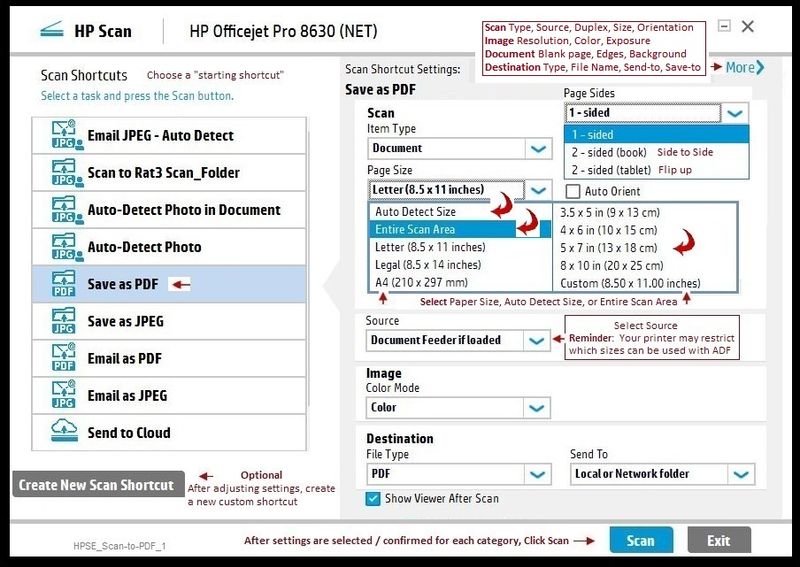
HPSE "Should" look similar to the example
Note: The shortcuts in the example accompanied by the tiny "person icon are "Custom Shortcuts"
References / Resources
HP Scan Extended
- Download-Save-Install > HP Scan Extended
- HPSE is a subset an older Full Feature Software suite. Leave your printer software installed, then install HPSE.
- HPSE features are very similar to the HP Scan Software released after 2015.
OPTIONAL: Add HP Scan Extended shortcut to Taskbar / Send to Desktop / Pin to Start
- Open File Explorer > Navigate to C:\Program Files (x86)\HP\HP Scan Extended\bin
- Right-Click HPScan.exe > Select Pin to Taskbar
- Right-Click HPScan.exe > Select Send to Desktop (Create a Shortcut)
- Right-Click HPScan.exe > Select Pin to Start
Example
NOTE: Setup is similar for both Image JPEG and PDF scanning
Some options are model dependent.
>>>> Be sure to check / adjust the settings in More >
Printer Home Page - References and Resources – Learn about your Printer - Solve Problems
“Things that are your printer”
NOTE: Content depends on device type and Operating System
Categories: Alerts, Access to the Print and Scan Doctor (Windows), Warranty Check, HP Drivers / Software / Firmware Updates, How-to Videos, Bulletins/Notices, Lots of How-to Documents, Troubleshooting, Manuals > User Guides, Product Information (Specifications), more
When the website support page opens, Select (as available) a Category > Topic > Subtopic
Enter the type and name of your HP device
Thank you for participating in the HP Community.
The Community is a separate wing of the HP website - We are not a business group of HP..
Our Community is comprised of volunteers - people who own and use HP devices.
Click Thumbs Up to say Thank You.
Question Resolved / Answered, Click "Accept as Solution"
Dragon-Fur
02-17-2021 03:40 AM
HP Recommended
Hi, the HP Solution Center and old printer software/driver is all installed. I ahve restarted multiple times but the situation is still exactly as described in my original post above.
There is no option to save the scan.
Please advise.
02-17-2021 08:18 AM
HP Recommended
I wish I had something to offer.
I do not have any way to test what's wrong / different / happening in your situation.
HPSE is not the same set as the original HP Scan in Solution Center.
Perhaps you can still use HP Scan.
Start Scan using HP Scan executable
You might be able to simply start HP Scan / Scan using the program executable.
For example:
The old Solution Center Scan software is located in "Digital Imaging"
The name of the scan executable varies.
C:\Program Files (x86)\HP\Digital Imaging\bin\
OR
C:\Program Files\HP\Digital Imaging\bin\
Find and Double-Click on scan File name / executable.
For example:
hpiscnapp.exe
OR
hpqkygrp.exe
If I have any other ideas, I'll post back.
Thank you for participating in the HP Community.
The Community is a separate wing of the HP website - We are not an HP business group.
Our Community is comprised of volunteers - people who own and use HP devices.
Click Thumbs Up to say Thank You.
Question Resolved / Answered, Click "Accept as Solution"
Dragon-Fur
02-19-2021 07:07 AM
HP Recommended
You are welcome.
No idea about HPSE - it is finding something unsatisfactory on the system, I guess.
HP Scan is the scan program that is part of your Solution Center.
Leave Solution Center installed and HP Scan should be OK.
Right-Click on the executable file name to create a shortcut for your Desktop.
Stay Safe.
Thank you for participating in the HP Community.
The Community is a separate wing of the HP website - We are not an HP business group.
Our Community is comprised of volunteers - people who own and use HP devices.
Click Thumbs Up to say Thank You.
Question Resolved / Answered, Click "Accept as Solution"
Dragon-Fur

Be alert for scammers posting fake support phone numbers and/or email addresses on the community.
If you think you have received a fake HP Support message, please report it to us by clicking on "Flag Post".
† The opinions expressed above are the personal opinions of the authors, not of HP. By using this site, you accept the Terms of Use and Rules of Participation.


Didn't find what you were looking for?
Ask the community
† The opinions expressed above are the personal opinions of the authors, not of HP. By using this site, you accept the <a href="https://www8.hp.com/us/en/terms-of-use.html" class="udrlinesmall">Terms of Use</a> and <a href="/t5/custom/page/page-id/hp.rulespage" class="udrlinesmall"> Rules of Participation</a>.