-
×InformationNeed Windows 11 help?Check documents on compatibility, FAQs, upgrade information and available fixes.
Windows 11 Support Center. -

-
×InformationNeed Windows 11 help?Check documents on compatibility, FAQs, upgrade information and available fixes.
Windows 11 Support Center. -
- HP Community
- Printers
- Scanning, Faxing, and Copying
- HP Scan and Capture is not working

Create an account on the HP Community to personalize your profile and ask a question
11-20-2020 09:59 AM
As long as you are running a support version of Windows, the printer is connected to the network so the application can find it, HP Scan and Capture is usually "happy".
The issue is not the application - if the printer is showing "offline" when the application tries to access the device (printer), then the application will complain and stand still.
What to do?
Much depends on
- Which Operating System (and version) you are running,
- The manner in which the printer is connected to the network,
- Possibly whether you have the Full Feature Software installed (the foundation on which other apps might depend to some extent or in some situations).
Additionally, you say you can print from the computer - using the printer software, perhaps.
Being able to print from the computer indicates that the printer software can "see" the printer.
This generally means that the HP Scan and Capture should also be able to see the printer.
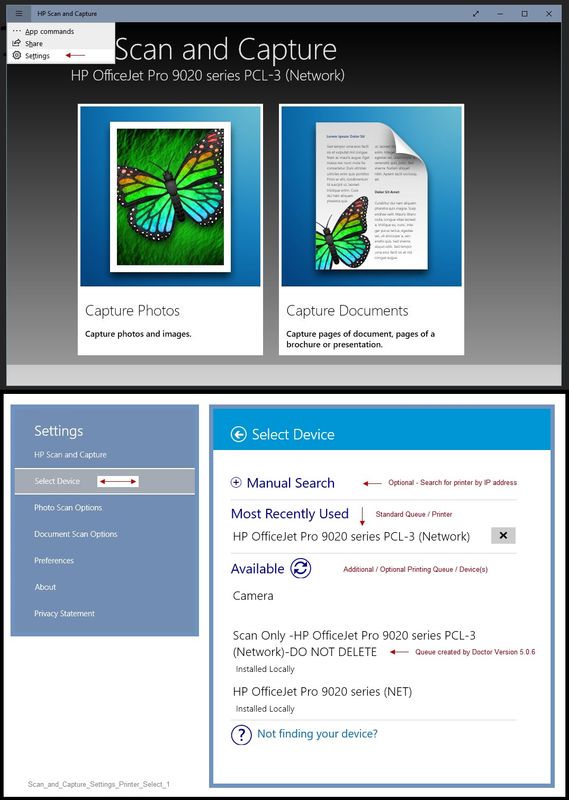
First thing is to check and make sure that HP Scan and Capture is pointing at the "right" printing device.
Scan_and_Capture_Settings_Printer_Select_1
=================================================================
What else?
Before going too much farther, I'd Restart everything, including the router that controls your network.
=================================================================
What else?
The following tool is primarily directed at correcting a "larger issue" of the printing software not detecting the printer on the network. That said, it might be useful...
Offline Doctor V5.0.6
- Download and Save the doctor to your computer
- Open File Explorer > Navigate to the folder in which you saved the file (likely Downloads)
- Execute the doctor – Answer any prompts / let the process complete
- Restart the computer, log in, and wait for the final steps in the Doctor to finish.
- Check for any difference.
Original Notes – Contributed by ShlomiL
Paraphrased
Connection Issues
- Print and Scan Doctor Version 5.0.6 creates a secondary queue for printing with TCP/IP port.
After the Offline Doctor completes…
Verify / Adjust the “Default” printing device (Default Printer)
Settings > Devices > Printers and scanners
UNCHECK (clear box) Let Windows manage my default printer
Select (Left-Click) your printer from the list of printers > Manage > Set as Default
OR
Open Control Panel > icon view > Devices and Printers > Right-Click on printer > Set printer as Default
NOTES – Selecting Default Printer
- Do not select the printer marked as “Scan Only / DO NOT DELETE”
- Do not select the printer marked as “Fax”
Example Default Printer: Set “Default” Printer = HP OfficeJet Pro 9020 series PCL-3 (Net)
Reference: HP Printers - Printer is Offline (Windows) > Step 2: Manually set the default printer
==============================================================================
Printer Home Page - References and Resources – Learn about your Printer - Solve Problems
“Things that are your printer”
NOTE: Content depends on device type and Operating System
Categories: Alerts, Access to the Print and Scan Doctor (Windows), Warranty Check, HP Drivers / Software / Firmware Updates, How-to Videos, Bulletins/Notices, Lots of How-to Documents, Troubleshooting, User Guides / Manuals, Product Information (Specifications), more
When the website support page opens, Select (as available) a Category > Topic > Subtopic
One of...
Results for "Officejet Pro 8600" (4)
Thank you for participating in our HP Community.
We are a volunteer community workforce dedicated to supporting HP technology
Click Thumbs Up to say Thank You for the help.
If the answer helped resolve your issue, Click "Accept as Solution" .