
-
×InformationNeed Windows 11 help?Check documents on compatibility, FAQs, upgrade information and available fixes.
Windows 11 Support Center. -
-
×InformationNeed Windows 11 help?Check documents on compatibility, FAQs, upgrade information and available fixes.
Windows 11 Support Center. -
- HP Community
- Printers
- Scanning, Faxing, and Copying
- HP Smart 9010 Scan Legal Size to PDF

Create an account on the HP Community to personalize your profile and ask a question
Your account also allows you to connect with HP support faster, access a personal dashboard to manage all of your devices in one place, view warranty information, case status and more.
Common problems HP Solution Center not working : Adobe Flash Player Error and Unable to scan
We would like to share some of the most frequently asked questions about HP Solution Center not working : Adobe Flash Player Error and Unable to Scan.

It has been a while since anyone has replied. Simply ask a new question if you would like to start the discussion again.

11-25-2022 08:44 AM
 HP Recommended
Product: HP OfficeJet Pro 9015 All-in-One Printer
I am using HP Smart with my HP 9015 Pro and trying to scan a LEGAL size multi-page document using the Document Feeder.
There is NO OPTION for choosing LEGAL size in the PAGE size.
HOW DO I scan and save (PDF) my LEGAL size documents?
Solved! Go to Solution.
1 ACCEPTED SOLUTION
Accepted Solutions


11-26-2022
07:49 AM
- last edited on
02-01-2026
07:17 AM
by
 Nal_NR
HP Recommended
True - it should not be difficult - the printer specifications indicate the printer supports scan at this size.
It appears that for some reason the application is not providing the expected selection (Legal).
It is true that your application version appears to be outdated -
HP app - Windows - Current version at this check 140.1.307.0 - Released 27-Sep-2022
An outdated app might not be enough that the application cannot still provide access to standard tasks.
Might be something else going on -- OR -- what I am expecting is not available in your rendition of the HP app application. Regardless, it might be worth updating to the latest version of the application.
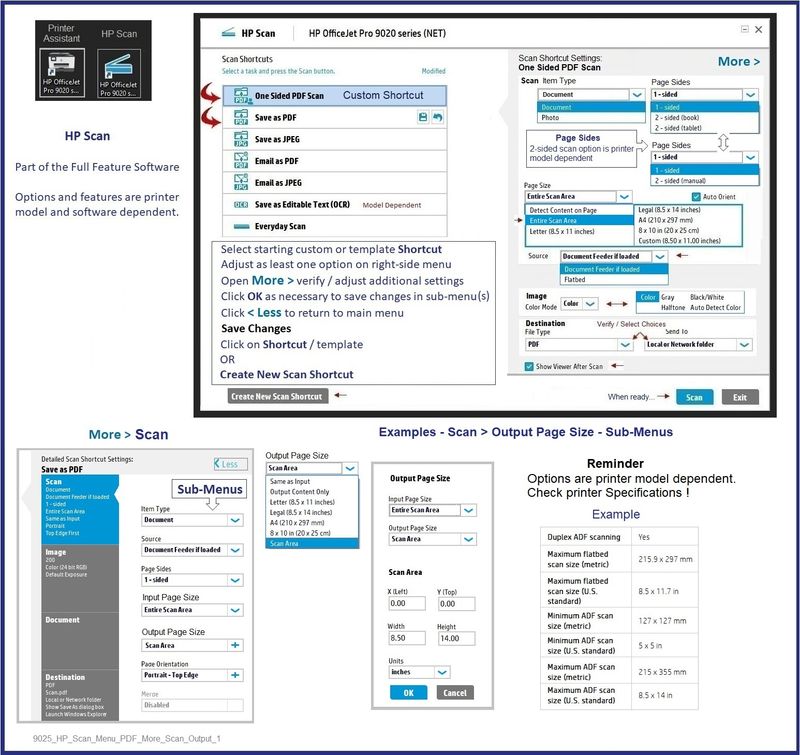
On the rare occasion I've needed to scan legal size, I use the Full Feature Software /Full Driver printer software (OfficeJet Pro 9025).
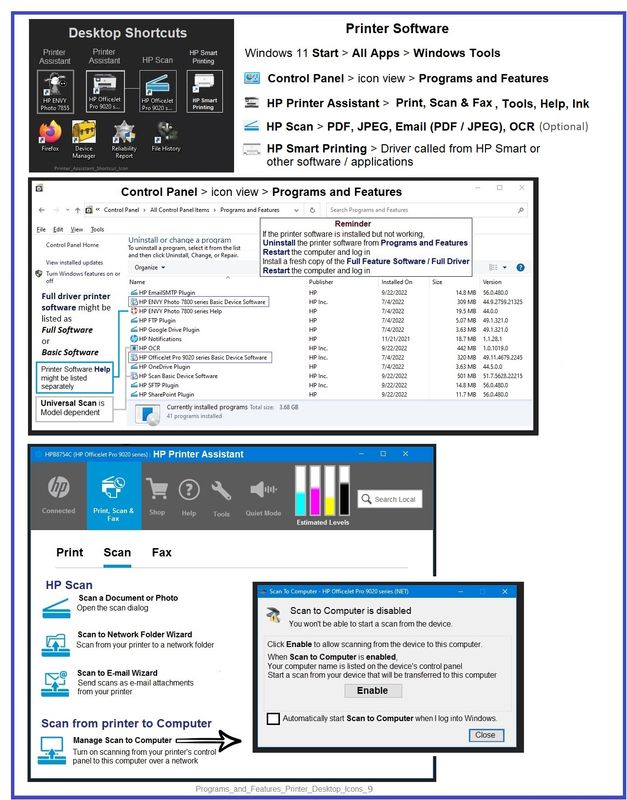
The full driver printer software includes HP Scan.
Side Bar:
After the full driver printer software is installed,
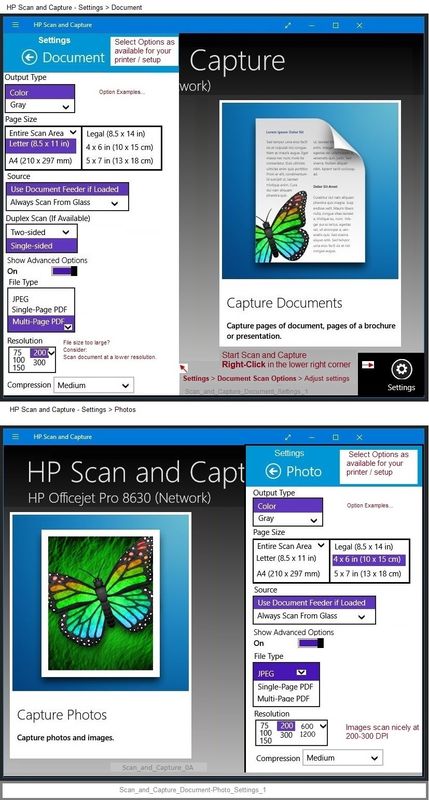
Optionally install HP Scan and Capture -- this app provides a Legal Size size in Page Size for supported printers.
More information in section References and Resources (below).
General Example - HP Scan > Save as PDF > Main Menu
References / Resources
Video
HP OfficeJet 9010 | 9015 | 9018 | 9019 : Download & Install HP Full featured software
Example - Full Driver printer software - Installed
HP Scan and Capture
Available from the Microsoft Store (formally Windows Store) - Requires Windows 8 or higher
Download-Save-Install HP Scan and Capture
Description
HP Scan and Capture is a simple and fun application that captures photos or documents from any* HP scanning device or your computer's built-in camera. These images can be previewed, edited, saved, and shared to other applications.
HP Scan and Capture features an adjustable screen size.
* NOTE: The correct HP print software drivers for your scanner must be installed from HP's Support Website.
Click Start (windows key) > Open the All Apps List > scroll the list
Open Category HP
Find and open the HP Scan and Capture application
Optional
Right-Click on the application and PIN to Start
Example - HP Scan and Capture - Menu Options
Thank you for participating in the HP Community:
People who own, use, and support HP devices.
Click Yes to say Thank You
Question / Concern Answered, Click "Accept as Solution"
Dragon-Fur

5 REPLIES 5
11-25-2022 10:04 AM
HP Recommended
Welcome to the HP Community Forum.
@angeldjac wrote:Product: HP OfficeJet Pro 9015 All-in-One Printer
Operating System: Unknown
Software / Application: HP Smart
Connection Type: Unknown
I am using HP Smart with my HP 9015 Pro and trying to scan a LEGAL size multi-page document using the Document Feeder.
There is NO OPTION for choosing LEGAL size in the PAGE size.
HOW DO I scan and save (PDF) my LEGAL size documents?
The printer supports Scan for paper size using the ADF.
References:
Product Specifications for the HP OfficeJet Pro 9015 All-in-One Printer (1KR42A)
Maximum ADF scan size (U.S. standard) | 8.5 x 14 in |
and
Starting on Page 54
The exact steps to alert HP Smart to the required setup depends on the Operating System / version used to run the application. What? There are different HP Smart applications for Windows / MacOS / Mobile devices.
Examples provided FYI.
Example - HP Smart Windows > Scan > Preset = Document > setup
Note: Select Page Size as available or try "Entire Scan Area"

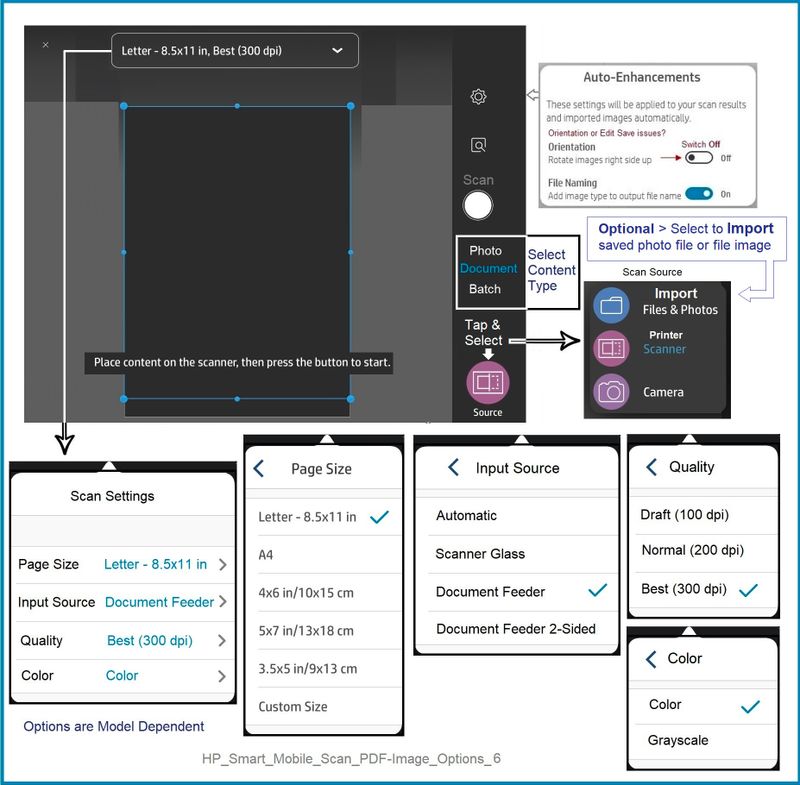
HP Smart Mobile - Scan > Preset = Document
Note: If the Page Size is not available, try adjusting the boundary and / or try size Custom
HP Printer Home Page - References and Resources
Learn about your Printer - Solve Problems
“Things that are your printer”
When the website support page opens, Select (as available) a Category > Topic > Subtopic
NOTE: Content depends on device type and Operating System
Categories: Alerts, Access to the Print and Scan Doctor (Windows), Warranty Check, HP Drivers / Software / Firmware Updates, How-to Videos, Bulletins/Notices, Lots of How-to Documents, Troubleshooting, Manuals > User Guides, Product Information (Specifications), Supplies, and more
Open
HP OfficeJet Pro 9015 All-in-One Printer
Thank you for participating in the HP Community:
People who own, use, and support HP devices.
Click Yes to say Thank You
Question / Concern Answered, Click "Accept as Solution"
Dragon-Fur
11-26-2022 07:23 AM
HP Recommended
I am using a DELL laptop running Windows 10 along with HP Smart v 139.2.289.0
When using HP Smart, I choose SCAN, then DOCUMENT FEEDER, DOCUMENT.
The only page sizes available to me are ENTIRE SCAN AREA, LETTER, A4, 4x6 and 5x7.
LEGAL size is not showing as an option.
When I scan using the document feeder and choose ENTIRE SCAN AREA it creates a document that is only 8.5x11 -- truncating the bottom 3 inches or so (not the legal size document that I scanned)
I have a LOT of legal size documents that need to be scanned! This shouldn't be this difficult!
11-26-2022
07:49 AM
- last edited on
02-01-2026
07:17 AM
by
Nal_NR
HP Recommended
True - it should not be difficult - the printer specifications indicate the printer supports scan at this size.
It appears that for some reason the application is not providing the expected selection (Legal).
It is true that your application version appears to be outdated -
HP app - Windows - Current version at this check 140.1.307.0 - Released 27-Sep-2022
An outdated app might not be enough that the application cannot still provide access to standard tasks.
Might be something else going on -- OR -- what I am expecting is not available in your rendition of the HP app application. Regardless, it might be worth updating to the latest version of the application.
On the rare occasion I've needed to scan legal size, I use the Full Feature Software /Full Driver printer software (OfficeJet Pro 9025).
The full driver printer software includes HP Scan.
Side Bar:
After the full driver printer software is installed,
Optionally install HP Scan and Capture -- this app provides a Legal Size size in Page Size for supported printers.
More information in section References and Resources (below).
General Example - HP Scan > Save as PDF > Main Menu
References / Resources
Video
HP OfficeJet 9010 | 9015 | 9018 | 9019 : Download & Install HP Full featured software
Example - Full Driver printer software - Installed
HP Scan and Capture
Available from the Microsoft Store (formally Windows Store) - Requires Windows 8 or higher
Download-Save-Install HP Scan and Capture
Description
HP Scan and Capture is a simple and fun application that captures photos or documents from any* HP scanning device or your computer's built-in camera. These images can be previewed, edited, saved, and shared to other applications.
HP Scan and Capture features an adjustable screen size.
* NOTE: The correct HP print software drivers for your scanner must be installed from HP's Support Website.
Click Start (windows key) > Open the All Apps List > scroll the list
Open Category HP
Find and open the HP Scan and Capture application
Optional
Right-Click on the application and PIN to Start
Example - HP Scan and Capture - Menu Options
Thank you for participating in the HP Community:
People who own, use, and support HP devices.
Click Yes to say Thank You
Question / Concern Answered, Click "Accept as Solution"
Dragon-Fur
11-26-2022 02:03 PM
HP Recommended
I removed the printer from Control Panel>Devices & Printers, uninstalled all of the HP software, reset the printer back to factory defaults, shut down my laptop and disconnected the printer from power sources.
Reinstalled printer (as USB), downloaded and installed printer (using HP Easy Start), made sure everything was printing ok, no scanner drivers recognized so, I tried the HP Scan & Capture.
In HP Scan & Capture, I set the Document Scan Options as follows
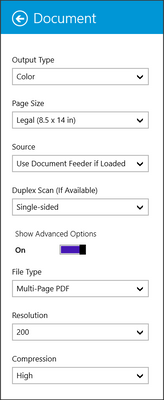
BUT document STILL scanned as 8.5x11 !!!
I ALSO downloaded HP Smart app (got current version this time) from the Microsoft store (only option available) and again, no option for LEGAL size!
BUT the HP Scan app worked for me, once I changed all of the settings. So I think I will use this program.
This was NOT a cheap printer and I am extremely disappointed with HP!
Thank you so much for your help!
11-26-2022 04:00 PM
HP Recommended
Good - success!
I admit, I've never used a printer limited to USB connection (OK, once - as a test - years ago).
I am not sure whether the connection impacted anything you were trying or not. ?
HP Scan is part of the full driver printer software.
HP Scan provides access to the supported printer features and is generally a "full solution" scan software.
HP Scan is also perfectly happy in a USB connection setup.
One thing for which I do not use HP Scan is the Save to Email option.
That's a topic for another day, I think. Smiling.
The 9015 is a nice printer - I hope it serves you well.
Come back if you have other operation questions.
Thank you for participating in the HP Community:
People who own, use, and support HP devices.
Click Yes to say Thank You
Question / Concern Answered, Click "Accept as Solution"
Dragon-Fur

Be alert for scammers posting fake support phone numbers and/or email addresses on the community.
If you think you have received a fake HP Support message, please report it to us by clicking on "Flag Post".
† The opinions expressed above are the personal opinions of the authors, not of HP. By using this site, you accept the Terms of Use and Rules of Participation.


Didn't find what you were looking for?
Ask the community
† The opinions expressed above are the personal opinions of the authors, not of HP. By using this site, you accept the <a href="https://www8.hp.com/us/en/terms-of-use.html" class="udrlinesmall">Terms of Use</a> and <a href="/t5/custom/page/page-id/hp.rulespage" class="udrlinesmall"> Rules of Participation</a>.