
-
×InformationNeed Windows 11 help?Check documents on compatibility, FAQs, upgrade information and available fixes.
Windows 11 Support Center. -
-
×InformationNeed Windows 11 help?Check documents on compatibility, FAQs, upgrade information and available fixes.
Windows 11 Support Center. -
- HP Community
- Printers
- Scanning, Faxing, and Copying
- Re: HP Smart Scanning - no default setting A4 size???

Create an account on the HP Community to personalize your profile and ask a question
Your account also allows you to connect with HP support faster, access a personal dashboard to manage all of your devices in one place, view warranty information, case status and more.
Common problems HP Solution Center not working : Adobe Flash Player Error and Unable to scan
We would like to share some of the most frequently asked questions about HP Solution Center not working : Adobe Flash Player Error and Unable to Scan.

It has been a while since anyone has replied. Simply ask a new question if you would like to start the discussion again.

05-26-2021
05:31 AM
- last edited on
10-08-2025
01:57 PM
by
 Raj_05
 HP Recommended
Hi I have removed and reinstalled the HP App software, the printer is on the latest firmware update.
Seperatly a colleage has raised this with HP support via telephone and been advised that the HP app is not capable of saving the settings.
Is there any official word from HP on wether this is the case or not ?
Still not able to change the region on the smart app, is there a fix for this issue ? has onyone found a region setting that defaults to A4 ?


05-26-2021 09:04 AM
HP Recommended
There is no official word - HP does not update the Community on internal processes.
Not now, not at all.
What?
Any confusion might be due to the fact that our Community is layered within the official HP Website - HP certainly conducts HP business at the main HP website. The HP Community is not an business department of HP.
That said,
If you read my original response, you know the question was asked of our support people within the Community.
The unofficial response is that the next release of the application might include a fix.
The careful wording is deliberate. I do not speak for HP.
Yeah, but!
Those of us who work in the Community are volunteers.
Because of our close relationship with HP, we are used to absorbing the abuse of irate customers. Smiling.
Experts are subject to a strict code of behavior - not quite the level of an employee, but close.
Any disparity between what you see here and what you see elsewhere is not deliberate.
Everyone's comments are welcome as long as they continue to adhere to our HP Support Community: Rules of Participation
Thank you for participating in the HP Community.
The Community is a separate wing of the HP website - We are not an HP business group.
Our Community is comprised of volunteers - people who own and use HP devices.
Click Thumbs Up to say Thank You.
Question Resolved / Answered, Click "Accept as Solution"
Dragon-Fur

06-09-2021
10:24 AM
- last edited on
12-26-2025
09:06 AM
by
FriendlyMod
HP Recommended
Have had some success with an alternative bit of free HP software on the MS store.
https://www.microsoft.com/en-us/p/hp-scan-and-capture/9wzdncrfhwl0?activetab=pivot:overviewtab
Using the Scan Document option allows you to save to PDF, and saves any document settings as you would expect software to in this day and age.
Its faster & has a few more editing options than the HP App.
Lets hope HP don't try and update it 😛

HP Scan and Capture is a simple and fun application that captures photos or documents from any* HP scanning device or your computer's built-in camera. These images can be previewed, edited, saved, and shared to other applications. * NOTE: The correct HP drivers for your scanner must be installed ...
06-09-2021
10:35 AM
- last edited on
10-08-2025
01:56 PM
by
Raj_05
HP Recommended
Yes, HP Scan and Capture is a nice alternative.
Good idea.
For those reading, there are indeed "other ways to scan".
For now, use alternative software to scan documents.
NOTE for Windows S mode users:
- Windows in S mode only allows installation of applications from the Microsoft Store. Windows "S" mode scan options are therefore limited to those applications you can install from the Store (marked in Green).
- Windows 10 (full Windows) can make use of any of the "blue" or the "green" options.
Example list...
NOTE: Alternatives do not necessarily provide the same settings / features as HP App.
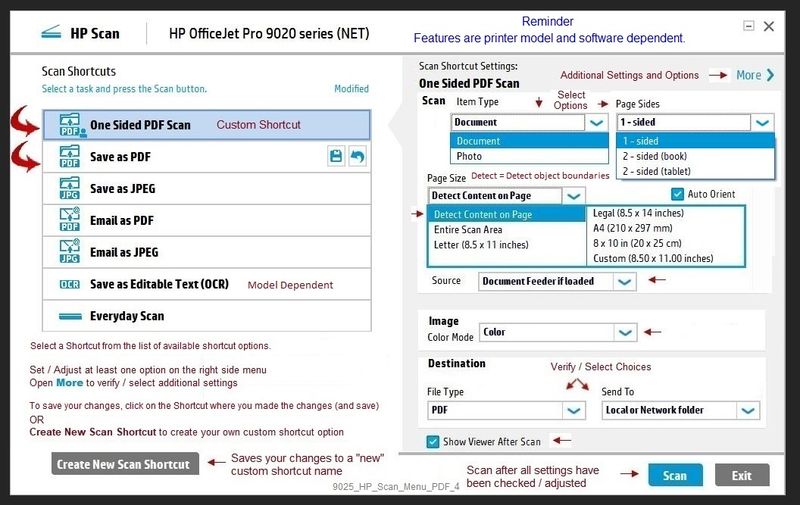
HP Scan - part of the Full Feature Software / full driver printer software.
Example - HP Scan Main Menu
HP Scan and Capture
Microsoft Store (formally Windows Store) - Requires Windows 8 or higher
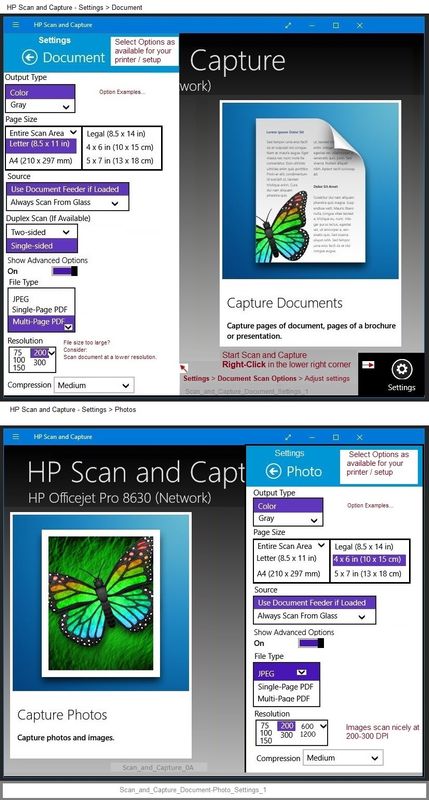
Download-Save-Install HP Scan and Capture
Description
HP Scan and Capture is a simple and fun application that captures photos or documents from any* HP scanning device or your computer's built-in camera. These images can be previewed, edited, saved, and shared to other applications.
* NOTE: The correct HP drivers for your scanner must be installed from HP's Support Website.
NAPS2 – “Not Another PDF Scanner”
- Download-Save-Install > NAPS2
- Not another PDF Scanner – free program scans PDF files and image(s) as .jpeg or PDF file(s).
- Includes an OCR feature – may need Ghostscript add-on (See NAPS2 forum entry)
- Read the Support pages for information
- Download, save, and install the NAPS2 software to use.
Windows Scan – Microsoft Store (formally Windows Store) - Requires Windows 8 or higher
- “Get” the application from the Store > Windows Scan
Paint (mspaint)
Older software - not fancy - does scan images without undue difficulty.
Does not save defaults.
- Open Paint
- Expand the “white background” area to a size to accommodate your data. If unknown, try 1300x1300
- File > Select “From Scanner or Camera”
- Select your printer > Follow the prompts to scan and then save your item
Possibly
Webscan – located in the Embedded Web Server (EWS) – No additional software
Webscan - assuming the printer is on the network - likely works in Windows "S" mode
NOTE: Webscan feature is not available on Laser printers
If the printer is on the network,
If the EWS feature is available on your printer,
First Time Use Only: Enable Webscan
- Open your favorite browser > type / enter Printer IP address into URL / Address bar
- Tab Settings > Security > Administrator Settings > Enable >> Check box next to Webscan
- Click Apply to save any changes
Next
- Tab Scan > Webscan
- Set up Webscan the way you want it - for example, set the Source to ADF
- Click Start Scan to scan your document / image using Webscan
- After the scan is complete, Save the scan to your computer.
Thank you for participating in the HP Community.
The Community is a separate wing of the HP website - We are not an HP business group.
Our Community is comprised of volunteers - people who own and use HP devices.
Click Thumbs Up to say Thank You.
Question / Concern Answered, Click "Accept as Solution"
Dragon-Fur
07-21-2021 07:48 AM - edited 07-21-2021 07:58 AM
HP Recommended
Hi I have removed and reinstalled the HP Smart software, the printer is on the latest firmware update, but still the same problem: default setting for scanner remains Letter. For printing and copying paper size default is A4. No way to change setting for scanner.

07-26-2021 04:29 AM
HP Recommended
Great product, I will start using this .
The latest issue is now that the A4 selection has been fixed but with the latest update the source selection is now defaulting to Scanner glass instead of selecting and defaulting to document feeder.
I'm fed-up and now started using HP Scan and Capture.
Thanks for the suggestion.
- « Previous
-
- 1
- 2
- Next »

Be alert for scammers posting fake support phone numbers and/or email addresses on the community.
If you think you have received a fake HP Support message, please report it to us by clicking on "Flag Post".
† The opinions expressed above are the personal opinions of the authors, not of HP. By using this site, you accept the Terms of Use and Rules of Participation.


Didn't find what you were looking for?
Ask the community
† The opinions expressed above are the personal opinions of the authors, not of HP. By using this site, you accept the <a href="https://www8.hp.com/us/en/terms-of-use.html" class="udrlinesmall">Terms of Use</a> and <a href="/t5/custom/page/page-id/hp.rulespage" class="udrlinesmall"> Rules of Participation</a>.