-
×InformationNeed Windows 11 help?Check documents on compatibility, FAQs, upgrade information and available fixes.
Windows 11 Support Center. -

-
×InformationNeed Windows 11 help?Check documents on compatibility, FAQs, upgrade information and available fixes.
Windows 11 Support Center. -
- HP Community
- Printers
- Scanning, Faxing, and Copying
- Re: HP smart - scanning and editing issues

Create an account on the HP Community to personalize your profile and ask a question
01-18-2021 06:22 AM
Well, funny that this software is called 'HP smart'....from what I experience, 'smart' is the last thing one would call it.
Scanning multi pages documents from the feeder results in some of the pages randomly being scanned upside down, even though they are all being feed the same way. This is with Deskjet pro 4120. and with 2710. With officejet pro 6590, you would never know if the documents being scanned would show up straight or upside down, it was a kind of a Russian Roulette.
With all of them the following (additional) issue is present:
When trying to edit the pages that are upside down, it is impossible to save them, the page goes back to its original upside down configuration.
Please help.
Would appreciate any help. Sorry to say, but this seems like an armature's bug. very inappropriate for a company such as HP.
Solved! Go to Solution.
Accepted Solutions
01-18-2021 06:54 AM
==============================================================
Welcome to the HP Community.
Reminder to those reading:
Do NOT respond to individuals who post phone numbers or email addresses.
These might be scammers trying to steal your information / money.
HP does not post phone numbers or email in Community messages.
==============================================================
@Yamossy wrote:<Content Removed>
With all of them the following (additional) issue is present:
When trying to edit the pages that are upside down, it is impossible to save them, the page goes back to its original upside down configuration.
Please help.
<Content Removed>
Try the following:
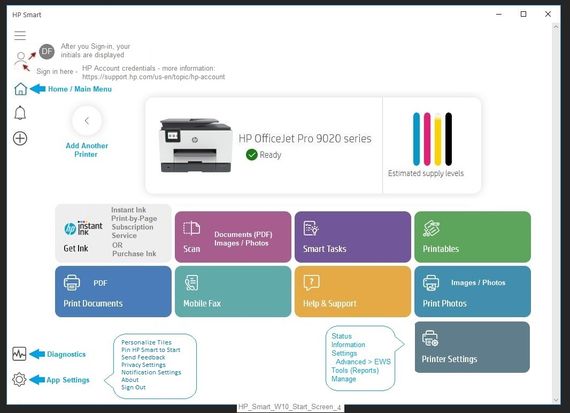
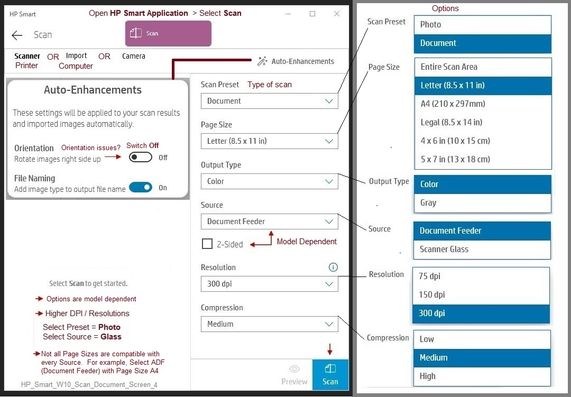
Open HP Smart
Select Scan
Click Auto-Enhancements
Switch OFF Orientation
HP_Smart_W10_Start_Screen_4
HP_Smart_W10_Scan_Document_Screen_4
Printer Home Page - References and Resources – Learn about your Printer - Solve Problems
“Things that are your printer”
NOTE: Content depends on device type and Operating System
Categories: Alerts, Access to the Print and Scan Doctor (Windows), Warranty Check, HP Drivers / Software / Firmware Updates, How-to Videos, Bulletins/Notices, Lots of How-to Documents, Troubleshooting, Manuals > User Guides, Product Information (Specifications), more
When the website support page opens, Select (as available) a Category > Topic > Subtopic
Open Support Home
Enter the name of your HP device
Thank you for participating in the HP Community.
The Community is a separate wing of the HP website - We are not a business group of HP..
Our Community is comprised of volunteers - people who own and use HP devices.
Click Thumbs Up to say Thank You.
Question Resolved / Answered, Click "Accept as Solution"
01-18-2021 06:54 AM
==============================================================
Welcome to the HP Community.
Reminder to those reading:
Do NOT respond to individuals who post phone numbers or email addresses.
These might be scammers trying to steal your information / money.
HP does not post phone numbers or email in Community messages.
==============================================================
@Yamossy wrote:<Content Removed>
With all of them the following (additional) issue is present:
When trying to edit the pages that are upside down, it is impossible to save them, the page goes back to its original upside down configuration.
Please help.
<Content Removed>
Try the following:
Open HP Smart
Select Scan
Click Auto-Enhancements
Switch OFF Orientation
HP_Smart_W10_Start_Screen_4
HP_Smart_W10_Scan_Document_Screen_4
Printer Home Page - References and Resources – Learn about your Printer - Solve Problems
“Things that are your printer”
NOTE: Content depends on device type and Operating System
Categories: Alerts, Access to the Print and Scan Doctor (Windows), Warranty Check, HP Drivers / Software / Firmware Updates, How-to Videos, Bulletins/Notices, Lots of How-to Documents, Troubleshooting, Manuals > User Guides, Product Information (Specifications), more
When the website support page opens, Select (as available) a Category > Topic > Subtopic
Open Support Home
Enter the name of your HP device
Thank you for participating in the HP Community.
The Community is a separate wing of the HP website - We are not a business group of HP..
Our Community is comprised of volunteers - people who own and use HP devices.
Click Thumbs Up to say Thank You.
Question Resolved / Answered, Click "Accept as Solution"
01-19-2021 09:06 AM
You are welcome.
I'd fix the other for you if I could.
Application is semi-smart instead of super-smart, I think.
Mine "works" most of the time with several types of edits / tests.
That said, I cannot offer practical experience - I don't usually edit jobs during the scan phase.
One thing: Try just one edit instead of multiple edits on one document / image.
What Else?
HP Scan (the executable if your software won't start with Solution Center)
HP Scan and Capture
You also have the option of scanning, saving, and then cropping, adding text, "other edits".
Documents might be more difficult to edit - depends on the edit and what tools you have available.
Images can be edited extensively - also depends on the software, of course.
For example, Irfanview (works for Scan) can also be used for printing and edits on saved images / photos.
Thank you for participating in the HP Community.
The Community is a separate wing of the HP website - We are not a business group of HP..
Our Community is comprised of volunteers - people who own and use HP devices.
Click Thumbs Up to say Thank You.
Question Resolved / Answered, Click "Accept as Solution" .