• ×
    Information
    Need Windows 11 help?
    Check documents on compatibility, FAQs, upgrade information and available fixes.
    Windows 11 Support Center.
  • post a message
  • ×
    Information
    Need Windows 11 help?
    Check documents on compatibility, FAQs, upgrade information and available fixes.
    Windows 11 Support Center.
  • post a message
Guidelines
Seize the moment! nominate yourself or a tech enthusiast you admire & join the HP Community Experts!
Common problems HP Solution Center not working : Adobe Flash Player Error and Unable to scan
We would like to share some of the most frequently asked questions about HP Solution Center not working : Adobe Flash Player Error and Unable to Scan.
HP Recommended
HP Photosmart C7200 All-In -One

The printer roller is not picking up paper and I was unable to access incoming faxes. Want to give it away but concerned if these incoming faxes have been stored. If someone replaces roller- will they have access to faxes?

1 ACCEPTED SOLUTION

Accepted Solutions
HP Recommended

@HLPLLC


Welcome to HP forums.


If you have not accepted the fax, then it will not stay in the queue.

You do not have to worry about it.

However, try these steps to fix the printer not picking up the paper issue:-

Clean the rubber paper-feed and pick rollers

  1. Press the Power button () to turn off the product.

  2. Turn the product so that you can access the rear side.

  3. Disconnect the power cord from the rear of the product.

  4. Look for paper that might have jammed inside the printer. Use a flashlight to carefully view the areas around the rollers. Remove all traces of paper found.

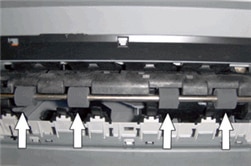
  5. Wipe the rubber paper-feed rollers with a lint-free cloth lightly moistened with distilled or bottled water. Rotate the rollers up carefully to clean all the way around.

    Figure : Rubber paper-feed rollers

    Graphic: Rubber paper-feed rollers in the printer
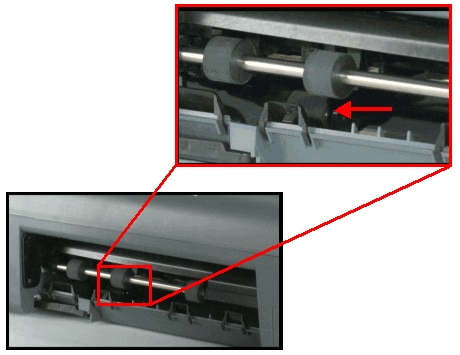
  6. Look for the paper pick roller farther inside the rear access area.

    Figure : The paper pick roller

    Photo of the paper pick roller.

    IMPORTANT: The paper pick roller is a bit more difficult to reach; however, it is the most important part to clean. Make sure to clean it thoroughly. If this roller is not clean, the issue will likely continue.

  7. Clean the paper pick roller with a cotton swab moistened with distilled or bottled water. Apply a moderate amount of pressure to make sure that you remove all debris. Clean the roller thoroughly all the way around.

    Figure : Clean the paper pick roller

    Photo of cleaning the paper pick roller.
  8. Make sure that the rollers on the rear access door or duplexer are clean and in good condition. If any are missing, stuck, or loose, replace the rear access door or duplexer with a new one.

You can refer this HP document for more assistance:- Click here


Let me know how it goes.

To thank me for my efforts to help you, please mark my post as an accepted solution so that it benefits several others.

Cheers.

Sandytechy20
I am an HP Employee

View solution in original post

1 REPLY 1
HP Recommended

@HLPLLC


Welcome to HP forums.


If you have not accepted the fax, then it will not stay in the queue.

You do not have to worry about it.

However, try these steps to fix the printer not picking up the paper issue:-

Clean the rubber paper-feed and pick rollers

  1. Press the Power button () to turn off the product.

  2. Turn the product so that you can access the rear side.

  3. Disconnect the power cord from the rear of the product.

  4. Look for paper that might have jammed inside the printer. Use a flashlight to carefully view the areas around the rollers. Remove all traces of paper found.

  5. Wipe the rubber paper-feed rollers with a lint-free cloth lightly moistened with distilled or bottled water. Rotate the rollers up carefully to clean all the way around.

    Figure : Rubber paper-feed rollers

    Graphic: Rubber paper-feed rollers in the printer
  6. Look for the paper pick roller farther inside the rear access area.

    Figure : The paper pick roller

    Photo of the paper pick roller.

    IMPORTANT: The paper pick roller is a bit more difficult to reach; however, it is the most important part to clean. Make sure to clean it thoroughly. If this roller is not clean, the issue will likely continue.

  7. Clean the paper pick roller with a cotton swab moistened with distilled or bottled water. Apply a moderate amount of pressure to make sure that you remove all debris. Clean the roller thoroughly all the way around.

    Figure : Clean the paper pick roller

    Photo of cleaning the paper pick roller.
  8. Make sure that the rollers on the rear access door or duplexer are clean and in good condition. If any are missing, stuck, or loose, replace the rear access door or duplexer with a new one.

You can refer this HP document for more assistance:- Click here


Let me know how it goes.

To thank me for my efforts to help you, please mark my post as an accepted solution so that it benefits several others.

Cheers.

Sandytechy20
I am an HP Employee

† The opinions expressed above are the personal opinions of the authors, not of HP. By using this site, you accept the <a href="https://www8.hp.com/us/en/terms-of-use.html" class="udrlinesmall">Terms of Use</a> and <a href="/t5/custom/page/page-id/hp.rulespage" class="udrlinesmall"> Rules of Participation</a>.