-
×InformationNeed Windows 11 help?Check documents on compatibility, FAQs, upgrade information and available fixes.
Windows 11 Support Center. -

-
×InformationNeed Windows 11 help?Check documents on compatibility, FAQs, upgrade information and available fixes.
Windows 11 Support Center. -
- HP Community
- Printers
- Scanning, Faxing, and Copying
- Hp and Mac

Create an account on the HP Community to personalize your profile and ask a question
02-20-2020 11:40 PM
I upgraded to Mac Catalina 10.5.3 a few weeks ago. I can print, but not scan. Software Update shows I'm updated on my MacMini 2018. My Hp 5255 OfficeJet is up to date. Neither WiFi or USB will scan. The work around using Image Capture won't work, if I go to System Preferences > Printers/Scanners, my printer is there, but if I click on SCAN, it won't scan. If I click on SCAN on the printer, it won't SCAN. I've tried all of the suggestions from HP, reinstalled the printer, installed it using AirPrint, no luck.
Any suggestions or other information I can provide?
Solved! Go to Solution.
Accepted Solutions
02-24-2020 09:37 AM
I have contacted HP Chat and they had me do all of the things I had done serveral times. Then I tried Mac Support for MacMini and they did the same...they think it is a 32-64 bit issue, despite the claims. I have an appt. with Mac to reset it to Mojave, it had upgraded to Catalina twice without my consent so will try that for now, thanks again.
02-21-2020 09:08 AM
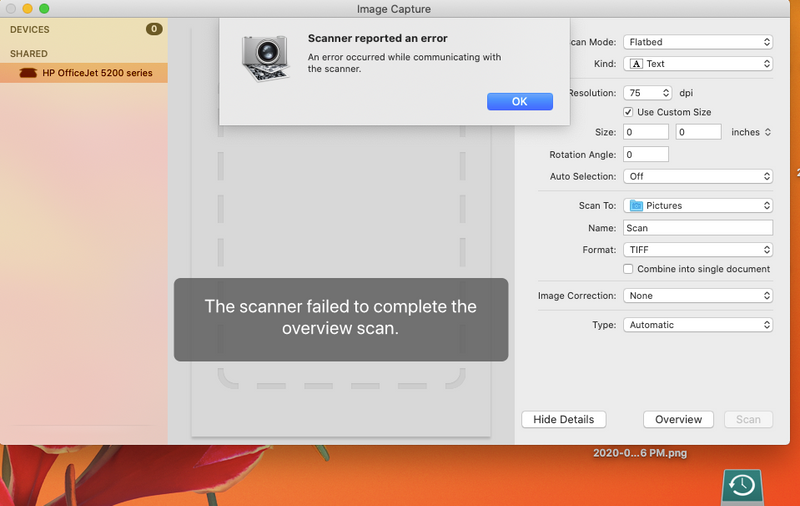
Do you get an error when you attempt to scan using Image Capture?
Have you tried using HP Smart? It is the new preferred app for scanning in macOS.
You can get it from the Mac App Store.
02-21-2020 11:24 PM
I have tried to use Image Capture several times, won't recognize the printer. See attached screen shot.
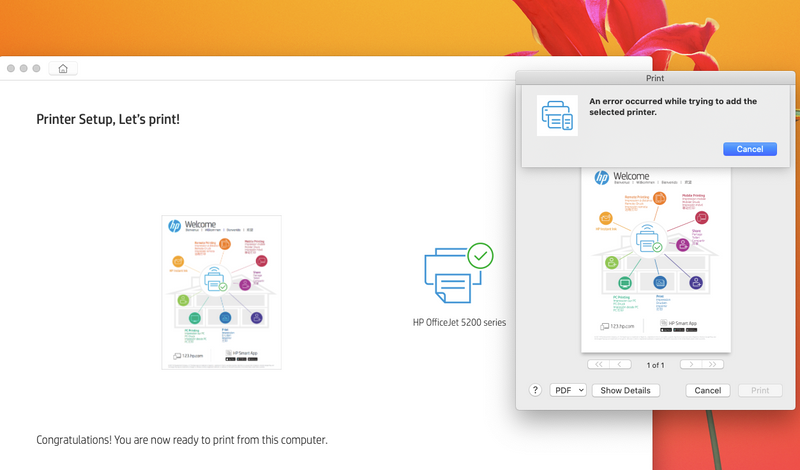
HP Smart is installed, it finds the printer, then when I try to Print or Scan, attached screen shots...won't work.
02-24-2020 09:31 AM
That is interesting. There is no reason this should not be working and that printer requires no additional software to function.
Perhaps it will help to just take everything back to the basics.
First let's reset the print system on the Mac MIni.
- Choose Apple menu > System Preferences, then click Printers & Scanners.
- While holding down the Control key on your keyboard, click anywhere in the list of devices.
- Choose “Reset printing system” from the menu that pops up.
- Set up the printer again using AirPrint.
If that does not resolve the issue, try resetting the printer.
To restore the printer to the original factory defaults
1. On the printer control panel display, from the Home screen, swipe left to see ( Setup ) and touch ( Setup ).
2. Touch Tools , touch Restore Factory Defaults, and then follow the onscreen instructions.
To restore the printer to the original network settings
NOTE: Unfortunately, You will have to setup the printer over WiFi after you reset the network on it.
1. From the Home screen, touch (Wireless) and then touch ( Settings ).
2. Touch Restore Network Settings, and then follow the onscreen instructions.
3. Print the network configuration page and verify that the network settings have been reset.
4. Setup the printer over WiFi again.
5. Add the printer in Printers & Scanners.
02-24-2020 09:37 AM
I have contacted HP Chat and they had me do all of the things I had done serveral times. Then I tried Mac Support for MacMini and they did the same...they think it is a 32-64 bit issue, despite the claims. I have an appt. with Mac to reset it to Mojave, it had upgraded to Catalina twice without my consent so will try that for now, thanks again.