• ×
    Information
    Need Windows 11 help?
    Check documents on compatibility, FAQs, upgrade information and available fixes.
    Windows 11 Support Center.
  • post a message
  • ×
    Information
    Need Windows 11 help?
    Check documents on compatibility, FAQs, upgrade information and available fixes.
    Windows 11 Support Center.
  • post a message
Guidelines
Join the HP Community Solve‑a‑thon | Help Others & Share Your Solutions | Live on Zoom | 2:30 PM to 2:30 AM IST | Every Wednesday Click here to know more
Common problems HP Solution Center not working : Adobe Flash Player Error and Unable to scan
We would like to share some of the most frequently asked questions about HP Solution Center not working : Adobe Flash Player Error and Unable to Scan.
HP Recommended
OfficeJet 4650
macOS 10.13 High Sierra

I have the Officejet 4650 All in One.  It has worked just fine until now. I tried to scan a multiple page document and it didn't recognize my computer! I go to my Mac and the HP software isn't there anymore. So I go to HP and re-download, but it still does't show up in my Finder. NO in person support is available. I tried the using image capture, but cannot do a multipoint and its a pain. What in the world is happening? Is this a not so subtle attempt to get me to update my printer? HELP!

1 REPLY 1
HP Recommended

Hi @mwpamela

Welcome to the HP Support Community. I'd be happy to assist you.


I understand you are not able to scan multiple pages from your MAC. Let us try these steps to resolve this issue:


Scan with HP Easy Scan

  1. Open Finder , select Applications, and then look for HP Easy Scan.
  2. If HP Easy Scan displays in the list, open it. On the upper bar, click HP Easy Scan, and then click Check for Updates. Download any available updates, and then reopen the app.
  3. If HP Easy Scan does not display, download and install the HP Easy Scan app from the App Store, and then open the app.
  4. In HP Easy Scan, click the Scanner drop-down menu, and then select your printer.
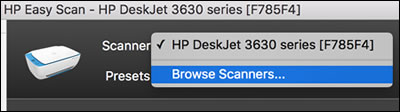
  5. If your printer does not display, click Browse Scanners, and then select your printer from the list. If your printer still does not display, skip to What if HP Easy Scan cannot find my printer in Frequently asked questions (FAQs).
  6. Clicking Browse Scanners to find  a printer
  7. Load all pages into the ADF. Click Scan.
  8. To add pages to your scan, click Add on the bottom bar, load more documents into the ADF, and then click Scan.
  9. To remove pages from a multi-page scan, click the thumbnail on the left panel, and then click Delete on the bottom bar.

  10. To reorder pages in a multi-page scan, click and drag pages on the left panel.

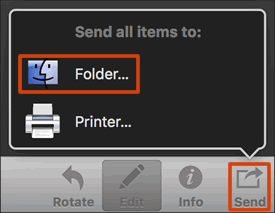
  11. Click Send in the bottom right corner of the window, and then click Folder.

    Clicking Send to save a scan to a folder on the Mac

  12. Select a name, destination, file format, and quality for your scan.

  13. If you want your scan saved as a single file, make sure you select the Save all items to a single file check box.

    NOTE: Not all file types can be saved as a single file. If the check box does not display, select a different file type.
  14. Click Save.

Hope this helps! Keep me posted. 


Please click “Accept as Solution” if you feel my post solved your issue, it will help others find the solution.

Click the “Kudos, Thumbs Up" on the bottom right to say “Thanks” for helping!

Have a great day! 

KUMAR0307
I am an HP Employee

† The opinions expressed above are the personal opinions of the authors, not of HP. By using this site, you accept the <a href="https://www8.hp.com/us/en/terms-of-use.html" class="udrlinesmall">Terms of Use</a> and <a href="/t5/custom/page/page-id/hp.rulespage" class="udrlinesmall"> Rules of Participation</a>.
-->


