• ×
    Information
    Need Windows 11 help?
    Check documents on compatibility, FAQs, upgrade information and available fixes.
    Windows 11 Support Center.
  • post a message
  • ×
    Information
    Need Windows 11 help?
    Check documents on compatibility, FAQs, upgrade information and available fixes.
    Windows 11 Support Center.
  • post a message
Guidelines
Join the HP Community Solve‑a‑thon | Help Others & Share Your Solutions | Live on Zoom | 2:30 PM to 2:30 AM IST | Every Wednesday Click here to know more
Common problems HP Solution Center not working : Adobe Flash Player Error and Unable to scan
We would like to share some of the most frequently asked questions about HP Solution Center not working : Adobe Flash Player Error and Unable to Scan.
HP Recommended
HP 15.6 inch Laptop PC 15-e2000 (2K3D8AV)
Microsoft Windows 11

When I start my pc and open an application I can not scroll down . When I scroll down it automatically moves on top of the page .

When writing the carsure automatically moves at first.

2 REPLIES 2
HP Recommended

Hi @743376,


Welcome to the HP Support Community. 


I'd be glad to help you! 


The issue you're experiencing with your HP 15.6 inch Laptop PC 15-e2000, where the page scrolls to the top automatically and the cursor jumps to the start of the line while typing, is likely caused by a problem with the touchpad, keyboard, or a software conflict. Here are steps you can follow to troubleshoot and resolve the problem:


Step 1: Check for Stuck Keys or Touchpad Issues

Inspect the Keyboard:

  • Ensure no keys, especially the Up Arrow, Home, or Page Up keys, are stuck or malfunctioning.
  • Press each key individually to ensure they are all functioning properly.

Disable the Touchpad Temporarily:

  • Go to Settings > Devices > Touchpad and disable the touchpad temporarily to see if the issue persists.
  • Alternatively, if your laptop has a dedicated touchpad disable button or key (usually found on the F1-F12 keys), try using it.

Check for External Devices:

  • Disconnect any external mouse, keyboard, or USB devices to ensure they are not causing the issue.

Step 2: Update or Reinstall Touchpad and Keyboard Drivers

Update Drivers:

  • Press Windows + X and select Device Manager.
  • Expand the Keyboards and Mice and other pointing devices sections.
  • Right-click on your touchpad and keyboard devices and select Update driver.
  • Choose Search automatically for updated driver software.

Reinstall Drivers:

  • If updating doesn't work, right-click on the touchpad and keyboard devices in Device Manager and select Uninstall device.
  • Restart your computer, and Windows should automatically reinstall the drivers.

Step 3: Adjust Touchpad Settings

Modify Touchpad Sensitivity:

  • Go to Settings > Devices > Touchpad.
  • Adjust the sensitivity settings to Medium sensitivity or lower.
  • Test if the issue persists.

Disable Touchpad Gestures:

  • In the touchpad settings, disable multi-finger gestures or edge swipe gestures that might be conflicting with normal operation.


Please find the remaining steps in the next post. 


Hope this helps! Keep me posted for further assistance


Please mark this post as Accepted Solution” if the issue is resolved and if you feel this reply was helpful click “Yes”.

Nal_NR-
HP Community Moderator


HP Recommended

Hi @743376 ,


Please find the remaining steps below.


Step 4: Run Windows Troubleshooter

Run Keyboard Troubleshooter:

  • Go to Settings > Update & Security > Troubleshoot > Additional troubleshooters.
  • Select Keyboard and run the troubleshooter.

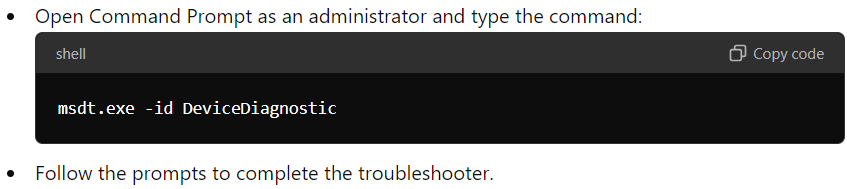
Run Hardware and Devices Troubleshooter:


Step 5: Check for Software Conflicts

Boot into Safe Mode:

  • Restart your computer and boot into Safe Mode. This can help determine if a third-party application is causing the issue.
  • If the issue does not occur in Safe Mode, it is likely caused by a software conflict.

Check for Recent Software Changes:

  • Uninstall any recently installed software or updates that might be causing conflicts with input devices.

Step 6: Check for System Updates

  • Ensure that your Windows operating system is fully updated by going to Settings > Update & Security > Windows Update and checking for updates.

Step 7: Perform a Clean Boot

  • Perform a clean boot to see if the issue persists. This will start Windows with a minimal set of drivers and startup programs, which can help identify if background applications are causing the problem:
    • Press Windows + R, type msconfig, and press Enter.
    • Go to the Services tab, check Hide all Microsoft services, and click Disable all.
    • Go to the Startup tab and click Open Task Manager.
    • Disable all startup items, restart your PC, and test the behavior.


These steps should help you identify and fix the scrolling and cursor issues on your HP 15.6 inch Laptop PC 15-e2000.


Hope this helps! Keep me posted for further assistance


Please mark this post as Accepted Solution” if the issue is resolved and if you feel this reply was helpful click “Yes”.

Nal_NR-
HP Community Moderator


† The opinions expressed above are the personal opinions of the authors, not of HP. By using this site, you accept the <a href="https://www8.hp.com/us/en/terms-of-use.html" class="udrlinesmall">Terms of Use</a> and <a href="/t5/custom/page/page-id/hp.rulespage" class="udrlinesmall"> Rules of Participation</a>.