• ×
    Information
    Need Windows 11 help?
    Check documents on compatibility, FAQs, upgrade information and available fixes.
    Windows 11 Support Center.
  • post a message
  • ×
    Information
    Need Windows 11 help?
    Check documents on compatibility, FAQs, upgrade information and available fixes.
    Windows 11 Support Center.
  • post a message
Guidelines
Join the HP Community Solve‑a‑thon | Help Others & Share Your Solutions | Live on Zoom | 2:30 PM to 2:30 AM IST | Every Wednesday Click here to know more
Common problems HP Solution Center not working : Adobe Flash Player Error and Unable to scan
We would like to share some of the most frequently asked questions about HP Solution Center not working : Adobe Flash Player Error and Unable to Scan.
HP Recommended
Apple iMac
macOS 10.14 Mojave

I cannot get my HP LaserJet Professional M1217nfw MFP printer to scan with Mojave. Any fixes?

1 ACCEPTED SOLUTION

Accepted Solutions
HP Recommended

@BLGreene96


Welcome to HP Forums. This is a great place to get support, find answers and tips.


I have gone through your Post and I understand your concerns


Please ensure your Mac has all the latest updates


Next we will Remove and Re-Add the printer to the Mac Printing Queue 

  1. Click the Apple menu, then click System Preferences.

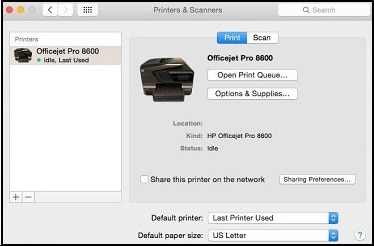
  2. Depending on your operating system version, click Print & Fax, Print & Scan, or Printers & Scanners.

     Example of the Printers & Scanners window

  3. Check if the name of your printer displays in the Printers list. Do one of the following steps, depending on if the printer is listed or not.

    • If your printer is listed, remove and re-add the printer to confirm communication and to make sure the correct driver is used. Click the name of your printer, then click the minus sign  to delete the printer. Once the printer is removed, click the plus sign , click Add Printer or Scanner, click the name of your printer, then continue to the next step.
    • If your printer is not listed, click the plus sign, click Add Printer or Scanner, click the name of your printer, then continue to the next step.

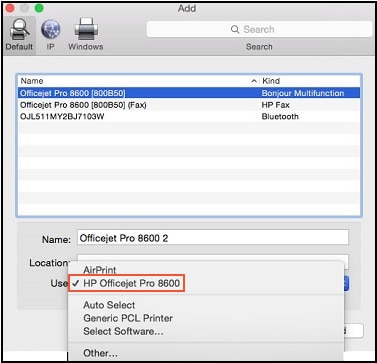
  4. Click the Use or Print Using menu, then select the name of your printer.

    Select the name of your printer in the Use menu

  5. Click Add to add the printer to the list.

    • If you are prompted to install software, click Download and Install to complete the installation.

Keep me posted how it goes


Thank you and have a wonderful weekend 😊


If the information I've provided was helpful, give us some reinforcement by clicking the "Solution Accepted" on this Post and it will also help other community members with similar issue.

KrazyToad
I Am An HP Employee

View solution in original post

1 REPLY 1
HP Recommended

@BLGreene96


Welcome to HP Forums. This is a great place to get support, find answers and tips.


I have gone through your Post and I understand your concerns


Please ensure your Mac has all the latest updates


Next we will Remove and Re-Add the printer to the Mac Printing Queue 

  1. Click the Apple menu, then click System Preferences.

  2. Depending on your operating system version, click Print & Fax, Print & Scan, or Printers & Scanners.

     Example of the Printers & Scanners window

  3. Check if the name of your printer displays in the Printers list. Do one of the following steps, depending on if the printer is listed or not.

    • If your printer is listed, remove and re-add the printer to confirm communication and to make sure the correct driver is used. Click the name of your printer, then click the minus sign  to delete the printer. Once the printer is removed, click the plus sign , click Add Printer or Scanner, click the name of your printer, then continue to the next step.

    • If your printer is not listed, click the plus sign, click Add Printer or Scanner, click the name of your printer, then continue to the next step.

  4. Click the Use or Print Using menu, then select the name of your printer.

    Select the name of your printer in the Use menu

  5. Click Add to add the printer to the list.

    • If you are prompted to install software, click Download and Install to complete the installation.

Keep me posted how it goes


Thank you and have a wonderful weekend 😊


If the information I've provided was helpful, give us some reinforcement by clicking the "Solution Accepted" on this Post and it will also help other community members with similar issue.

KrazyToad
I Am An HP Employee

† The opinions expressed above are the personal opinions of the authors, not of HP. By using this site, you accept the <a href="https://www8.hp.com/us/en/terms-of-use.html" class="udrlinesmall">Terms of Use</a> and <a href="/t5/custom/page/page-id/hp.rulespage" class="udrlinesmall"> Rules of Participation</a>.