• ×
    Information
    Need Windows 11 help?
    Check documents on compatibility, FAQs, upgrade information and available fixes.
    Windows 11 Support Center.
  • post a message
  • ×
    Information
    Need Windows 11 help?
    Check documents on compatibility, FAQs, upgrade information and available fixes.
    Windows 11 Support Center.
  • post a message
Guidelines
Seize the moment! nominate yourself or a tech enthusiast you admire & join the HP Community Experts!
Common problems HP Solution Center not working : Adobe Flash Player Error and Unable to scan
We would like to share some of the most frequently asked questions about HP Solution Center not working : Adobe Flash Player Error and Unable to Scan.
HP Recommended
HP Officejet Pro 8620 e-All-in-One Printer

My scanner no longer scans double sided.


I work on a Mac MacOS Ventura 13.3.1

1 REPLY 1
HP Recommended

Hi @RolfS1,


Welcome to the HP Support Community. 


I'd like to help!


Automatic double sided scanning is not supported by this printer model.

You may perform manual double-sided scanning by scanning from your PC.

Using HP Scan software would be the efficient way to scan multiple photos.


Place the document or photo printed side down on the scanner glass, then close the scanner lid.

If your printer has an automatic document feeder (ADF), you can use it to scan multiple page documents at one time. Do not load photos in the ADF to prevent damage to the photos and the printer.

In the HP Scan window, click Scan.

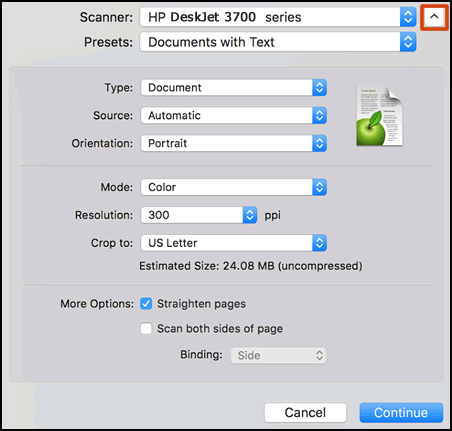
Select your printer name in the Scanner menu, then select a scan job type from the Presets menu.

Click the down arrow in the upper right corner of the window to view and change scan color, orientation, and quality settings.

Figure : Click the arrow button to display scan settings

  1. Click the arrow button to display scan settings

Click Continue.

The printer scans the item.


Click here and refer to the document to perform the above steps.


Hope this helps! Keep me posted for further assistance.
Please click “Accepted Solution” if you feel my post solved your issue, it will help others find the solution. Click the “Kudos/Thumbs Up" on the bottom right to say “Thanks” for helping!

Nal_NR-
HP Community Moderator


† The opinions expressed above are the personal opinions of the authors, not of HP. By using this site, you accept the <a href="https://www8.hp.com/us/en/terms-of-use.html" class="udrlinesmall">Terms of Use</a> and <a href="/t5/custom/page/page-id/hp.rulespage" class="udrlinesmall"> Rules of Participation</a>.