• ×
    Information
    Need Windows 11 help?
    Check documents on compatibility, FAQs, upgrade information and available fixes.
    Windows 11 Support Center.
  • post a message
  • ×
    Information
    Need Windows 11 help?
    Check documents on compatibility, FAQs, upgrade information and available fixes.
    Windows 11 Support Center.
  • post a message
Guidelines
Join the HP Community Solve‑a‑thon | Help Others & Share Your Solutions | Live on Zoom | 2:30 PM to 2:30 AM IST | Every Wednesday Click here to know more
Common problems HP Solution Center not working : Adobe Flash Player Error and Unable to scan
We would like to share some of the most frequently asked questions about HP Solution Center not working : Adobe Flash Player Error and Unable to Scan.
HP Recommended
Officejet 4630
Microsoft Windows 10 (64-bit)

When scanning via the paper feed, the printer consistently makes a loud grinding noise, can this be fixed or is it time for a new printer?

1 REPLY 1
HP Recommended

@Kejo03


Welcome to the HP Support Community.

  1. Gather the following materials:

    • A clean, lint-free cloth, or any cloth that does not come apart or leave fibers

    • Distilled, filtered, or bottled water (tap water might damage the printer)

  2. Remove the original document from the ADF.

  3. Turn off the printer.

  4. Disconnect the power cord from the rear of the printer.

  5. Open the ADF cover.

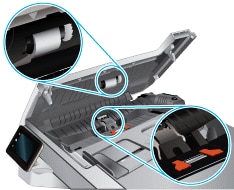
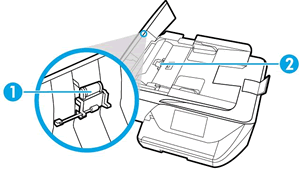
  6. Find the paper pick rollers and the separator pad inside the ADF.

    Figure : Example of the paper pick rollers and separator pad in a LaserJet printer

    The paper pick rollers and separator pad

    Figure : Example of the paper pick rollers and separator pad in a OfficeJet printer

  7. Lightly dampen a clean, lint-free cloth with filtered or distilled water, then squeeze any excess liquid from the cloth.

  8. Use the damp cloth to wipe any residue off the paper pick rollers and the separator pad.

  9. Leave the ADF cover open for two minutes to allow the paper pick rollers and separator pad to dry.

  10. Close the ADF cover.

  11. Reload the original document print side up in the document feeder tray. Gently slide the document into the printer as far as it can go.

  12. Slide in the paper width guides until they are snug against the paper.

    Do not push the paper width guides in so far that they bend the paper.

  13. Reconnect the power cord to the rear of the printer.

  14. Turn on the printer, then try to scan.

Also, try a firmware update: https://support.hp.com/in-en/document/c02919168


Let me know if this helps.


If the information I've provided was helpful, give us some reinforcement by clicking the Accepted Solution and Kudos buttons, that'll help us and others see that we've got the answers!


Thanks!


Have a great day!


I am an HP Employee

† The opinions expressed above are the personal opinions of the authors, not of HP. By using this site, you accept the <a href="https://www8.hp.com/us/en/terms-of-use.html" class="udrlinesmall">Terms of Use</a> and <a href="/t5/custom/page/page-id/hp.rulespage" class="udrlinesmall"> Rules of Participation</a>.