• ×
    Information
    Need Windows 11 help?
    Check documents on compatibility, FAQs, upgrade information and available fixes.
    Windows 11 Support Center.
  • post a message
  • ×
    Information
    Need Windows 11 help?
    Check documents on compatibility, FAQs, upgrade information and available fixes.
    Windows 11 Support Center.
  • post a message
Guidelines
Join the HP Community Solve‑a‑thon | Help Others & Share Your Solutions | Live on Zoom | 2:30 PM to 2:30 AM IST | Every Wednesday Click here to know more
Common problems HP Solution Center not working : Adobe Flash Player Error and Unable to scan
We would like to share some of the most frequently asked questions about HP Solution Center not working : Adobe Flash Player Error and Unable to Scan.
HP Recommended
MFP M281fdw
Microsoft Windows 7 (64-bit)

Hello,

I can do print, scan from computer, but when I trying to do the same from printer, Printer can not find the computer. Although both connected to the same  network via Wifi. Also tried to do the same via cable -> same result.


Seems printer works only one direction from computer only. Also I can not adjust scan to net folder. Printer also says that it can't find the computer,


Please help!

4 REPLIES 4
HP Recommended

@Slimka


Welcome to HP Support Community


Please reset the printer to factory defaults


1. From the Home screen on the printer control panel, swipe until the Setup menu displays. Touch the Setup icon to open the menu.

2. Scroll to and select the Service menu.

3. Scroll to and select Restore Defaults, and then touch OK. The printer automatically restarts.

4. Setup the printer again and connect it back to your network


Also update the Firmware from this Link: https://support.hp.com/us-en/products/


If the issue persists, assign a Manual IP Address and let me know how it goes


- Print a Network Config Page. Note the printer's IP address.
- Type that IP address into a browser to reveal the printer's internal settings.
- Choose the Networking tab, then Wireless along the left side, then the IPv4 tab.
- On this screen you want to set a Manual IP. You need to set an IP address outside the range that the router automatically sets (called the DHCP range). If you do not know the range, change the last set of numbers (those after the last '.') to 250
- Use 255.255.255.0 for the subnet (unless you know it is different, if so, use that)
- Enter your router's IP (on the Network Config Page) for the gateway.
- Enter 8.8.8.8 for the first DNS and 8.8.4.4 for the second DNS. This is Google DNS. 
- Click 'Apply'.
 

Keep me posted


Thank you and have a great day 😊


If the information I've provided was helpful, give us some reinforcement by clicking the "Solution Accepted" on this Post and it will also help other community members with similar issue.


KrazyToad
I Am An HP Employee

HP Recommended

Thank you for your recommendations!

Software version is actual. Reset of printers settings done,

Computer see Printer, but printer not able to see computer, The problem is still exist. When I trying to set network folder wich I have plased on a desktop, during cheking procedure the is an error saing: no ip adree of computer found, Check if computer is switshed on.


HP Recommended

@Slimka


I suggest we perform an NVRAM Reset.


Since these steps are specific to your printer, I have sent you a private message with the instructions


Please check your private message icon on the upper right corner of your HP Forums profile.


Next to your profile Name, you should see a little blue envelope


Thank you


KrazyToad
I Am An HP Employee

HP Recommended

@Slimka


Since the issue persists after the Semi Full Reset, let's check the Windows Image Acquisition settings


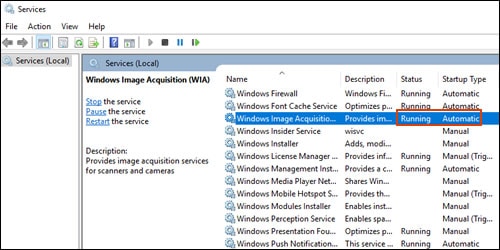
Windows Image Acquisition (WIA) is a Windows service that helps communication between the computer and scanners. If WIA is not activated, scan jobs can fail.

  1. In Windows, search for and open View local services.

  2. In the Services window, scroll down the list and find Windows Image Acquisition (WIA).

  3. Look at the Status and Startup Type values.

    • If the status is Started or Running and the Startup Type is Automatic, WIA is running correctly. Skip to the next step.

      Making sure WIA Status is Running and Startup Type is Automatic

    • If the status is Disabled or no status displays, right-click Windows Image Acquisition (WIA), click Properties, click the General tab, select Automatic from the Startup type dropdown menu, and then click Start.

      If the Start button is grayed out, go back to the Services menu, make sure Remote Procedure Call, Shell Hardware Detection, RPC Endpoint Mapper, and DCOM Server Process Launcher are running and set as Automatic, and then start WIA.

Try to scan. If the error persists, uninstall the driver from root level and download the Full Feature Software


1.) In Windows, search for and open Programs and features 
2.) Select your HP Printer 
3.) Select Uninstall 
4.) In Windows, search for and open Devices and printers 
5.) In the Devices and Printers windows look for your HP printer. If you see it listed right-click on it and choose ‘Delete’ or ‘Remove Device’ 
6.) Open up the run command with the “Windows key + R” key combo.
7.) Type printui.exe /s and click Ok. (Note: there is a space in between “printui.exe” and “/s”) 
8.) Click on the “Drivers” tab 
9.) Look for HP Printer driver. If you see it Click on it and click Remove at the bottom 
10.) Select Ok 
11.) Select Apply and Ok on the Print Server Properties windows 
12.) Close Devices and Printers
13.) Restart the computer and download the Full Feature Software from Here and follow the onscreen Instructions


Keep me posted 


If the information I've provided was helpful, give us some reinforcement by clicking the "Solution Accepted" on this Post and it will also help other community members with similar issue

KrazyToad
I Am An HP Employee

† The opinions expressed above are the personal opinions of the authors, not of HP. By using this site, you accept the <a href="https://www8.hp.com/us/en/terms-of-use.html" class="udrlinesmall">Terms of Use</a> and <a href="/t5/custom/page/page-id/hp.rulespage" class="udrlinesmall"> Rules of Participation</a>.