• ×
    Information
    Need Windows 11 help?
    Check documents on compatibility, FAQs, upgrade information and available fixes.
    Windows 11 Support Center.
  • post a message
  • ×
    Information
    Need Windows 11 help?
    Check documents on compatibility, FAQs, upgrade information and available fixes.
    Windows 11 Support Center.
  • post a message
Guidelines
Seize the moment! nominate yourself or a tech enthusiast you admire & join the HP Community Experts!
Common problems HP Solution Center not working : Adobe Flash Player Error and Unable to scan
We would like to share some of the most frequently asked questions about HP Solution Center not working : Adobe Flash Player Error and Unable to Scan.
HP Recommended
Office Jet Pro 9025se
Microsoft Windows 10 (64-bit)

I am scanning a multicolored page approx 4"x6". It scans perfectly. I then choose Detect Edges and the borders go down to the correct edges. I hit Apply and the image triples in size and 90% of the image is black and white. It seems there is a serious programming error.

1 REPLY 1
HP Recommended

@GGAGGA 


Welcome to the HP Community --


Might be -- could just be a corruption or unintended result in the Detect Edges feature.

I've never found Detect Edges to be particularly trustworthy - best to adjust the borders where they are wanted, IMO.

One thing that might help - make sure Auto-Enhancements > Orientation is switched OFF.


HP_Smart_W10_Scan_Photo_Screen_8HP_Smart_W10_Scan_Photo_Screen_8


Since you are using Windows, you can (should) try using HP Scan.


HP Scan is part of the Full Feature Software - when the full driver is installed on the computer, a shortcut for HP Scan (named for the printer model) is added to the Desktop.


HP Scan is generally rock-solid as long as the photo(s) are able to be detected and the boundaries separated from the background.


9025_HP_Scan_menu_JPEG_More_Image_All_79025_HP_Scan_menu_JPEG_More_Image_All_7


=========================================

What else?


Also available when the Full Feature Software is installed,

Download and Install the HP Scan and Capture app.

Scan and Capture supports Crop though you might need to adjust manually.


 HP printers - Scan with HP Scan and Capture (Windows)


HP Scan and Capture

Available from the Microsoft Store (formally Windows Store) - Requires Windows 8 or higher

Download-Save-Install   HP Scan and Capture

 Description

HP Scan and Capture is a simple and fun application that captures photos or documents from any* HP scanning device or your computer's built-in camera.  These images can be previewed, edited, saved, and shared to other applications.


* NOTE:  The correct HP drivers for your scanner must be installed from HP's Support Website.


HP Scan and Capture features an adjustable screen size.


Application controls / options


Windows 10 -

Settings > Apps > Apps and Features


Windows 11 - 

Settings > Apps > Installed Apps


Scroll / Search for HP Scan and Capture

Left-click on the App for options associated with this app.

If available, Click Advanced for additional controls.


Example - Full Feature Software installed

HP Scan and Capture (application)

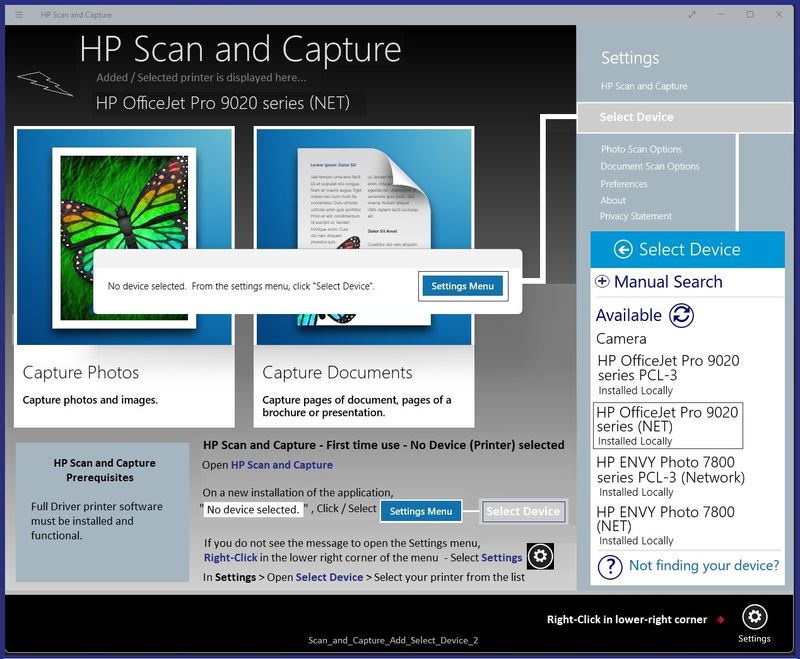
First Use > Device Setup / Selection

Scan_and_Capture_Add_Select_Device_2Scan_and_Capture_Add_Select_Device_2


Example - Full Feature Software installed

HP Scan and Capture (application)

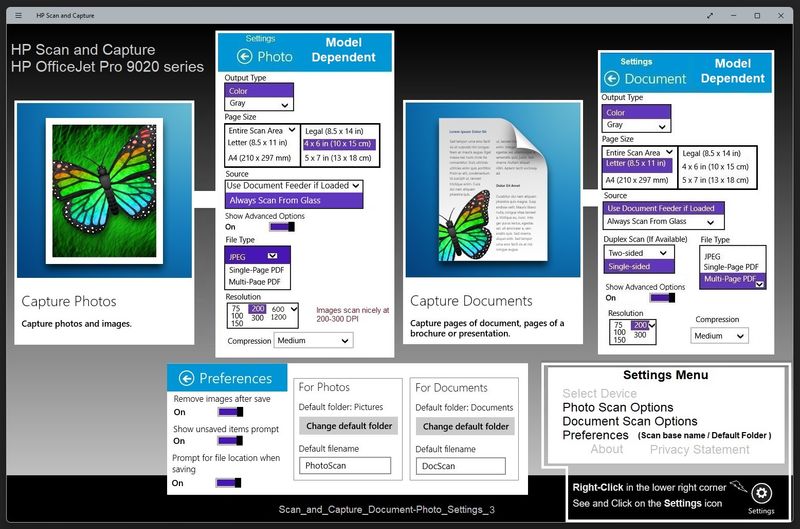
Document / Photos Destination setup

Scan_and_Capture_Document-Photo_Settings_3Scan_and_Capture_Document-Photo_Settings_3


=+=+=+=+=+=+=+=+=+=+=+=+=+=

References / Resources


Video - Printer Software

 HP OfficeJet Pro 9020 | 9022 |9025 | 9026 | 9028 |9018 Download & Install HP Full featured software


====================================

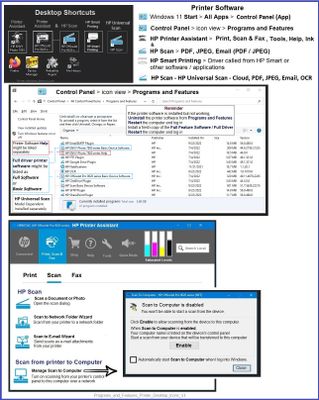
The installation of the full driver adds at least two shortcuts to the Desktop:  

Printer Assistant 

HP Scan


>>> Open the Printer Assistant > tab Scan Manage Scan to Computer Enable


Example - Windows - Full Feature Software - Installed in Programs and Features

Programs_and_Features_Printer_Desktop_Icons_11Programs_and_Features_Printer_Desktop_Icons_11


User Guide - HP OfficeJet Pro 9020e series


Technology Tips Video Gallery from our HP Expert greenturtle

 Technology Tips YouTube Video Help for Printers


=+=+=+=+=+=+=+=+=+=+=+=+=+=+=+=+=+=+=+=+=+=

HP Printer Home Page - References and Resources

Learn about your Printer  - Solve Problems

“Things that are your printer”

When the website support page opens, Select (as available) a Category > Topic Subtopic

NOTE:  Content depends on device type and Operating System

Categories Alerts, Access to the Print and Scan Doctor (Windows), Warranty Check, HP Drivers / Software / Firmware Updates, How-to Videos, Bulletins/Notices, Lots of How-to Documents, Troubleshooting, Manuals > User Guides, Product Information (Specifications), Supplies, and more

Open

HP OfficeJet Pro 9025e All-in-One Printer  


Thank you for participating in the HP Community --

People who own, use, and support HP devices.

Click Yes to say Thank You

Question / Concern Answered, Click my Post "Accept as Solution"


Dragon-Fur

† The opinions expressed above are the personal opinions of the authors, not of HP. By using this site, you accept the <a href="https://www8.hp.com/us/en/terms-of-use.html" class="udrlinesmall">Terms of Use</a> and <a href="/t5/custom/page/page-id/hp.rulespage" class="udrlinesmall"> Rules of Participation</a>.