• ×
    Information
    Need Windows 11 help?
    Check documents on compatibility, FAQs, upgrade information and available fixes.
    Windows 11 Support Center.
  • post a message
  • ×
    Information
    Need Windows 11 help?
    Check documents on compatibility, FAQs, upgrade information and available fixes.
    Windows 11 Support Center.
  • post a message
Guidelines
Join the HP Community Solve‑a‑thon | Help Others & Share Your Solutions | Live on Zoom | 2:30 PM to 2:30 AM IST | Every Wednesday Click here to know more
Common problems HP Solution Center not working : Adobe Flash Player Error and Unable to scan
We would like to share some of the most frequently asked questions about HP Solution Center not working : Adobe Flash Player Error and Unable to Scan.
HP Recommended
Microsoft Windows 10 (64-bit)

My computer is displaying a Paper Jam in ADF message.  I have opened the compartment and cannot see any paper in the system anywhere.  I have tried restarting the printer with no success.  Sometimes when I hit the okay button on the touch screen, it gives me a printer error screen and says I need to restart the printer.  Any ideas?

5 REPLIES 5
HP Recommended

@chrisboy

Thank you for joining the HP Community


Could you please help me with the exact model name or the product number of the printer.


Keep me posted.

Have a great day!

Cheers:)

Raj1788
I am an HP Employee 

HP Recommended

I have an OfficeJet Pro 8625.

HP Recommended

@chrisboy


Check for any loose or jammed paper that is accessible from the ADF area.

  1. Turn off the printer.

  2. Lift the ADF cover.

    Image: Lift the ADF cover

  3. Lift the tab located on the left edge of the ADF to raise the ADF mechanism.

    Image: Lift the ADF mechanism.

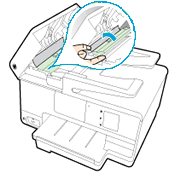
  4. Push in the green tab located in the center of the ADF.

    Image: Push in the green tab

  5. Gently pull out any jammed paper from the ADF. To avoid tearing any whole sheets of paper, pull out the paper with both hands.

       CAUTION: 

    If the paper tears while you remove it, check the rollers and wheels for any torn pieces of paper that might remain inside the ADF. Use a flashlight to thoroughly check the rollers for torn pieces of paper. If any torn pieces of paper remain inside the printer, more paper jams are likely to occur.

  6. Pull up on the green tab to set it back in place.

  7. Close the ADF cover tightly at both ends.

    Image: Close the ADF cover tightly at both ends

Clean the rollers in the ADF


Clean the paper feed rollers in the ADF area.

  1. Lift the top cover of the ADF. This provides easy access to the rollers and separator pad.

    1. ADF cover

    2. Rollers

    3. Separator pad

  2. Lightly dampen a clean, lint-free cloth with distilled water, and then squeeze any excess liquid from the cloth.

  3. Press the cloth against the rollers, and then rotate them upward with your fingers. Apply a moderate amount of pressure to remove any dust or dirt buildup.

    1. Rollers

    2. Separator pad

  4. Allow the rollers to dry completely (approximately 10 minutes).

  5. Close the ADF cover tightly at both ends.

    Image: Close the ADF cover tightly at both ends

Try to print.


Refer to this document: https://support.hp.com/in-en/product/hp-officejet-pro-8620-e-all-in-one-printer-series/5367611/model... for Paper Jam Error.


Keep me posted, how it goes!

If the information I've provided was helpful, give us some reinforcement by clicking the Accepted Solution and Kudos buttons, that'll help us and others see that we've got the answers!

Have a great day!

Cheers:)

Raj1788
I am an HP Employee 

HP Recommended

Thanks for the reply, Raj.


My husband, my son and I have all taken turns following those steps and have been unable to see any paper or other obstruction in the paper feeder.  Any other suggestions?

HP Recommended

@chrisboy


Update the firmware for the printer using this link: https://support.hp.com/in-en/product/hp-officejet-pro-8620-e-all-in-one-printer-series/5367611/model...


Restart the printer.


If the issue persists, I would personally suggest you contact our HP Support. 


Click here: https://support.hp.com/us-en/contact-hp?openCLC=true


Make sure you select the Country and Region.


Keep me posted on further assistance. Hope that helps! 

Have a great day ahead!

Raj1788
I am an HP Employee 

† The opinions expressed above are the personal opinions of the authors, not of HP. By using this site, you accept the <a href="https://www8.hp.com/us/en/terms-of-use.html" class="udrlinesmall">Terms of Use</a> and <a href="/t5/custom/page/page-id/hp.rulespage" class="udrlinesmall"> Rules of Participation</a>.
-->