• ×
    Information
    Need Windows 11 help?
    Check documents on compatibility, FAQs, upgrade information and available fixes.
    Windows 11 Support Center.
  • post a message
  • ×
    Information
    Need Windows 11 help?
    Check documents on compatibility, FAQs, upgrade information and available fixes.
    Windows 11 Support Center.
  • post a message
Guidelines
Join the HP Community Solve‑a‑thon | Help Others & Share Your Solutions | Live on Zoom | 2:30 PM to 2:30 AM IST | Every Wednesday Click here to know more
Common problems HP Solution Center not working : Adobe Flash Player Error and Unable to scan
We would like to share some of the most frequently asked questions about HP Solution Center not working : Adobe Flash Player Error and Unable to Scan.

HP Recommended
HP Color LaserJet Pro MFP M281fdw

IMG_2949.jpeg

Do any one has a solution to this, I use a Hp color laserjet pro mfp m281. I tried printing on a glossy paper 

3 REPLIES 3
HP Recommended

Hello @Tobi7394, Welcome to the HP Support Community.
 

Thanks for sharing the photo. Since the issue started when printing on glossy paper, the paper type and print settings are the first things I would check.
 

Please try the following:

  • Make sure the glossy paper is specifically designed for laser printers. Do not use inkjet-only glossy/photo paper, as the heat from a laser printer can cause problems with the paper and print quality. 
  • In the print settings, select the paper type that most closely matches the glossy/coated media you are using.
  • Make sure the selected paper size and type match the paper loaded in the printer. HP recommends matching these settings to the actual media. HP print settings guide | HP® Support
  • Try printing the same document once on normal plain paper.
  • If the print looks normal on plain paper but shows the problem only on the glossy paper, the media or its compatibility with the printer is likely the cause.
  • If the problem also occurs on plain paper, please let us know and, if possible, attach a photo of a page printed on plain paper as well. That will help determine whether we are dealing with a paper-specific issue or a printer print-quality issue.

For more information, please check the link - HP Color LaserJet Pro - Resolving color print quality problems | HP® Support


Have a great day!

I'm an HP Employee.


If this reply helped resolve your issue, please select the Accept as Solution as it helps others in the community quickly find the answer they’re looking for.


And if you found this reply helpful, clicking Yes below is a great way to let us know we’re providing the support you need, as it encourages us to keep improving and sharing helpful guidance.

HP Recommended

55E96063-8BE3-4E20-8D54-8C4F893B9200.jpeg

 this is what a black color looks like when printed on a plain paper too with correction settings.

HP Recommended

Thank you so much for your response @Tobi7394

Based on the image that you have shared we request that you try a few troubleshooting steps provided below.
 

  1. Print a Print Quality Page from the printer and examine the black section. This is the most useful step because it helps determine whether the defect is isolated to black or affects multiple colors.
  2. Check the toner cartridges, particularly the black cartridge. HP's guidance says to inspect the cartridge and imaging drum for damage; do not touch the imaging drum.
  3. Print a cleaning page, since HP lists cleaning as a solution for lines, streaks, repeating marks, and other print-quality defects.
  4. Check the paper and paper-type setting. Since the customer originally reported the problem on glossy paper, confirm the media is laser-compatible and that the printer/driver setting matches the paper type.
  5. Try printing from another application if the defect only occurs with a particular document/application.
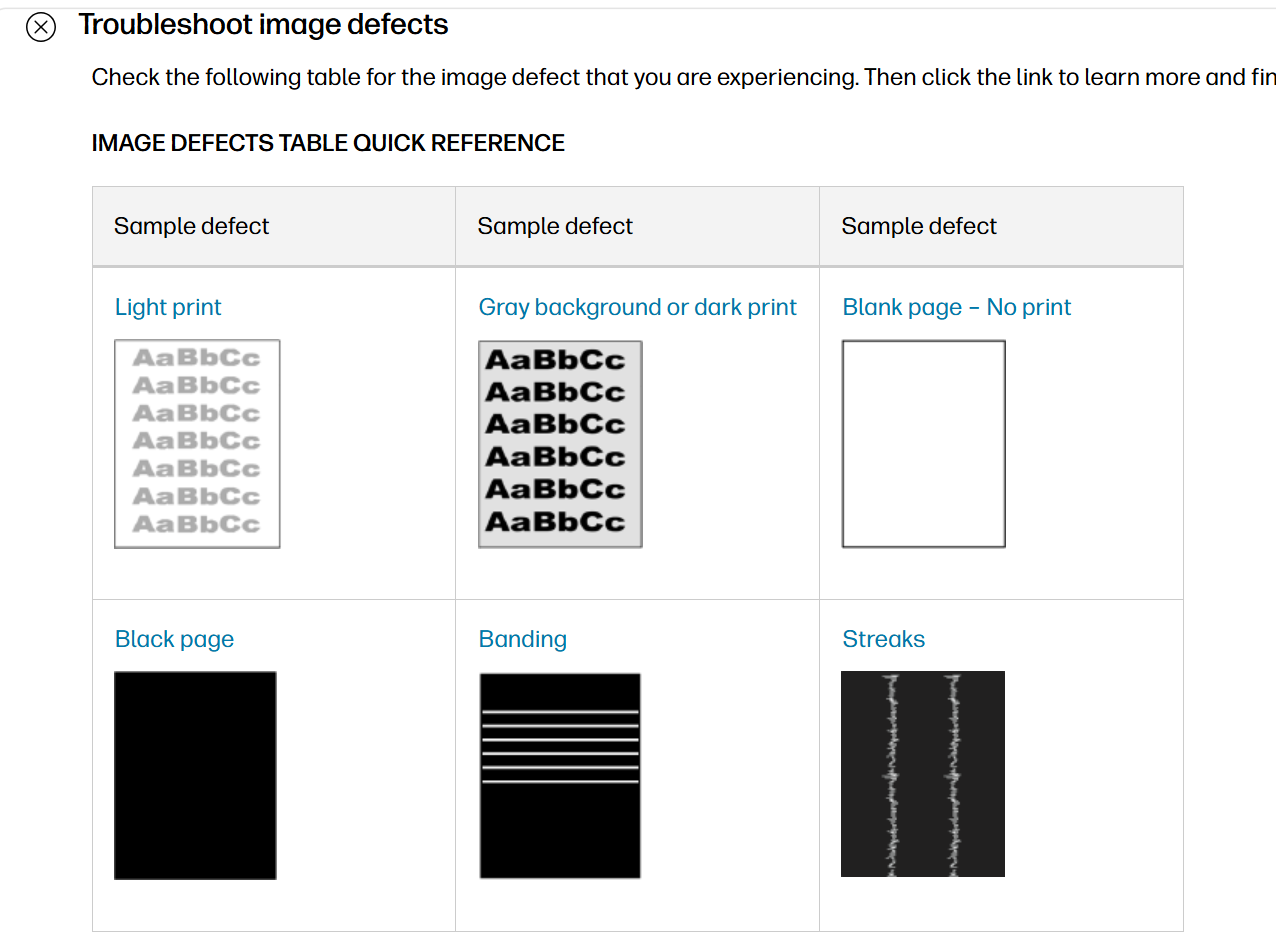
  6. If the problem remains, follow the article's image-defect troubleshooting and determine whether the defect corresponds to one toner color or appears across multiple colors. HP Color LaserJet Pro - Resolving color print quality problems | HP® Support


Have a great day!

I'm an HP Employee.


If this reply helped resolve your issue, please select the Accept as Solution as it helps others in the community quickly find the answer they’re looking for.


And if you found this reply helpful, clicking Yes below is a great way to let us know we’re providing the support you need, as it encourages us to keep improving and sharing helpful guidance.

† The opinions expressed above are the personal opinions of the authors, not of HP. By using this site, you accept the <a href="https://www8.hp.com/us/en/terms-of-use.html" class="udrlinesmall">Terms of Use</a> and <a href="/t5/custom/page/page-id/hp.rulespage" class="udrlinesmall"> Rules of Participation</a>.
-->