• ×
    Information
    Need Windows 11 help?
    Check documents on compatibility, FAQs, upgrade information and available fixes.
    Windows 11 Support Center.
  • post a message
  • ×
    Information
    Need Windows 11 help?
    Check documents on compatibility, FAQs, upgrade information and available fixes.
    Windows 11 Support Center.
  • post a message
Guidelines
Join the HP Community Solve‑a‑thon | Help Others & Share Your Solutions | Live on Zoom | 2:30 PM to 2:30 AM IST | Every Wednesday Click here to know more
Common problems HP Solution Center not working : Adobe Flash Player Error and Unable to scan
We would like to share some of the most frequently asked questions about HP Solution Center not working : Adobe Flash Player Error and Unable to Scan.
HP Recommended
HP Envy Photo 7855
Mac OS X 10.10 Yosemite

HP Eprint on. Printer updates installed. Web services set up.  What is the problem?

Thanks.

1 REPLY 1
HP Recommended

@roses61, Welcome to HP Support Community!


Make sure your wired (Ethernet) or wireless network is working correctly and the printer is connected.


Update the printer firmware

Download available firmware updates from the HP website

With the printer on and connected to the computer, go to HP Customer Support - Software and Driver Downloads, and then identify your printer. Look for and install any available firmware updates. For more information, go to Updating or Upgrading Printer Firmware.


Restart the computer, printer, and router

To resolve many connectivity issues, restart the computer, printer, and router.

NOTE: 

The following steps temporarily disconnect network and Internet connections, and require restarting your computer. Complete any tasks or downloads in progress before you continue.

  1. Turn off the router by pressing the power button or disconnecting the power cord.

  2. Turn off the printer.

  3. Close all running programs on your computer, and then shut down the computer.

  4. Press the power button or reconnect the power cord to the router, and then wait for the Internet activity light to display a normal connected status.

  5. Turn on the printer.

  6. Turn on the computer.

  7. Try to turn on Web Services.

Turn on Web Services from the Embedded Web Server (EWS)

Using the printer EWS to turn on Web Service might resolve any communication issues with the printer control panel.

  1. Print a Network Configuration Page.

    • Printers with LCD and text-based control panels: Print the page from the Wireless, Network Settings or Setup menu.


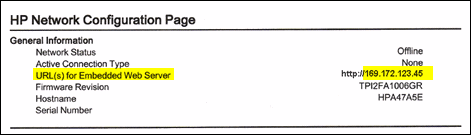
  2. On the Network Configuration Page, locate the URL(s) for Embedded Web Server address.

    NOTE: 

    If the URL for the EWS is http://0.0.0.0, the printer is not connected to a network. Reconnect your printer to the network, and then continue troubleshooting.

    Figure : Locating the URL(s) for Embedded Web Server address

    Locating the URL(s) for Embedded Web Server address
  3. On your computer, open an Internet browser.

  4. Type the URL address for the EWS in the browser address bar, and then press Enter.

    NOTE: 

    Make sure to type the IP address into the Internet browser's address box. If typed into a toolbar search box or search engine, the EWS does not open.

  5. If a website security certificate displays in the Internet browser, click Continue.

    The EWS webpage for the printer opens, which confirms that the printer is on the same network as the computer.

  6. On the EWS webpage, click the Web Services tab.

  7. On the Web Services Setup page, click Continue, Turn On, or Enable, and then follow the on-screen instructions

    Figure : Example of clicking Continue

    Example of clicking Continue.

Additionally, follow the steps from the document HP Printers - Cannot Connect to Web Services.


Hope this helps! Keep me posted. 


Please click “Accept as Solution” if you feel my post solved your issue, it will help others find the solution. Click the “Kudos/Thumbs Up" on the bottom right to say “Thanks” for helping!

TEJ1602
I am an HP Employee

† The opinions expressed above are the personal opinions of the authors, not of HP. By using this site, you accept the <a href="https://www8.hp.com/us/en/terms-of-use.html" class="udrlinesmall">Terms of Use</a> and <a href="/t5/custom/page/page-id/hp.rulespage" class="udrlinesmall"> Rules of Participation</a>.