-
×InformationNeed Windows 11 help?Check documents on compatibility, FAQs, upgrade information and available fixes.
Windows 11 Support Center. -

-
×InformationNeed Windows 11 help?Check documents on compatibility, FAQs, upgrade information and available fixes.
Windows 11 Support Center. -
- HP Community
- Printers
- Scanning, Faxing, and Copying
- Printer message

Create an account on the HP Community to personalize your profile and ask a question
09-13-2019 11:12 AM
I keep recieveing this message "HP ENVY 7640 serieers is currently unavailable. Please check if it is turned on and connected, or try again later." every time I try to print. Help me fix it
09-17-2019 11:35 AM - edited 09-17-2019 11:36 AM
@ChemoRN, Welcome to the HP Support Community!
- Make sure the printer and the MAC are connected to the same wireless network.
- This printer supports only 2.4GHz network.
To check the connectivity between the printer and the MAC, perform a PING test
- Obtain the IP address of the printer by clicking on the Wireless icon on the printer
- On the MAC Go to Spotlight > search for Network utility > select Ping tab > enter the IP address of the printer in the box
- Check the second box that says Send only > 10 pings
- Click on ping > Check the results at the end if any packets are lost
- Note: There should be 0% packet loss, share the results in your next post
- If there is 0% loss and the issue persists, proceed to the next step
Please ensure that the printer is up to date with its firmware and Mac is up to date with its software. If you are unsure you may use the links below to update the printer firmware and Mac software:
1.) Click the Apple menu, click System Preferences, and then click Print & Scan or Printers & Scanners.
2.) Check if your printer name displays in the Printers list, If your printer is listed, click the printer name, click the minus sign to delete the printer.
3.) If you see multiple printer queues for the same printer, remove all extra printers by selecting them one at a time, and then clicking the minus button at the bottom of the list.
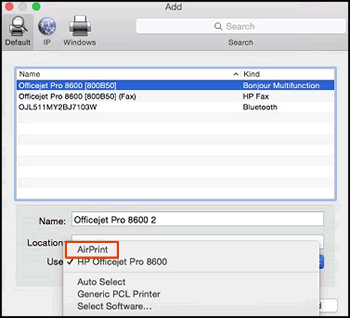
4.) Click the plus sign, click Add Printer or Scanner, click the printer name.
5.) Click the Use or Print Using menu, select AirPrint in the pop-up menu. Then click Add.

6.) Try to print.
Let me know how this goes.
If you feel my post solved your issue, please click “Accept as Solution”, it will help others find the solution. Click the “Kudos/Thumbs Up" on the bottom right to say “Thanks” for helping!
KUMAR0307
I am an HP Employee