• ×
    Information
    Need Windows 11 help?
    Check documents on compatibility, FAQs, upgrade information and available fixes.
    Windows 11 Support Center.
  • post a message
  • ×
    Information
    Need Windows 11 help?
    Check documents on compatibility, FAQs, upgrade information and available fixes.
    Windows 11 Support Center.
  • post a message
Guidelines
Seize the moment! nominate yourself or a tech enthusiast you admire & join the HP Community Experts!
Common problems HP Solution Center not working : Adobe Flash Player Error and Unable to scan
We would like to share some of the most frequently asked questions about HP Solution Center not working : Adobe Flash Player Error and Unable to Scan.
HP Recommended
hp Office Jet 4650
Microsoft Windows 10 (64-bit)

Put new ink cartrdge will not print

1 REPLY 1
HP Recommended

@PatFred


Welcome to the HP Forums 🙂 I would like to take a moment and thank you for using this forum, it is a great place to find answers. 


What is the error message you get? Are you able to make a copy?


Let's try to reset the Printer here as it helps in removing any stored static electricity from the Printer which might be causing these issues.

  1. Turn the printer on, if it is not already on.
  2. Wait until the printer is idle and silent before you continue.
  3. With the printer turned on, disconnect the power cord from the rear of the printer.
  4. Unplug the power cord from the wall outlet.
  5. Wait at least 60 seconds.
  6. Plug the power cord back into the wall outlet.
  7. NOTE: HP recommends connecting the printer power cord directly to the wall outlet.
  8. Reconnect the power cord to the rear of the printer.
  9. Turn on the printer, if it does not automatically turn on.
  10. Wait until the printer is idle and silent before you proceed.

Cleaning the ink cartridges can improve print quality. Clean the ink cartridges from the printer control panel, then evaluate the results.

NOTE: 

To avoid issues that require cleaning, always turn the printer off with the Power button.

  1. Make sure to load the input tray with plain, white paper.

  2. On the printer control panel, swipe the display to the left, then touch Setup.

  3. Touch Tools, then touch Clean Cartridges.

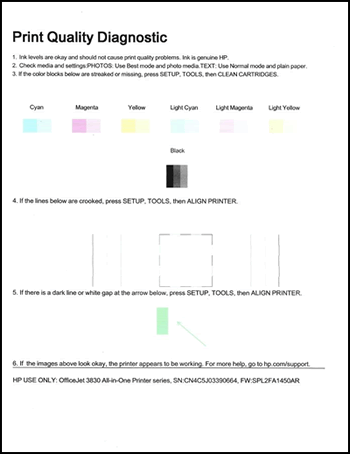
    The printer prints a Print Quality Diagnostic report.

    Image: Example of the Print Quality Diagnostic report

  4. Examine the print quality on the Print Quality Diagnostic report.

  5. If the print quality is unacceptable, click Yes when prompted to perform the next level of cleaning.

Let me know if this helps.


If the information I've provided was helpful, give us some reinforcement by clicking the Accepted Solution and Kudos buttons, that'll help us and others see that we've got the answers!


Thanks!

Have a great day!


I am an HP Employee

† The opinions expressed above are the personal opinions of the authors, not of HP. By using this site, you accept the <a href="https://www8.hp.com/us/en/terms-of-use.html" class="udrlinesmall">Terms of Use</a> and <a href="/t5/custom/page/page-id/hp.rulespage" class="udrlinesmall"> Rules of Participation</a>.